
Layout Component in HFSS 3D Process Flow
The layout component can be imported to HFSS 3D from an .aedbcomp file, Project aedb folder, or EDB definition to an HFSS 3D design with terminal solution type.
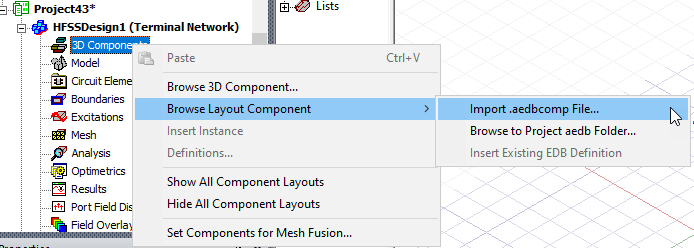
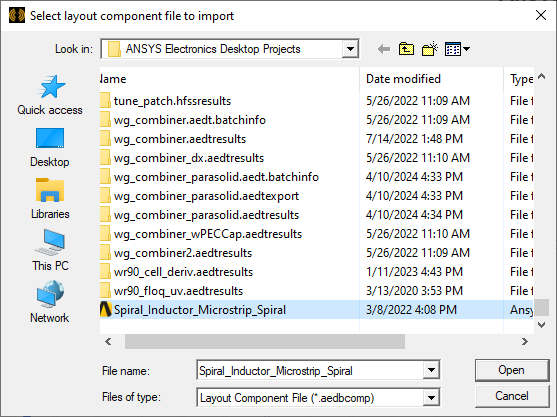
Import .aedbcomp File… opens a browser window allowing you to select an .aedbcomp file.
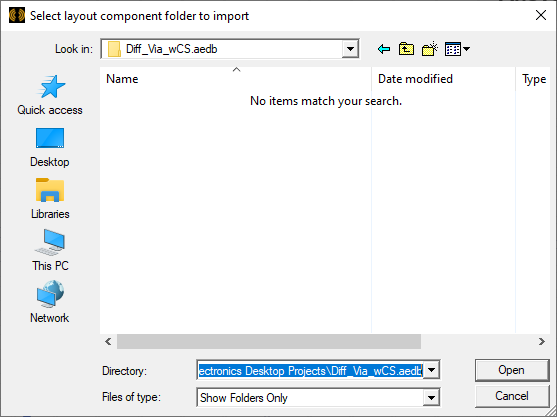
Browse to Project aedb Folder… opens a browse window allowing you to select an .aedb folder. Usually the *.aedb folder to import layout component should be a separate location that is independent of the target Ansys Electronics Desktop project file location. As the *.aedb is the location to store layout component data, this component may come from any where. If you attempt to import an encrypted component from the hierarchy of the current project, you will receive an error message. An encrypted component will not be in the first .aedb folder, but the one of the next two subfolders.
Insert Existing EDB Definition shows a list of existing EDB definitions available within the project.

Selecting an .aedbcomp file, .aedb folder, or an existing EDB definition opens an import layout Component dialog.
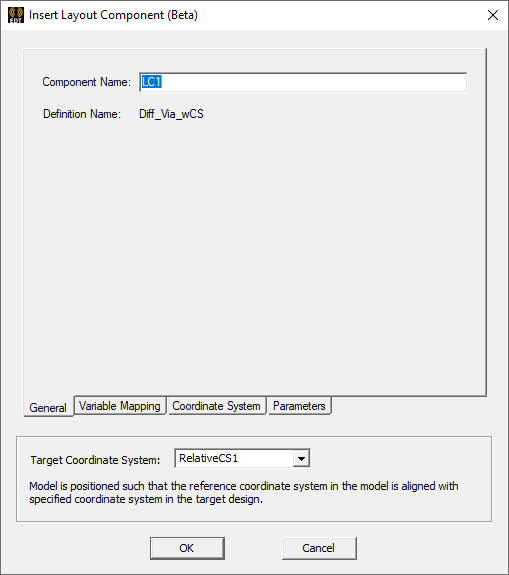
The General tab page allows you to specify a Target Coordinate system. If you have defined multiple coordinate systems, you can select from the drop down men.
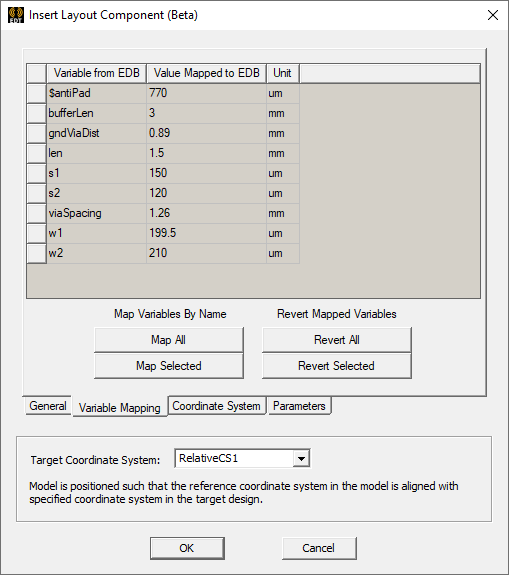
The Variable Mapping tab allows you do map any defined variables from the EDB to the instance being created.
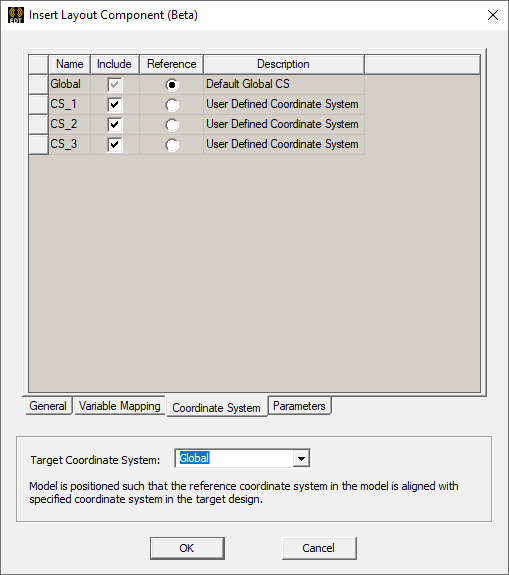
The Coordinate System tab allows you to consider descriptions for CS systems to include and reference.
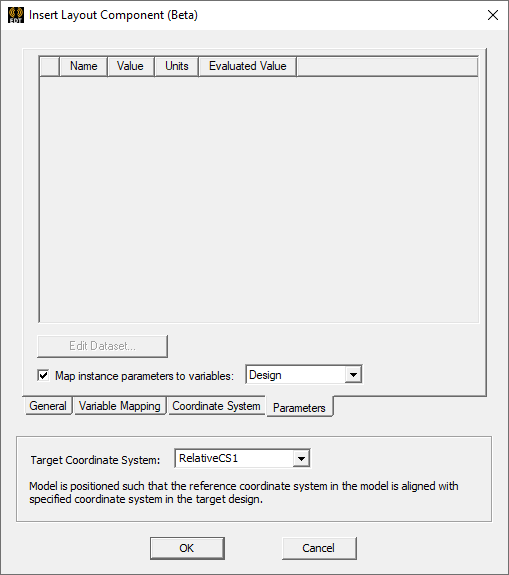
The Parameters tab allows you to select and edit any existing layout component parameters and map them to any existing Design or Project variables.
Layout Component in HFSS supports relative CS placement, move, rotate, etc. Once imported, its ports will be created in the project tree The bounding box and ports have actual HFSS 3D geometry while others are not selectable and are only for visualization.
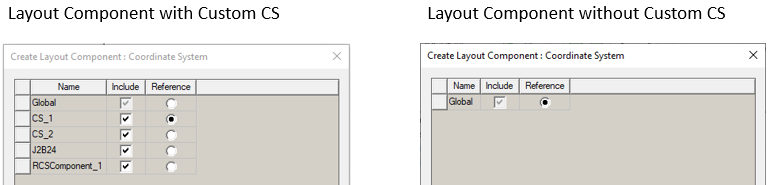
Because you can use custom coordinate systems defined in original Layout design to simplify placement in HFSS, you should consider creating them in Layout for this purpose. All coordinate systems of the selected component are extracted from the 3D Layout design and displayed in the page. The global CS is always displayed. You can select one or more CS in the “Include” column to import them to the HFSS design. The global CS and the CS that is selected as the reference CS are always included. Once a CS is selected in the “Include” column, each component instance of that definition will create such CS in its modeler tree, which is shown below.
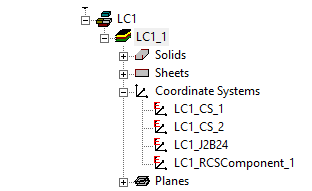
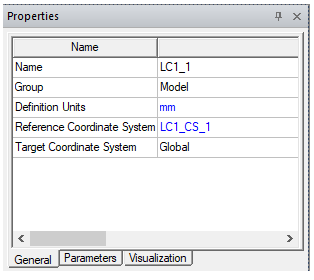
You can also select one CS from the table to be the reference CS by using the “Reference” column. By default, the CS closest to the center of the layout component is marked as the reference. Once the layout component creation/Editing is finished, the selected CS is displayed in the component’s general property window.
The Layout Component in HFSS 3D Process Flow section provides an example use of this feature.
When you have added a Layout Component instance, it appears in the Project tree, the History Tree, and the Model window.
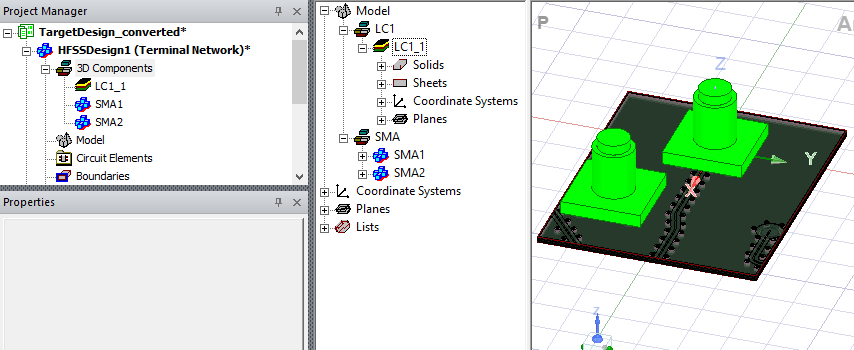
Selecting the component highlights it in the Model window, and displays its Properties window.
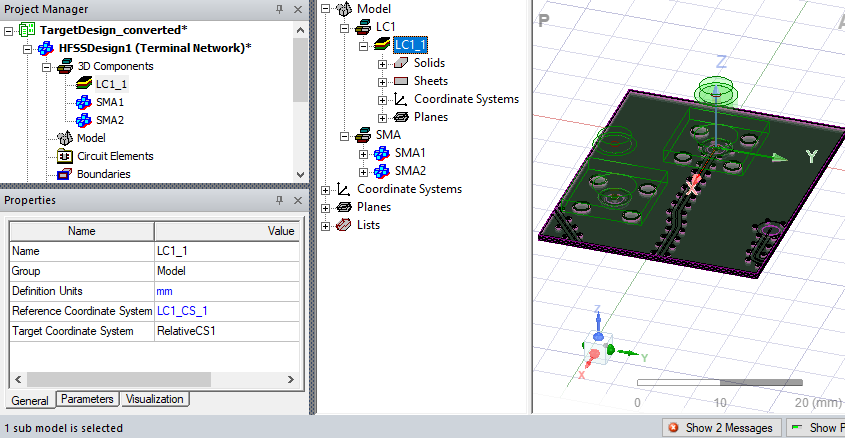
The Properties window includes General tab, Parameters tab where you can edit instance values for variables you have created, and Visualization.
Related Topics
Visualization for Layout Components in HFSS 3D
Visualization for RLC Boundaries and Component Groups Designated as Circuit Elements
Show Nets for Layout Components in HFSS 3D Geometries
Replacing or Editing Layout Components