
Creating PCBs
The Ansys Electronics Desktop uses a tabbed for the creation of a PCB component, including tabs to input General, Geometry, Property, Metal Fraction, and Parameters information. To create components using a wizard interface, access the Icepak>Thermal options in the Options dialog (Tools>Options>General Options) and select Use Wizards for data input when creating new boundaries.
Create a PCB by right-clicking on 3D Components in the Project Manager and selecting Create > PCB. Then set up a link with an existing HFSS 3D Layout design and defining additional Icepak properties.
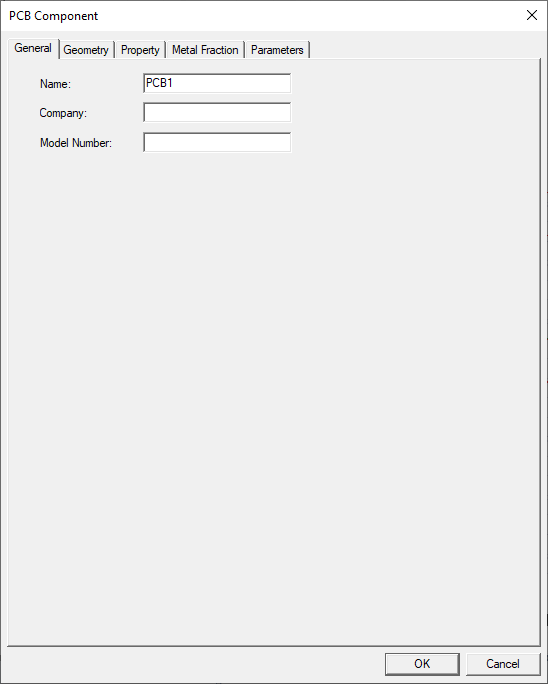
The PCB Component dialog box General tab contains the following general information for the selected object.
|
Name |
The Name of the object appears in the Project Manager window and 3D Modeler window. |
| Company | Company specifies the manufacturer of the PCB. |
| Model Number | Model Number specifies the model number of the PCB. |
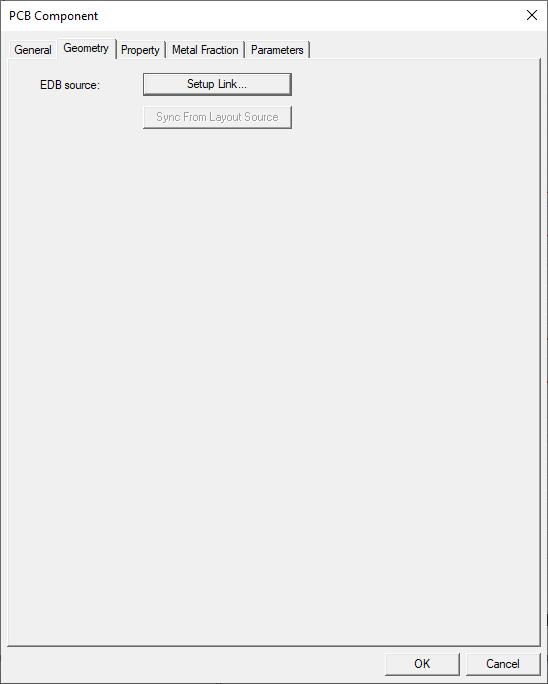
The PCB Component dialog box Geometry tab contains the following settings that define the shape of the PCB:
|
EDB source |
Click Setup Link to open the Setup Link dialog box to specify a source 3D Layout design for the PCB geometry. |
| Sync Geometry From Source | Click Sync Geometry From Source to refresh the Icepak PCB component after making revisions to the source 3D Layout design. |
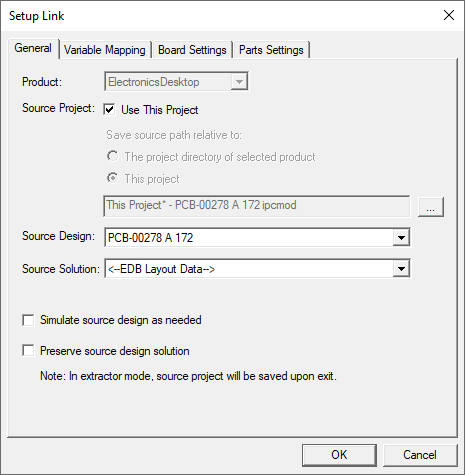
The Setup Link dialog box General tab contains the following settings that define the source project, design, and solution of the source 3D Layout design:
| General Tab | |
| Product | Product specifies the product in which you created the source design. |
| Source Project | Source Project specifies the project that has the source design. Select Use This Project to pick a design from the current working project. |
| Save source path relative to: | The option The project directory of selected product points to the default project directory location relative to the product that you selected from the drop-down menu. This is the same project directory that you set on the General Options dialog under Tools> Options. This option is useful especially, when you link across different products. The option This project points to the directory relative to where your current working project is located. |
| Source Design | Source Design specifies the source 3D Layout design. The Source Design drop-down menu lists all the designs in the specified Source Project. |
| Source Solution | Source Solution specifies the setup type from the Source Solution pull-down menu. |
| Simulate source design as needed | Select Simulate source design as needed if you modify the source design and you want an updated source design solution to be linked to the target design. If you select this option, make sure that you invalidate the cached link data in the target. To do this, right-click Analysis and select the option Clear Linked Data from the short-cut menu. |
| Preserve source design solution | Preserve source design solution is the last option on the Setup Link dialog box. When the source design is closed or it is not included in the project manager window containing the target design, the source design will not be saved. |
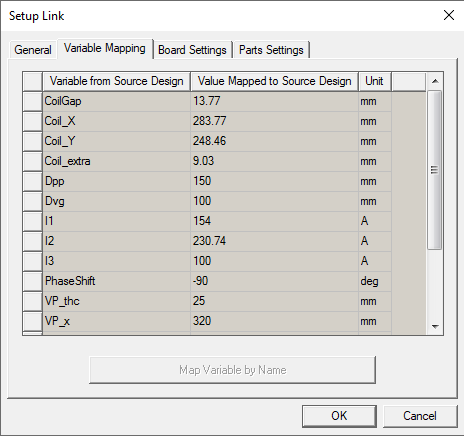
The Setup Link dialog box Variable Mapping tab contains variable information of the source 3D Layout design:
| Variable Mapping Tab | |
| Variable from Source Design | Variable from Source Design displays the name of variables from the selected source design. |
| Value Mapped to Source Design | Value Mapped to Source Design displays the value assigned to the variable. |
| Unit | Unit displays the unit of the variable. |
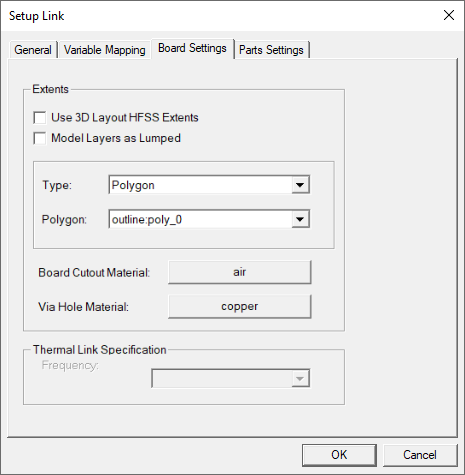
The Setup Link dialog box Board Settings tab contains the following PCB settings:
| Board Settings Tab: Extents | |
| Use 3D Layout HFSS Extents | Use 3D Layout HFSS Extents uses the source design's geometry to define the PCB geometry. |
| Model Layers as Lumped | Model Layers as Lumped creates a single piece of geometry to represent all PCB layers. While the thermal conductivity will vary across the surface of the PCB, it will be averaged and remain constant in the thickness direction. |
| Type | When Use 3D Layout HFSS Extents is disabled, Type specifies whether the geometry is displayed a Bounding Box, Polygon, or SIwave per layer outline. For Polygon types, cutouts in the PCB are assigned a fluid material (for example, air). SIwave per layer outline creates polygonal geometry for each PCB layer. When Model Layers as Lumped is enabled, SIwave per layer outline is not available. |
|
Note: When linking a PCB to a DC IR SIwave setup in the source design, for Type:
|
|
| Polygon | When Polygon is selected for Type, Polygon specifies the number of sides the PCB geometry has. |
| Board Cutout Material | Board Cutout Material specifies the material assigned to the board cutout geometry, if it exists. Board cutout geometry exists if Extents is selected for Polygon, and that polygon contains void polygon(s). The cutout geometries are created from those void polygon(s). The default board cutout material is that of the global mesh region if present in the model. Otherwise, the default board cutout material is set to air-solid. |
|
Via Hole Material |
Via Hole Material specifies the material assigned to the via holes. The default material is set to copper. |
| Thermal Link Specification | |
| Frequency | Frequency specifies the frequency of the PCB. |
The Setup Link dialog box Parts Settings tab can be used to import device parts or package parts:
- Device Parts: Import component devices present on the PCB along with their thermal properties.
Note: If SIwave per layer outline is enabled, devices on all layers of the stackup of the source design are imported. Otherwise, only devices on the top and bottom layers are imported.
- Package Parts: Import package components like the solderballs and solderbumps defined on the PCB substrate.
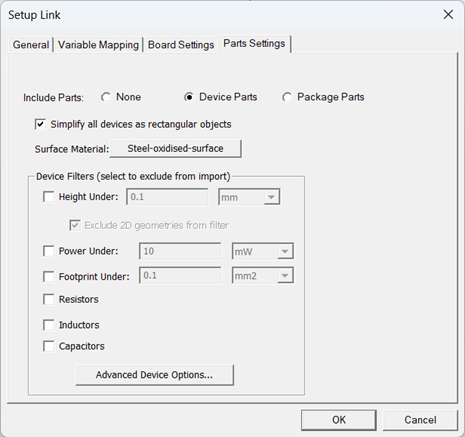
| Include Electrical/Mechanical Parts | Include Electrical/Mechanical Parts specifies that the electrical and mechanical devices in the source design are imported. Select Simplify all devices as rectangular objects to import the devices as simple rectangular geometry. |
|
Surface Material |
Click the surface material button to open the Select Definition dialog box and select a surface material to assign to the devices. |
| Device Filters | |
| Height Under | Height Under specifies the minimum size of the components to be imported. |
| Power Under | Power Under specifies the minimum power of the components to be imported. |
|
Footprint Under |
Footprint Under specifies the minimum footprint of the components to be imported. |
| Resistors | Resistors specifies that resistors are not imported. |
| Inductors | Inductors specifies that inductors are not imported. |
| Capacitors | Capacitors specifies that capacitors are not imported. |
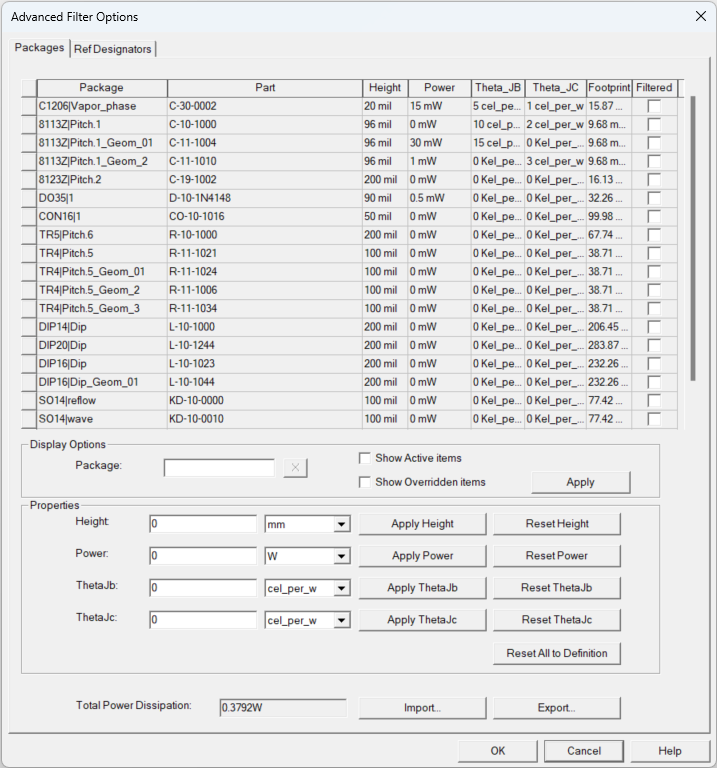
| Advanced Filter Options | Click Advanced Filter Options to edit the thermal properties of devices and enable advanced filtering options. Note: Expressions and variables are not supported for parameters specified in the Advanced Filter vOptions dialog box. |
To edit layer properties, access the Edit Layers window from the Properties window in the HFSS 3D Layout design.
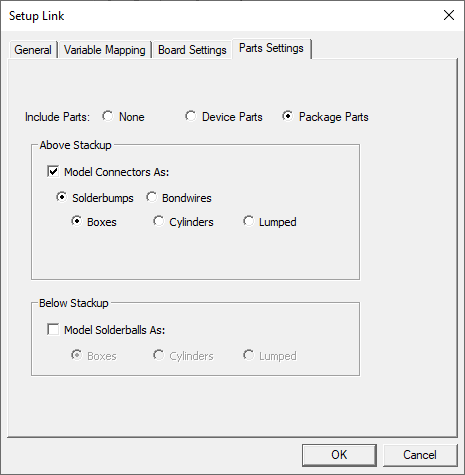
| Above Stackup | |
| Model Connectors As | Model As specifies whether the connectors located above the stackup are modeled as solderbumps or bondwires. For Solderbumps, select whether the solderballs are modeled as box, cylinder, or lumped geometry. For Bondwires, select the Bondwire Material and specify the Wire Diameter. |
| Below Stackup | |
| Model As | Model As specifies whether the solderballs located below the stackup are modeled as box, cylinder, or lumped geometry. |
To edit solderbump and solderball properties, use the Component Model window in the HFSS 3D Layout design.
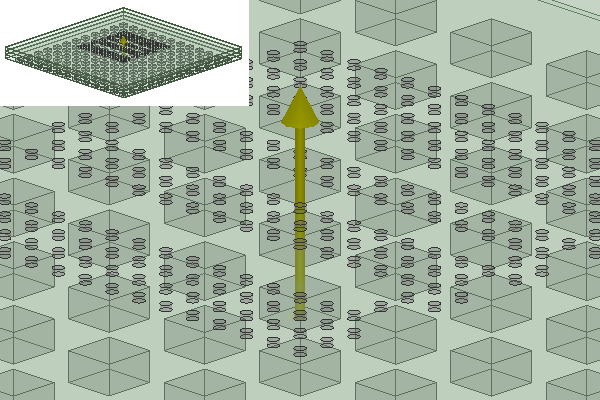
In the following example, the solderbumps are modeled as cylinders and the solderballs as boxes.
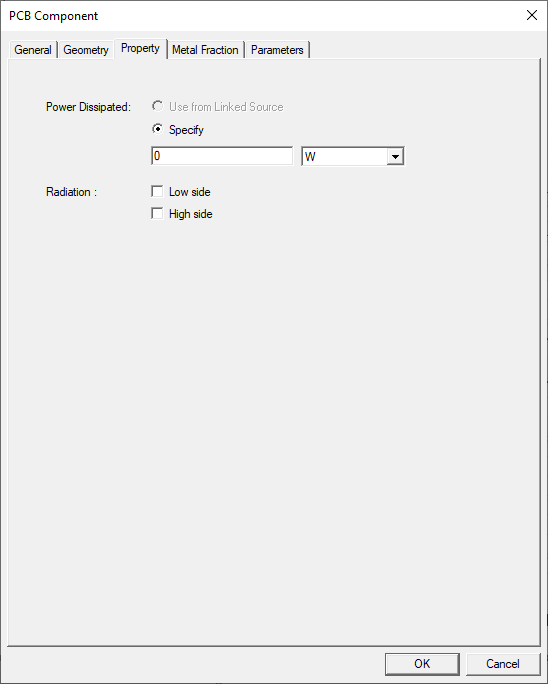
The PCB Component dialog box Property tab contains the following settings that define the thermal properties of the PCB:
| Power Dissipated | Power Dissipated specifies the total power dissipated by the PCB. If the source HFSS 3D Layout design was solved using HFSS 3D Layout and consists of EM losses, you can select Use from Linked Design, or you can select Specify and enter a uniformly dissipated total power. |
| Radiation | Select Low side and/or High side to specify different physical characteristics for each side of the PCB. |
If you select Low side and/or High side, the Low Side and/or High Side tabs contains the following thermal information.
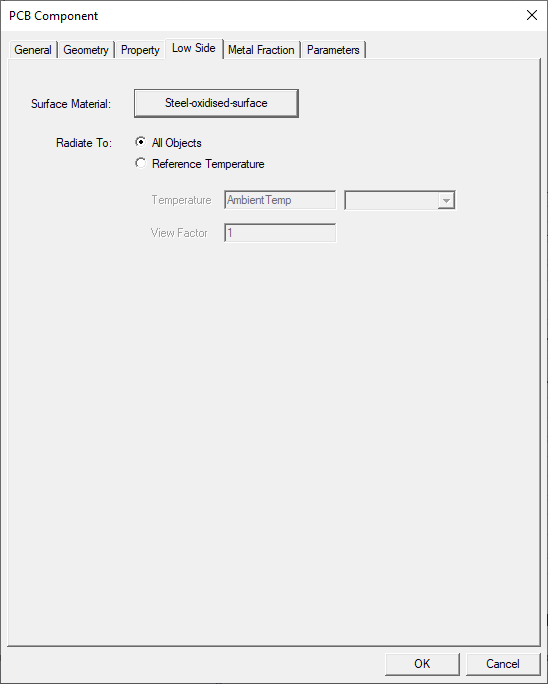
| Surface Material | Surface Material specifies the material type for the side of the plate using the Select Definition dialog box. |
| Radiate To | Select All Objects or Reference Temperature. All Objects specifies that the object or surface exchanges radiation with all other objects and surfaces also specified as subject to radiation with heat transfer. Reference temperature specifies a fixed temperature to which the selected sides of the object radiate heat. Enter a Temperature and View factor, which is the proportion of radiation that leaves the plate and contacts surrounding objects. The default view factor is 1.0 and the value of the ambient temperature is the Temperature specified in the Icepak Design Settings dialog box. |
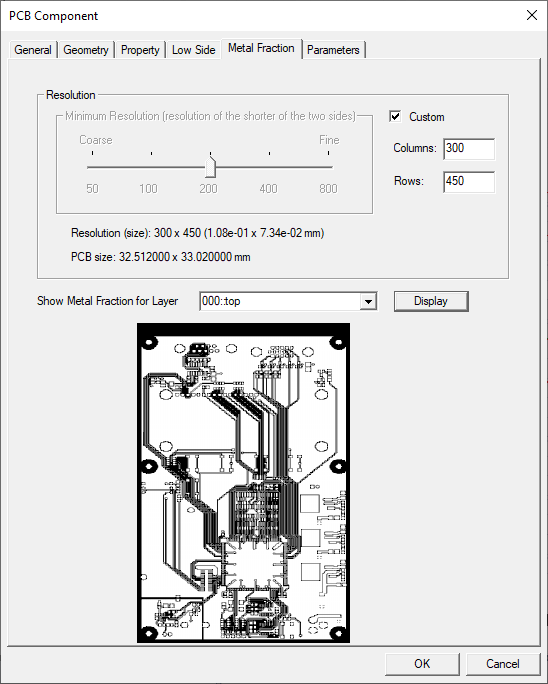
The PCB Component dialog box Metal Fraction contains the following settings for defining the PCB grid resolution and previewing the metal fraction information of each layer of the PCB.
| Resolution | The Resolution slider bar defines the resolution of the smaller of the width and height of the PCB outline. The resolution on the larger side is derived proportionally. |
| Custom | The Custom check box allows you to specify the resolution by the number of Columns and Rows. See PCB Grid Resolution for more information. |
| Show Metal Fraction for Layer | The Show Metal Fraction for Layer drop-down menu displays all of available layers of the PCB. Select a layer and click Display to show an image of the metal fraction for the selected layer and resolution. |
PCB Grid Resolution
The grid resolution that is used to create the thermal conductivity distribution of the board can be customized. Depending on the trace resolution and the computational costs desired, you can change the values for the columns and rows to receive optimum results. The size of the grid is in parentheses next to the column and row count.
The following points outline best practices for balancing accuracy and cost of computing the cell by cell orthotropic thermal conductivity:
-
For board-level simulations, enter column and row counts that yield at most a grid size equal to the minimum trace width or minimum via diameter. If possible, use column and row counts that yield a grid size equal to half the minimum trace width or half the minimum via diameter.
-
For system-level simulations, enter column and row counts to yield at most a grid size that equals four to eight times the minimum trace width or minimum via diameter.
-
For all models, the CFD mesh on the board should equal four to eight times the grid size.
-
Column and row counts or CFD meshes that significantly deviate from the above guidelines can adversely affect accuracy.
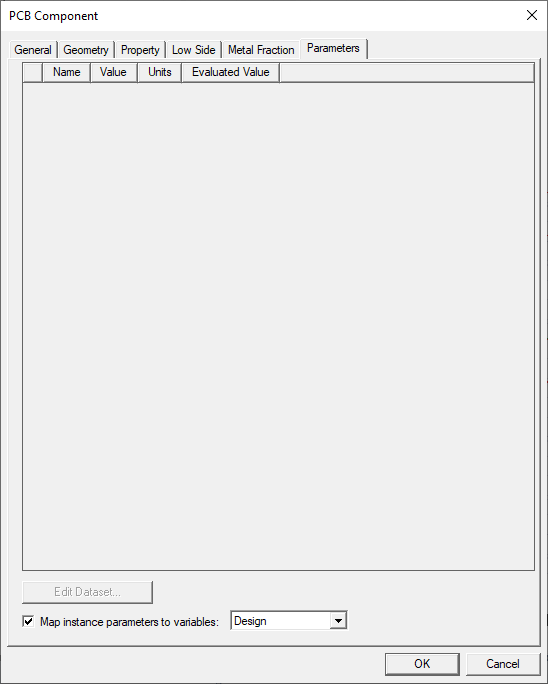
The PCB Component dialog box Parameters tab contains the following information about the component variables defined for the object.
| Name | The Name of the variable is displayed in the Properties window and Properties dialog box when the component is selected. |
| Value | The Value is used in the analysis. |
| Units | Units is the unit of measure for the parameter. |
| Edit Dataset | Click Edit Dataset to input dataset values for the variable. |
| Map instance parameters to variables | Enable Map instance parameters to variables and select either Design or Project to map the component variable to a design or project variable. |
Creating a PCB
- In the Project Manager, right-click 3D Components and select Create > PCB.
- On the PCB Component dialog box General tab, enter following information:
- Name
- Company (if known)
- Model Number (if known)
- Click the Geometry tab and then click Setup Link.
- On the Setup Link dialog box General tab, select Edit Link radio button and do the following:
- Select a Product.
- Select Use This Project. Note:
Currently, only links between designs within the same project are supported. Use This Project is enabled by default.
- Select a Source Design.
- Select a Source Solution.
- On the Variable Mapping tab, verify the variable settings and edit them if needed.
- On the Board Settings tab, do the following:
- Under Extents, enable Use 3D Layout HFSS Extents or select a Type and, if needed, Polygon.
- Under Thermal Link Specification, select a Frequency.
- On the Part Settings tab, if importing device or package parts,
select Device Parts or Package Parts.
- Device Parts: If importing electrical and/or mechanical devices, select Include Electrical/Mechanical Parts and, if needed, Simplify all devices as rectangular objects. Under Device Filters, enable the desired filters to be applied during import.
- Package Parts (Above Stackup): If modeling solderbumps or bondwires, enable Model Connectors As and select Solderbumps or Bondwires. For solderbumps, select the desired type of geometry. For bondwires, select the Bondwire Material and specify the Wire Diameter.
- Package Parts (Below Stackup): If modeling solderballs, enable Model Solderballs As and select the desired type of geometry.Note:
Only bondwires that are part of a component group in 3D Layout are supported.
- Click OK to close the Setup Link dialog box.
- On the PCB Component dialog box Property tab, do the following:
- Select a Power Dissipated option.
- If needed, select to specify Low side and/or High side thermal properties.
- If you selected either Low side or High side, do the following on the Low side and/or High side tabs:
- Click the button next to Surface Material to open the Select Definition dialog box. On the Materials tab, select the material for the side of the plate and click OK
- For Radiate To, click All Objects or Reference Temperature. If you selected Reference Temperature, enter a Temperature and View Factor.
- On the Metal Fraction dialog box, do the following:
- Use the Minimum Resolution slider bar to set the minimum resolution for the calculation of metal fractions.Note:
You can select Custom and enter the number of columns and rows for a custom grid resolution. See PCB Grid Resolution for more guidance on custom grid resolution.
- Select a layer from the Show Metal Fraction for Layer drop-down menu and click Display to show a preview image of the selected layer's metal fractions. Repeat this step for the desired layers of the PCB.
- Use the Minimum Resolution slider bar to set the minimum resolution for the calculation of metal fractions.
- If you defined any component variables, click the Parameters tab to review the variable(s).
- If needed, select Map instance parameters to variables and select an option from the drop-down list.
- Click OK.

|
Click here for scripting information related to this feature. |