Defining Native Component Instance Parameters
While creating or editing a native component, you can expose component properties as instance parameters of the component. To do this, define component variables in the native component creation dialog box. The component variables created in the native component creation dialog remain internal to the component and are visible as instance parameters in the Properties window when the component instance is selected in the Project Manager or the history tree. Once a component instance is created, you can assign design or project variables to instance parameters to perform optimetrics, animations, plots, etc.
While inserting a native component for the first time, an option (Map instance parameters to variables) is provided to automatically create design or project variables and assign them to instance parameters.
Define an Instance Parameter
The following is a general procedure to define an instance parameter. In this example, a fan component is created with an instance parameter assigned to the radius.
- In the Project Manager, right-click 3D Components and select Create > Fan.
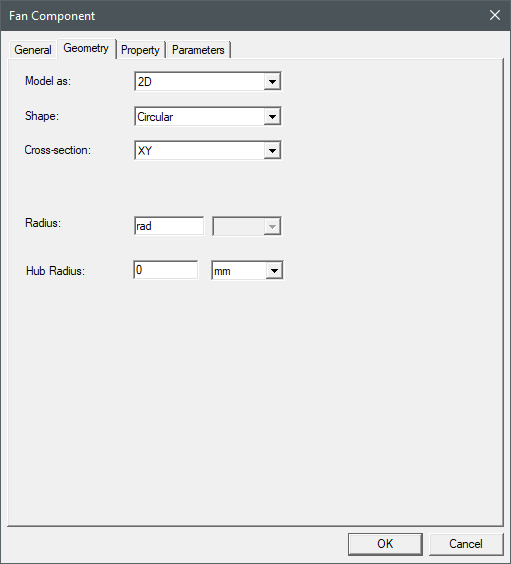
- On Geometry tab, enter rad in the Radius field and press Enter.
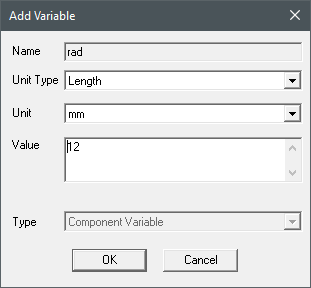
- In the Add Variable dialog box, enter 12 for the Value and click OK.
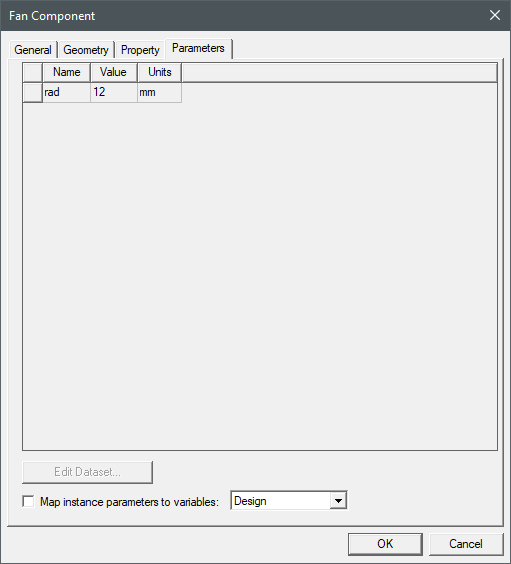
- On the Parameters tab, note the parameter and definition are displayed. The Value can be edited on the parameter tab before creating the component.
- Deselect the Map instance parameters to variables check box and click OK to create the fan.
- In the Properties window, select the Parameters tab to view the instance parameter you created. You can edit the Value of a parameter by double-clicking it.
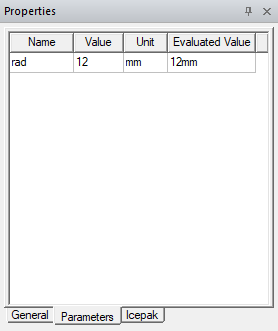
Map an Instance Parameter to a Project or Design Variable
The following is a general procedure to create an instance parameter and map it to a project or design variable. In this example, a fan component is created with a design variable assigned to the instance parameter created for the radius.
- In the Project Manager, right-click 3D Components and select Create > Fan.
- On Geometry tab, enter rad in the Radius field and press Enter.
- In the Add Variable dialog box, click OK.
If a design variable with the same name exists, its value will be assigned to the instance parameter.
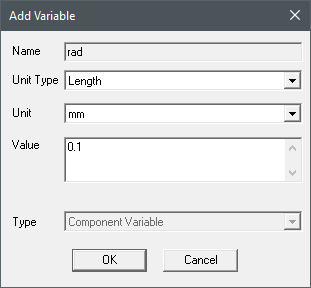
- On the Parameters tab, note the component variable and definition are displayed. The Value can be edited on the parameter tab before creating the component.
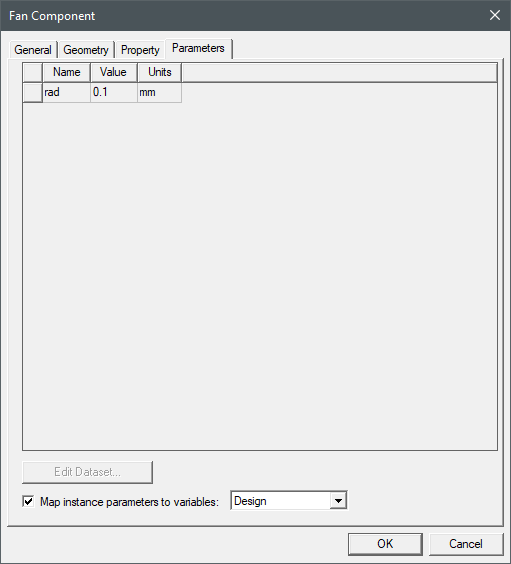
- Retain the default values and click OK to create the fan.
- In the Properties window, select the Parameters tab to view the instance parameter you created. Note that the design variable of the same name is assigned in the Value column. You can use design and project variables in optimetrics, animations, plots, etc.
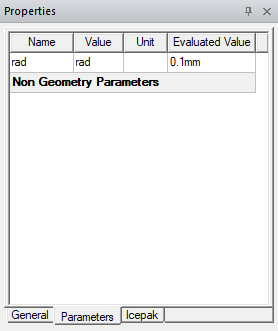 Note: To edit the value of a design variable, select Design Properties from the Icepak menu. To edit the value of a project variable, select Project Variables from the Project menu.
Using an Instance Parameter in an Expression
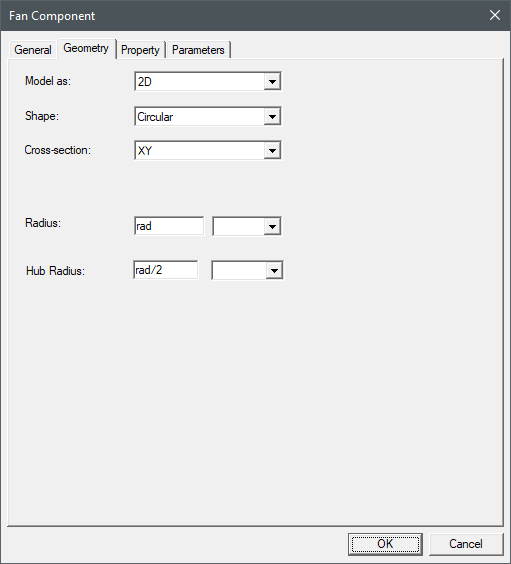
You can use expressions to control multiple properties using a single instance parameter. For example, if you create an instance parameter for a fan Radius (rad) and the Hub Radius is half the Radius, you can enter rad/2 as in the following image.