
Creating Fans
The Ansys Electronics Desktop uses a tabbed for the creation of a fan component, including tabs to input General, Geometry, Properties, and Parameters information. To create components using a wizard interface, access the Icepak>Thermal options in the Options dialog (Tools>Options>General Options) and select Use Wizards for data input when creating new boundaries.
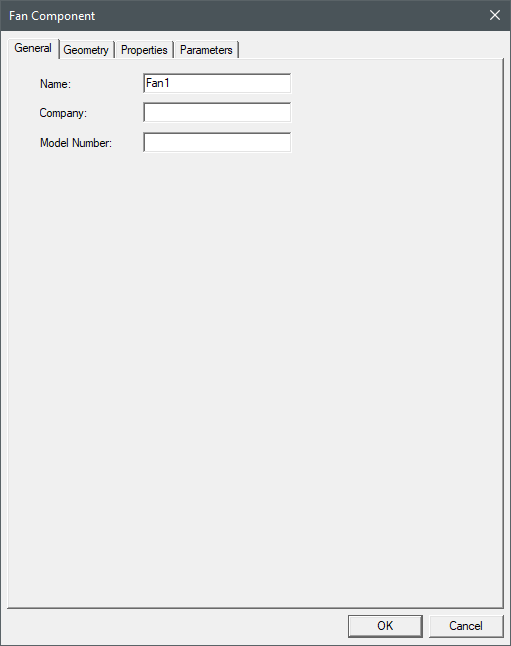
The Fan Component dialog box General tab contains the following general information for the selected object.
|
Name |
The Name of the object appears in the Project Manager window and 3D Modeler window. |
| Company | Company specifies the manufacturer of the fan. |
| Model Number | Model Number specifies the model number of the fan. |
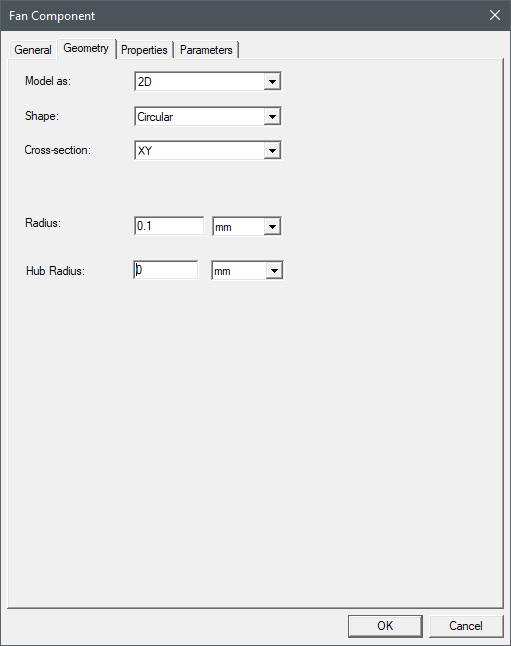
The Fan Component dialog box Geometry tab contains the following settings that define the shape and location of the fan:
|
Model as |
Model as specifies whether the fan is two-dimensional or three-dimensional. |
| Shape | Shape specifies the shape of the fan (circular, rectangular, or polygon). Polygon fans can only be modeled as 2D fans. |
| Cross-section | Cross-section specifies the plane on which the fan is placed (XY, YZ, or ZX). |
| Circular | |
| Radius | Radius specifies the length of the radius of the fan. |
| Hub Radius | Hub radius specifies the length of the radius of the fan hub. |
| Rectangular | |
| Fan Dimensions | Fan Dimensions specifies the length and width of the fan. |
| Hub Dimensions | Hub Dimensions specifies the length and width of the fan hub. |
| Polygon | |
| Radius | Radius specifies the length of the radius of the fan. |
| Num of Edges | Num of Edges specifies the number of sides of the fan. |
| Case (3D Fans) | |
| Side | Side specifies the direction the fan's case extends. |
| Height | Height specifies the height of the fan's case. |
| Size (Circular only) | Size specifies the size of the circular fan's case. |
| Length (Rectangular only) | Length specifies the length of the rectangular fan's case. |
| Width (Rectangular only) | Width specifies the width of the rectangular fan's case. |
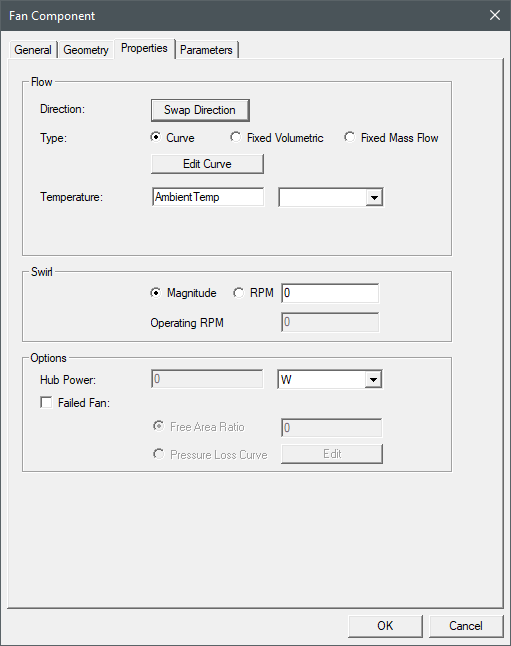
The Fan Component dialog box Property tab contains the following settings that define the thermal properties of the fan:
| Flow | |
| Direction | Click Swap Direction to change the direction of the flow created by the fan. |
| Type: Curve | Curve specifies that the fan creates a flow based on a specified flow curve. Click Edit Curve to open the Edit Dataset dialog box and enter Volume Flow and Pressure data to create the flow curve. See Adding Datasets for more information. |
|
Note: Icepak supports a maximum of 50 volume flow and pressure pairs. |
|
| Type: Fixed Volumetric | Fixed Volumetric specifies that the fan creates a fixed flow and requires a input for the volume flow rate. |
| Type: Fixed Mass Flow | Fixed Mass Flow specifies that the fan creates a fixed flow and requires a input for the mass flow rate. |
| Temperature | Temperature specifies the temperature of the fluid being drawn into the model. |
| Transient Strength |
Transient Strength is available if the Solution Type is set to Transient. Transient Strength multiplier scales the total pressure of the fan. The total pressure of the fan is the sum of the static pressure (fan curve) and dynamic pressure:
Transient Strength can be defined using a square wave time variation. See Specifying Parameters as a Function of Time for more information. |
| Swirl | |
| Magnitude | Magnitude specifies the magnitude for the swirl of the fan. |
| RPM | RPM specifies the revolutions per minute of the fan. |
| Operating RPM |
Operating RPM specifies a working RPM value that is used in conjunction with the nominal RPM from an existing fan curve to dynamically update the fan curve as follows:
where |
| Options | |
| Hub Power (3D Fans) | Hub Power specifies the amount of energy, in the form of a volumetric heat source, that is absorbed by the hub from the motor. The hub power is an indirect specification of the fan’s efficiency. |
| Failed Fan | Failed Fan specifies whether the fan is operational during the simulation. Enabling this option will causes the fan (or, for a 3D fan, the side of the housing in the same plane as the fan) to act as a grille. To calculate the loss coefficient, select Free Area Ratio and enter a value. To define a piecewise-linear profile for the pressure drop as a function of the speed of the fluid through the failed fan, select Pressure Loss Curve. Then click Edit to open the Edit Dataset dialog box and specify a loss curve as you would for a grille. See Adding Datasets for more information. |
| Materials (3D Fans) | |
| Hub Material | Hub Material specifies the material type for the fan using the Select Definition dialog box. |
| Case Material | Case Material specifies the material type for the external sides of the fan using the Select Definition dialog box. |
| Passage Material | Passage Material specifies the fluid material passing through the fan. By default, the material assigned is that of the global Region. If no global Region exists, the default material assigned is air. |


 is the nominal RPM of the fan curve,
  is the operating RPM,
  is the static pressure from the fan curve,
  is the updated static pressure,
  is the volumetric flow rate from the fan curve, and
  is the updated volumetric flow rate.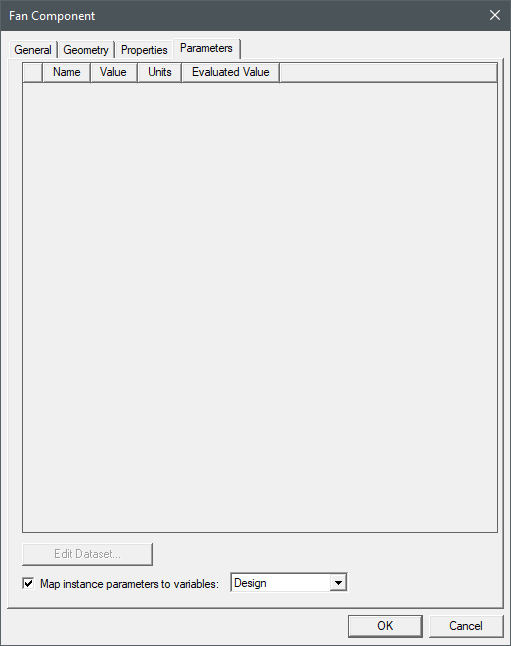
The Fan Component dialog box Parameters tab contains the following information about the component variables defined for the object.
| Name | The Name of the variable is displayed in the Properties window and Properties dialog box when the component is selected. |
| Value | The Value is used in the analysis. |
| Units | Units is the unit of measure for the parameter. |
| Edit Dataset | Click Edit Dataset to input dataset values for the variable. |
| Map instance parameters to variables | Enable Map instance parameters to variables and select either Design or Project to map the component variable to a design or project variable. |
Creating a Fan
- In the Project Manager, right-click 3D Components and select Create >Fan.
- On the Fan Component dialog box General tab, enter following information:
- Name
- Company (if known)
- Model Number (if known)
- Click the Geometry tab.
- From the Model as drop-down menu, select 2D or 3D to model the fan as a two- or three-dimensional component.
- From the Shape drop-down menu, select of the following:
- Circular
- Rectangular
- Polygon (2D only)
- From the Cross-section drop-down menu, select the plane on which to place the fan.
- Enter size information:
- For 2D and 3D Circular fans, enter Radius and Hub Radius.
- For 2D and 3D Rectangular fans, enter Fan Dimensions and Hub Dimensions.
- For 2D Polygon fans, enter Radius and Num of Edges.
- For 3D fans, enter the following information under Case:
- Side
- Height
- Size (circular fans only)
- Length (rectangular fans only)
- Width (rectangular fans only)
- Click the Property tab.
- Under Flow , do the following:
- If needed, click Swap Direction.
- Select a Type option and enter the flow curve data, volume flow rate, or mass flow rate.
- Enter a Temperature.
- Under Swirl, select Magnitude or RPM and enter the value.
- Enter an Operating RPM.
- Under Options, do the following:
- For 3D fans, specify a Hub Power.
- If needed, enable Failed Fan and select Free Area Ratio or Pressure Loss Curve.
- If you defined any component variables, click the Parameters tab to review the variable(s).
- If needed, select Map instance parameters to variables and select an option from the drop-down list.
- Click OK.