Working with the Measure Window
Use the Measure window to measure the position, length, and area of elements in an HFSS 3D Layout design.
Refer to the steps below to use the Measure window toolset. Users will not be able to gather measurement data from encrypted components. Certain parameters of encrypted technologies will also be obfuscated.
Accessing Measure mode and Viewing Measured Data
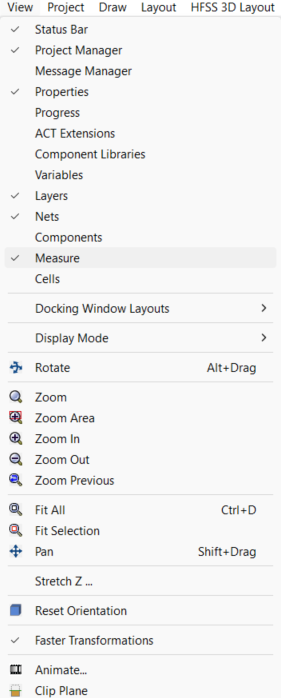
To show or hide the Measure window, click View > Measure. A check box appears next to Measure if the Measure window is visible.
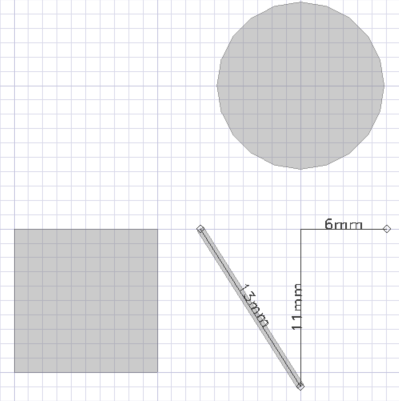
Measure mode allows users to select any two grid points in the Layout Editor to define as a segment and display the linear distance between them (i.e., the grid points become end points). The subsequent measurements are displayed beside the segment.

Users can add more grid points to define multiple segments. The distance between each point is measured separately. The individual measurements are displayed beside each segment in the Layout Editor.
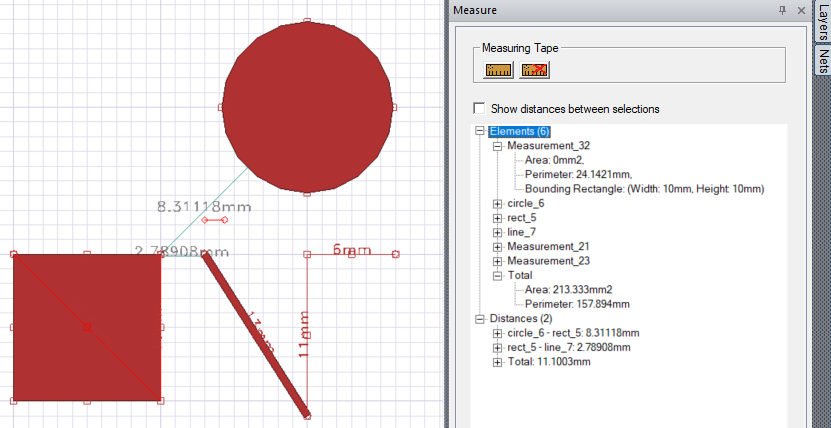
Highlighted (i.e., selected) measurements are also displayed in a parameter tree in the Measure window, separated by Element(s) and measured Distance(s), and then by individual measurement. Each measurement is described by a combination of area, perimeter, and length, and any bounding device by width and height.
Selecting measurements also populates the Properties window with the following parameters:
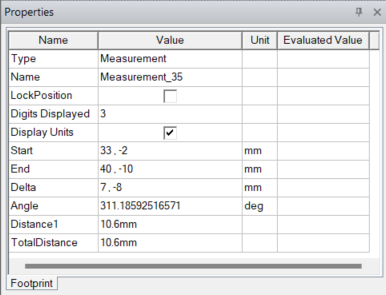
- Type — designates the types of values shown (i.e., Measurement(s))
- Name — identifies the specific measured element or segment (e.g., Measurement_35 )
- LockPosition — check the box to activate Position Locking (unchecked by default)
- Digits Displayed — enter a value to set the number of
significant digits displayed (default is 3 significant digits) Note:
Measurement Distance Displays can be configured from the Layout Options window > Object tab.
- Display Units — check the box to display measurement
distances in the Layout Editor (unchecked by default)Note:
Default display units can be configured from can be configured from the General Options window > Default Units tab.
- Start, End, Delta, and Angle — editable position values which display/alter the measured segment in the Layout Editor
- TotalDistance — displays the length of the segment (e.g., 10.6mm)
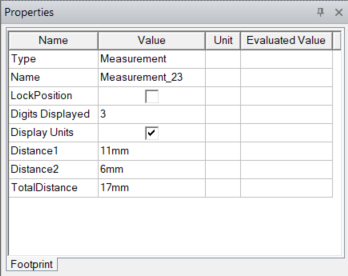
Multi-segment measurements are displayed in the Properties window as separate uneditable parameters (e.g., Distance1, Distance2, Distance3, et cetera).
Using Measure mode
Complete these steps to use Measure mode.
Options displayed in menus differ depending on whether Electronics Desktop is configured for General Mode or IC Mode. Refer to Switching to IC Mode.
-
From the Measuring Tape area, click the Measuring Tape icon.
The cursor automatically changes shape in the Layout Editor when Measure mode is active.
-
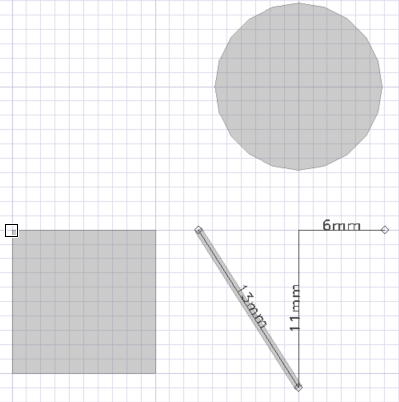
Click twice to select two points in the Layout Editor to define a segment.
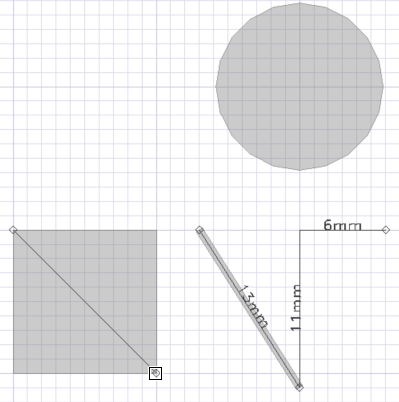
-
Select more points, as appropriate.
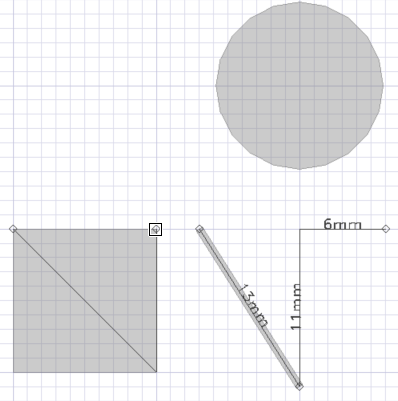
-
To complete the measurement and measure new segments without exiting Measure mode, do one of the following:
-
Double-click the last point to complete the current measurement.
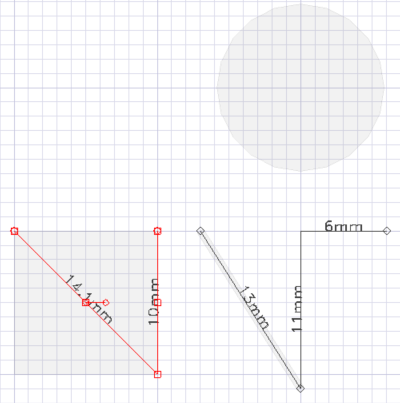
-
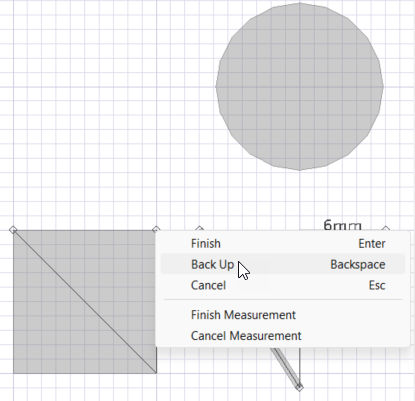
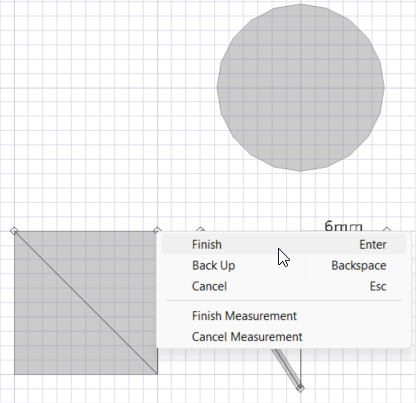
Right-click within the Layout Editor and select Finish Measurement.
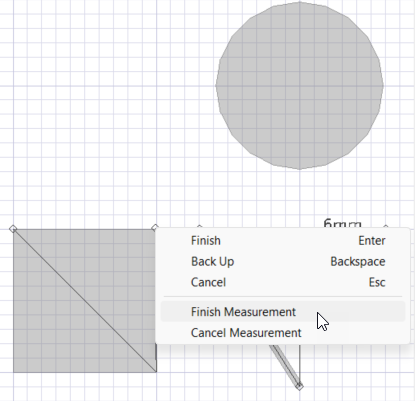
-
To complete the measurement and exit Measure mode, do one of the following:
-
Click Enter to complete the segment(s) and view their measurements.
-
Right-click within the Layout Editor and select Finish.
-
The new segment (or multi-segment) length(s) display in the Layout Editor and the Properties window.
While segment measurements are displayed in the Layout Editor, they can be moved, rotated, or flipped. Measurement handles may be edited, but measurements can not be copied or pasted.
Canceling Measurements
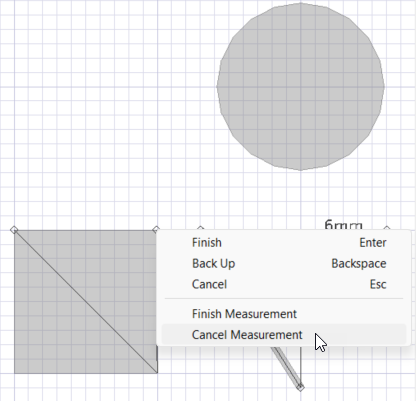
To cancel a measurement without exiting Measure mode, right-click in the Layout Editor and select Cancel Measurement.
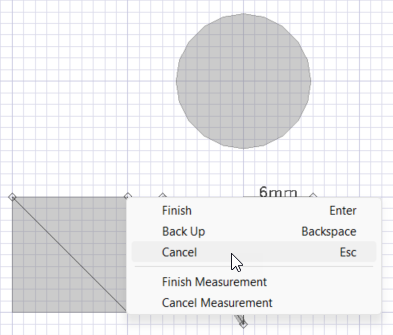
To cancel a measurement and exit Measure mode, right-click in the Layout Editor and select Cancel.
Erasing Measurements
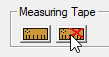
To clear the measurements from the Layout Editor, click the Erase Measurements icon.
Backing Up Measurements
To back up the current measurement, right-click in the Layout Editor and select Back Up.