
When a Layout Editor design is active, click Layout on the menu bar to open the menu for the Layout editor. There are multiple varieties of this menu depending on the type of design being edited (Circuit, HFSS 3D Layout, etc). The following descriptions are a superset of the commands that may appear on the Layout menu, though they may appear in different order on the menu than the order in which they are presented here. For more information, search the Help or use the Help Index to find information on any of the commands that appear on the Layout menu.
List — opens the Design List window, which lists the objects in the layout.
Layers — opens the Edit Layers window. Also see Configuring a Stackup.
Nets — opens the Layout Editor Nets drop-down menu; the same options are available after right-clicking in the Layout Editor.
Push Down — switches the active CS to the next lower level.
Pop Up — switches the active coordinate system (CS) to the next higher level. Relative CSs can be created within other relative CSs to form multiple relative levels.
Place Design — opens the Place Design window.
Connect Pins — connects the selected pins.
Cutout Subdesign — creates a new subdesign from extracted data by cutting out part of a Layout using a selection polygon and/or a net selection. Click subdesign name to rename the new design. The original design is not affected by this operation. See Cutout Subdesign.
Group into Subdesign — creates a subdesign by combining all the selected objects in the current layout. The Project tree shows the subdesign with a default name. Click name to rename the subdesign.
Cross-Probe Schematic — allows you to cross-prob selected schematic and layout elements. When both the Layout Editor and the Schematic Editor are displaying the same design, select one or more component instances and interface ports in both editors. Select the schematic elements or layout elements to be cross-probed, then select Cross-Probe Schematic. For more information, see Cross-Probing Elements and Cross-Probing Selected Elements.
Settings — opens the Settings tab of the Options window to configure the local option settings in the Layout Editor. See Setting Local Layout Options.
Grid settings — opens the Display tab of the Options window. The settings on this window control the grid in the drawing area. See Layout Editor Options: Display Panel.
Draw HFSS Air Box — invokes the HFSS Air Box drawing tool.
Draw HFSS Ports — invokes the HFSS Port drawing tool.
Via Styles — opens the Select Definition window for Padstacks, with the Planar EMvia padstack selected. See Using the Padstack Editor for information on adding or modifying padstack definitions.
Pin Styles — opens the Select Definition window for Padstacks, so that you can add a stackup definition for pins. See Using the Padstack Editor for information on adding or modifying padstack definitions.
Line Styles — opens the Line Styles window that specifies the lines to use on the various layers.
Text Styles — opens the Text Styles window that specifies the fonts to use on the various layers.
Export to Ansys SIwave™ with ALinks — initiates the export of layout data.
Measure — invokes measurement mode. The cursor changes to a small diamond shape. Click on any two grid-points to display the linear distance between the two points in the current units.
Erase Measurements — clears measurement lines.
IC Mode Commands
The following options appear when the IC mode environment is active. For more information, search the Help or use the Help Index to find information on any of the commands that appear on the Layout menu.
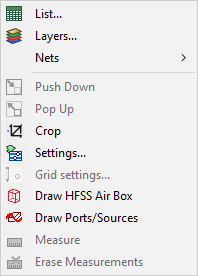
List — opens the Design List window, which lists the objects in the layout.
Layers — opens the Edit Layers window. Also see Configuring a Stackup.
Nets — opens the Layout EditorNets drop-down menu; the same options are available after right-clicking in the Layout Editor.
Push Down — switches the active CS to the next lower level.
Pop Up — switches the active coordinate system (CS) to the next higher level. Relative CSs can be created within other relative CSs to form multiple relative levels.
Crop — enters cropping mode in the Layout Editor. See Cropping and Removing Small Fragments in IC Mode.
Settings — opens the Settings tab of the Options window to configure the local option settings in the Layout Editor. See Setting Local Layout Options.
Grid settings — opens the Display tab of the Options window. The settings on this window control the grid in the drawing area. See Layout Editor Options: Display Panel.
Draw HFSS Air Box — invokes the HFSS Air Box drawing tool.
Draw HFSS Ports — invokes the HFSS Port drawing tool.
Measure — invokes measurement mode. The cursor changes to a small diamond shape. Click on any two grid-points to display the linear distance between the two points in the current units.
Erase Measurements — clears measurement lines.