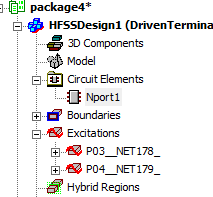
Creating a Multi-Terminal Circuit Element in HFSS
To create a Multi-Terminal model as a circuit element:
- Right click on the Circuit Elements folder and select Create>Multi-Terminal Model....
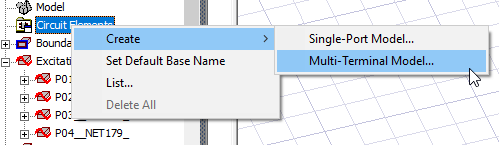
The Create N-port Circuit Element dialog opens.
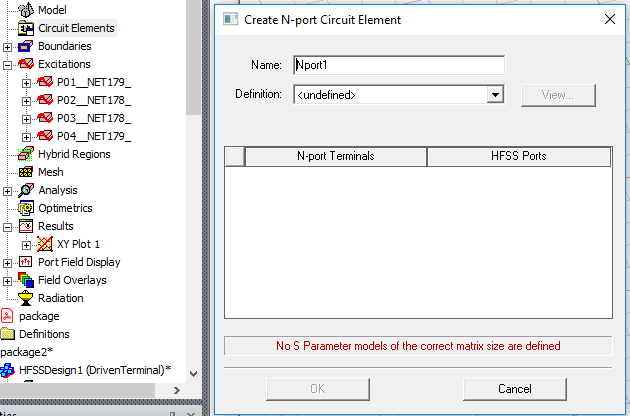
- Select from the Definition pulldown to open a file browser to import a touchstone file containing models of the HFSS ports. The View... button allows you to use Network Data Explorer for the selected Touchstone file.
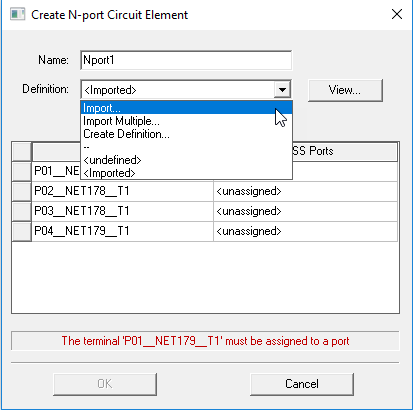
Select Import... to import a Touchstone file that contains solution information for all ports. This first example follows this choice. You could also use Import Multiple... Option (discussed below) if you want have access to multiple Touchstone files Indexed for selectable port definition. You can use Create Definition to create and access libraries of Touchstone files.
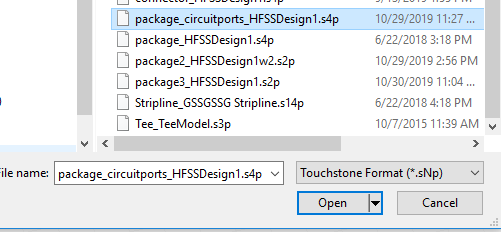
- Select an appropriate Touchstone file in the browser, and OK. You can select additional formats on the Touchstone dropdown menu.
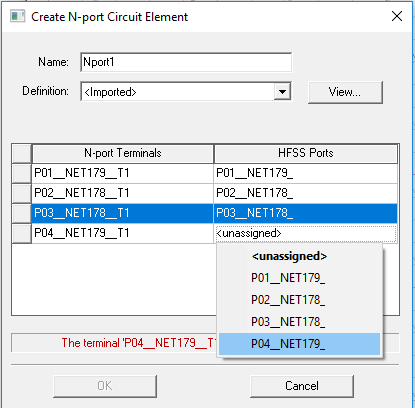
- Use the drop down menu for the HFSS Port rows to make terminal assignments. The View... button allows you to use Network Data Explorer for the selected Touchstone file.
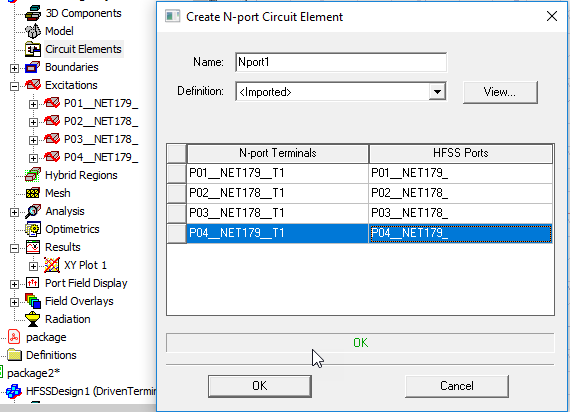
- If you have selected a suitable model and assigned ports correctly, message field will show a green OK. The View... button allows you to use Network Data Explorer for the selected Touchstone file.
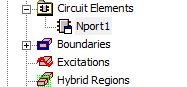
- You can OK the dialog box, and see the Circuit Element listed in the Project tree and the Ports you selected are removed from the Excitations list.
Import Multiple... Option
If you select Import Multiple... in the Create N-port Circuit Element dialog box, the Circuit Element Imported Solutions dialog opens.
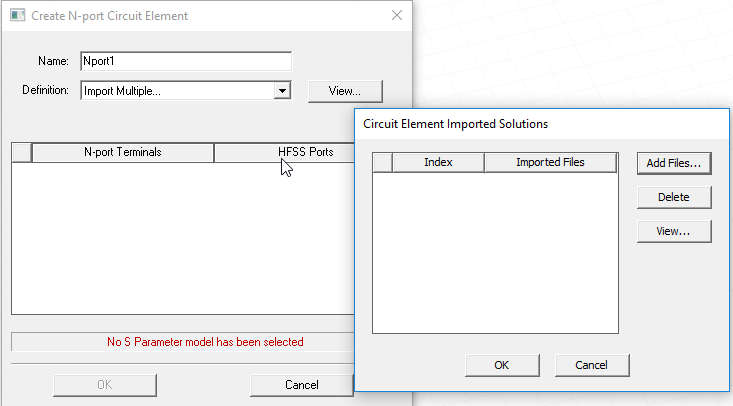
Click Add Files... to open a browser to add suitable Touchstone models. When you have added the models they are listed as Imported Files and you can OK the browser. The View... button opens the selected file in Network Data Explorer. Note: Each file you select has an Index assigned here that you can use to identify which file to use for the Circuit Element.
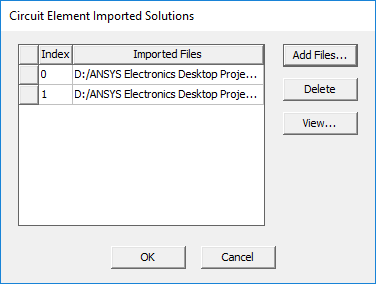
OK to close the dialog box. You then make HFSS Port assignments in the Create N-port Circuit Element dialog.
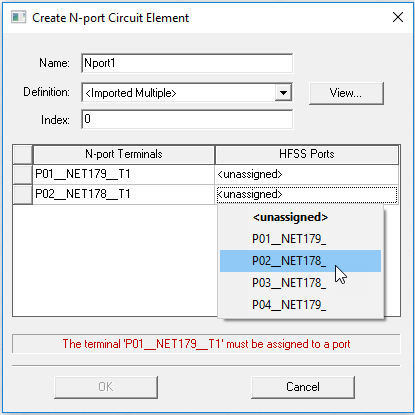
When you have made the assignments, the message field reports OK in green.
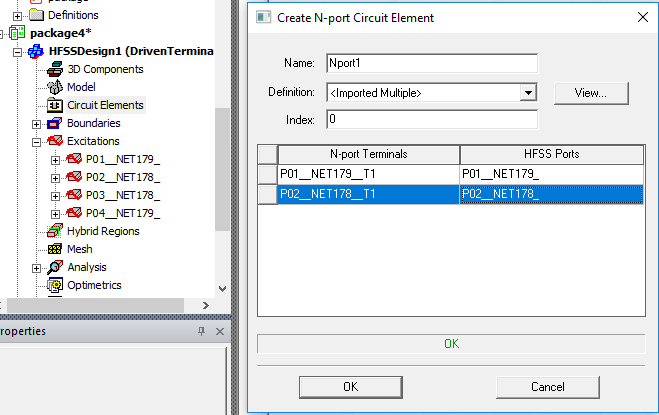
Notice that the Index value can control which touchstone file listed in the Circuit Element Imported Solutions dialog is used in the simulation by index. The Index value can be parameterized, that is, defined as a variable so to be used in a parametric study or exposed as a component parameter when included in a 3D component.
With valid assignments, the View button is enabled and lets you open the port definition in Network Data Explorer.
OK the dialog box. The N-port Terminal for which you have assigned HFSS Ports is created, and the corresponding Excitations are removed from the Project tree.