
Parameter Values Tab
The Parameter Values tab in the Properties Dialog Box lists the simulation parameters of the component or components selected.
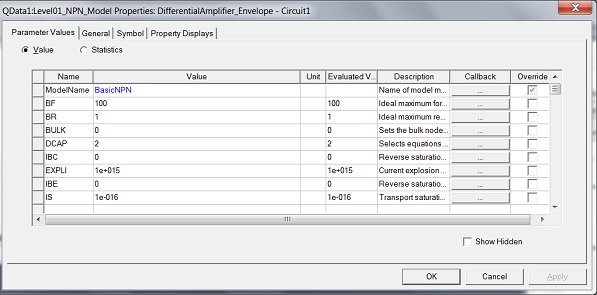
To set or change the value of a component parameter, click on the Value field and enter the new value. You can enter the units in the value field, or you can click on the Unit field to enter the units.
You can specify a parameter value using an expression that evaluates to a constant (as shown in the picture above). The expression is retained in the Value field, while the Evaluated Value field shows the constant resulting from evaluation the expression. This allows you to identify and modify the expression in the future. The Property Displays Tab allows you to display the expression, the evaluated value, or both.
When the Properties dialog box is opened for a design (Design Properties), the Parameter Values tab is initially empty. You can add properties to the design by clicking the Add button. Note that the Add button does not appear on the Properties dialog box for a component. See: Project Variables.
Clicking the Show Hidden check box allows you to view hidden properties of a component, and may result in the display of complex-value computations upon which some calculated values are based. Hidden properties contain system-defined values and rules for interpreting predefined component parameters. Modifying hidden properties requires specialized knowledge of the component, and is not needed for normal operation.