
Property Displays Tab
The Property Displays tab in the Properties Dialog Box controls how the properties of the component appear on the schematic.
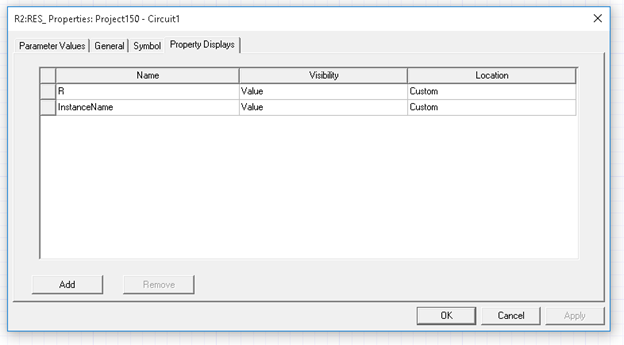
Click in the Visibility field for a parameter to select how the information for that parameter is displayed:
- None – results in no label being shown.
- Name – displays the parameter name (e.g., R).
- Value – displays the component value, which can be a single value (e.g., 10000) or an expression (e.g., 10000*5).
- Both – displays the parameter name and its value (e.g., R = 10000, R=10000*5).
- Evaluated Value – displays the evaluated value of an expression that has been used for the value of a parameter (e.g., 50000 for the expression 10000*5).
- Evaluated Both – displays the parameter name and the Evaluated Value (e.g., R = 50000 for the expression 10000*5).
Click in the Location field for a parameter to specify the location for the display. The locations are: Left, Top, Right, Bottom, Center. When you have set the location with the cursor in the schematic, the Location field has the entry Custom.
- To add a parameter to the display, click the Add button. Click on the Name field and select the parameter to add from the drop-down menu.
- To delete a parameter from the display, select it in the Property Display list and click Remove.