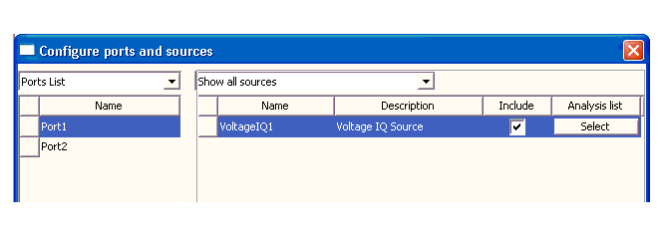
Port Voltage Source
You can set up an interface port to be a voltage source for the circuit. In the Add New Source group box, select Voltage and DC, Sinusoidal, Pulsetime, Piecewise Linear, PRBS, or IQ.
DC Port Voltage Source
In the Add New Source group box, select Voltage and DC. Click Add to selected port. The Properties window displays the parameters for the DC voltage source:
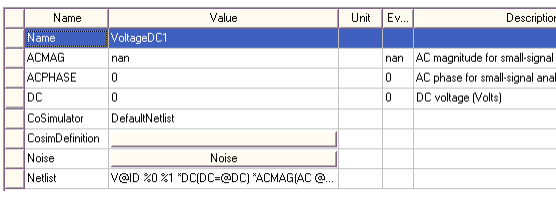
- Assign new values or units to the source parameters in the Parameters window by clicking in the field to be changed.
- Click the button in the Noise Value field. See Adding Noise Data to a Port Source for further information.
- When all parameters have been entered, click OK to open the Select Analysis window. Use the check boxes to associate the source with one or more analyses.
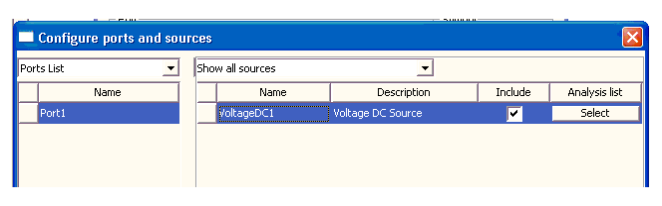
- The Configure ports and sources window
box now shows the new source.
Sinusoidal Port Voltage Source
In the Add New Source group box, select Voltage and Sinusoidal. Click Add to selected port. The following display shows the Sinusoidal parameters.
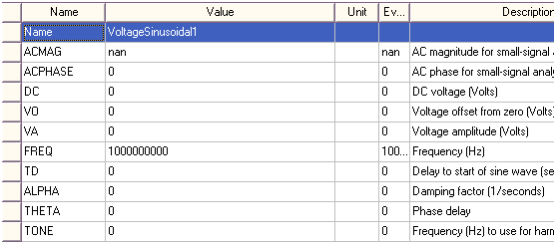
- Click in the Name field to assign a name other than the default.
- Click the button in the Noise Value field. See Adding Noise Data to a Port Source for further information.
- When all data for the port voltage source have been entered, click OK to open the Select Analysis window. Use the check boxes to associate the source with one or more analyses.
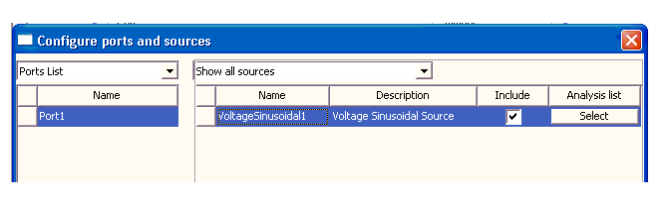
- The Configure ports and sources window
box now shows the new source.
Pulse Port Voltage Source
In the Add New Source group box, select Voltage and Pulsetime. Click Add to selected port. Following are the parameters for the Pulse Voltage Source:
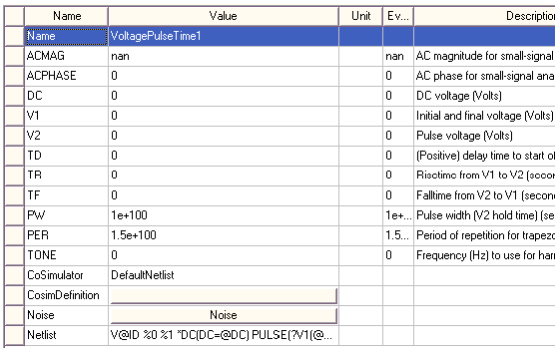
- Click the button in the Noise Value field. See Adding Noise Data to a Port Source for further information.
- When all data for the port voltage source have been entered, click OK to open the Select Analysis window. Use the check boxes to associate the source with one or more analyses.
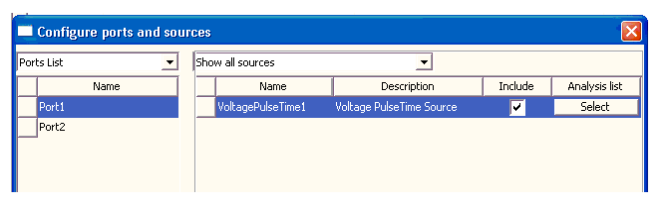
- The Configure ports and sources window
box now shows the new source.
Piecewise Linear Port Voltage Source
Following are the parameters for the Piecewise Linear voltage source:
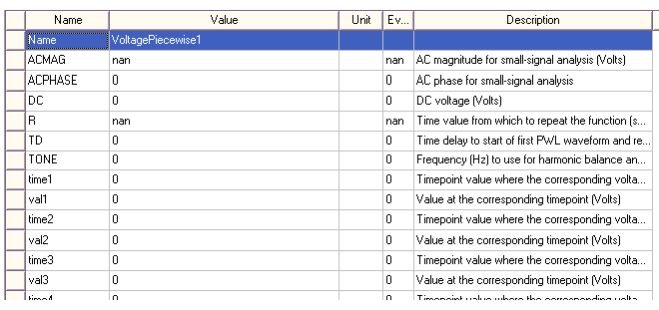
- Click the button in the Noise Value field. See Adding Noise Data to a Port Source for further information.
- If the PWL data is in a file, click the PWL_FILE
button near the bottom of the property listing. The Select File
window opens:
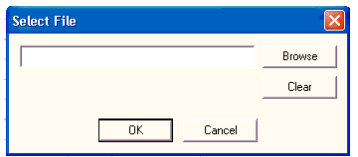
Use Browse to locate the file, then click OK to return to the Properties window.
- The PWL data file should contain two columns of data: the first for time points and the second for corresponding data points.
- A pound sign (#) on the first line indicates a header which is used to set the units of measure for the time and data points. For example, the header “# ns mv” sets the time unit to nanoseconds and the data unit to millivolts. (The header is optional, however, and the default unit values are seconds and volts.)
- Comment lines are indicated by an exclamation point (!), asterisk (*), or semi-colon (;) and all data appearing on a comment line is ignored.
- Tabs or spaces are used to separate columns of data — commas are NOT allowed.
To enter the PWL data manually, click the PWL_DATA button to open a window for entering the PWL time points and corresponding current values:
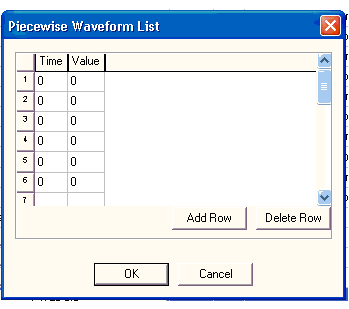
When all time points and values have been entered, click OK to return to the Properties window. When all parameters have been entered, click OK to open the Select Analysis window. Use the check boxes to associate the source with one or more analyses.
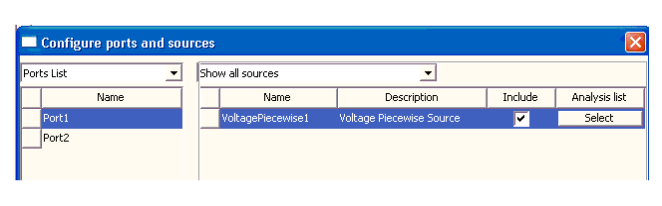
- The Configure ports and sources window
box now shows the new source.
PseudoRandom Bit Source Port Voltage Source
In the Add New Source group box, select Voltage and PRBS. Click Add to selected port. The Properties window lists the PRBS source parameters, as in the following screenshot.
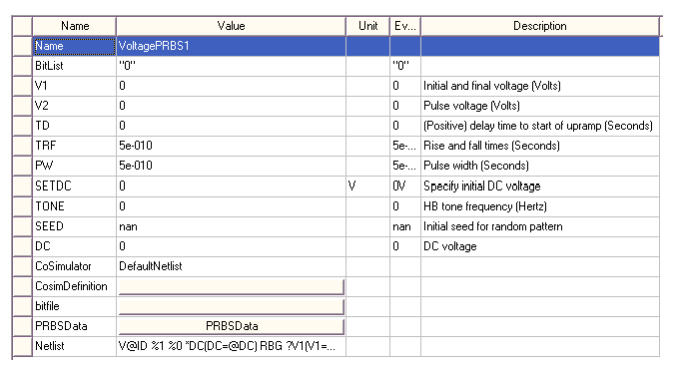
- Click in the Name field to assign a name other than the default (“PowerIQn”).
- Assign new values or units to the source parameters in the Parameters window by clicking in the Value or Unit field to be changed.
- To assign the PRBS bitlist manually, click the
PRBS Data button. The PRBS Data window opens:
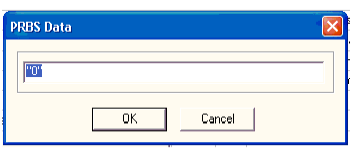
Use the field in the group box to enter the data. Click OK to return to the Properties window.
- If the bitlist data is in a file, click the Bitfile
button near the bottom of the property listing. The Select File
window opens:
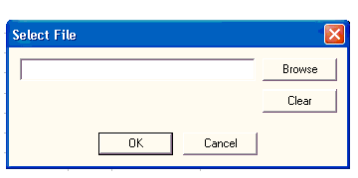
- Click the Browse field to locate the data file. Click OK to return to the Properties window.
- When the PRBS data has been specified, click OK to close the Properties window and open the Select Analysis window.
Click the check boxes to associate the source with one or more analyses. Click OK.
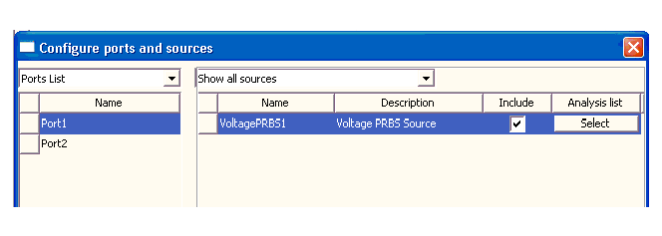
- The Configure ports and sources window
box now shows the new source.
IQ-Modulated Port Voltage Source
In the Add New Source group box, select Voltage and IQ. Click Add to selected port. The Properties window lists the IQ source parameters, as in the following screenshot.
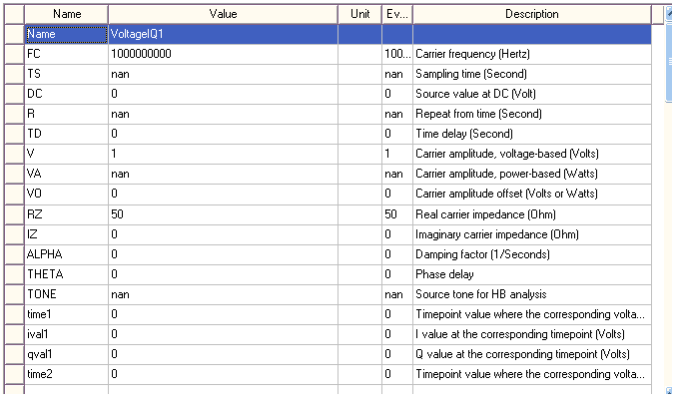
- Click in the Name field to assign a name other than the default (“PowerIQn”).
- Assign new values or units to the source parameters in the Parameters window by clicking in the Value or Unit field to be changed.
- To assign the IQ time and data point manually,
either enter the values in the time, ival, and qval
parameter fields, or scroll down to the bottom of the property listing
and click theIQ Data button. The IQ Data window opens:
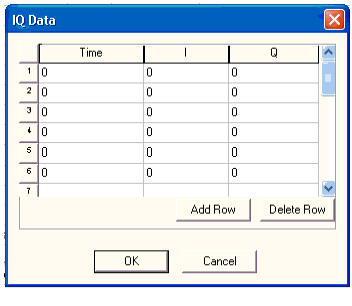
Use the field in the group box to enter the data. New rows are added automatically as you type. You can also add a row (to the end of the list) by clicking Add Row, or delete a selected row by clicking Delete Row. Click OK to return to the Properties window.
- If the IQ data is in a file, click the File
button near the bottom of the property listing. The Select File
window opens:
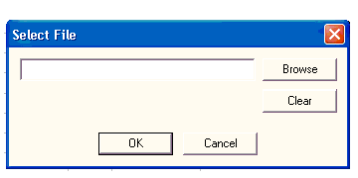
- Click the Browse field to locate the data file. Click OK to return to the Properties window.
- When the IQ data has been specified, click OK to close the Properties window and open the Select Analysis window. Click the check boxes to associate the source with one or more analyses.
Click OK.
- The Configure ports and sources window
box now shows the new source.