
Add an HFSS N-Port Model
- Open the HFSS design you want to link.
- Open the Circuit design.
- In the Component Libraries group box, open the Symbols tab.
- Click Models.
- Click the HFSS tile. The HFSS Dynamic Link window opens:
- The Name fields displays the HFSS design name.
- Enter a Description if appropriate.
- Select a design on the Project Manager window. If the design you want is not present, click Open Project to find and open that design.
- Enable Transmission Line Model to use the dynamic link port impedance. The drop-down menu shows the port name of the HFSS design that is used for the transmission line. To change it, select a different port on the list.
- The Link Information group box at the bottom of the window shows the selected frequency points and number of pins.
- Browse to the directory that contains the HFSS project for the dynamic link.
- Select the HFSS project file.
- Click Open. Electronics Desktop pauses for a few seconds while HFSS starts up. The HFSS Dynamic Link window then opens then be displayed with this project displayed in the Project Manager window.
- Click OK. An instance of the component is attached to the cursor. Drag and drop it into the schematic.
HFSS Component Menu
Right-click the instance to view the menu. These are the visible commands:
- Edit Link Definition – See the following description.
- Refresh Dynamic Link – Reads data from linked design (properties, solutions, ports, geometry) and updates the link component.
- Recapture Link Image – Reads the image on the linked design and updates the symbol in schematic to show the new image.
- Convert to Parametric Snapshot – Converts a dynamic link to a parametric snapshot which saves a static copy of the solution data and uses that instead of going back to the linked design for solution data.
- Clear Solution Cache – Deletes any solution data for the dynamic link; the next analysis requires obtaining new solution data on the linked design.
Edit HFSS Component Properties
Click the Properties item to open the Properties window for the element. Modify the values of any of the model parameters. For a description of the parameters see Edit HFSS Link Definition. After modifying parameter values, click OK to close the Properties window.
Edit HFSS Definitions
- To view or modify the component definition that was created for the linked project, right-click the component instance and click Edit Component. See Using the Component Editor for further information.
- To view or modify the schematic symbol that was created for the linked project, right-click the component instance and click Edit Symbol. See Using the Symbol Editor for further information.
- To view or modify the assignment of pins to signals on the device, right-click the component instance and click Edit Symbol Bus Pins. See Editing All N-Port Symbol Bus Pins for further information.
Edit HFSS Link Definition
- To view the parameters of the dynamic link, right-click the component instance and select Edit Link Definition to open the Properties window.
The following controls are available:
- The Name field shows the dynamic link component name.
- The File field displays the HFSS design that is the source for the dynamic link.
- Enter a Model Description if appropriate.
- The Design field displays the name of the selected design.
- The Solution drop-down menu property lists the Solutions available on the linked design. The displayed menu choice is the Solution that supplies the matrix data during analysis. For HFSS linked designs more than one solution can be selected. In this case "-multiple-" is the menu choice. Choosing a different choice in the menu sets the active solution to the new choice.
- The Transmission Line Port property only shows for HFSS dynamic links that are set up as Transmission Line models. It shows the port name of the HFSS design that is being used for the transmission line.
- Save project after simulate specifies that the project is saved and closed once its data is accessed and the simulation is complete.
- Unload project after use specifies that the project is unloaded once its data is accessed and the window box is closed.
- Simulation option allows selection of the method for dealing with missing frequency points in the solution (Interpolate or Simulate).
- Interpolation algorithm field to select an interpolation algorithm option:
Automatic – Linear interpolation is used if a full grid of solutions is present, otherwise Inverse Least Squares with Shadowing and Hyperplanes is used.
Linear – When a full grid of solutions is available, the cube of solutions which surrounds the solution to be interpolated is located. The corners of this cube are linearly averaged to determine the interpolated solution. If a full grid is not available, an error is reported and the interpolation fails.
Inverse Least Squares with Shadowing and Hyperplanes – Least squares interpolation with shadowing and hyperplanes.
Inverse Least Squares with Shadowing, no Hyperplanes – Least squares interpolation with shadowing, but no hyperplanes.
- Linear only works with a full grid of solutions — ILSS works with arbitrary data.
- Linear only considers nearest data — ILSS considers data that could possibly be distant, although shadowing mitigates this effect.
- Linear is not first-order continuous — ILSS is first-order continuous.
- Interpolate Y matrix uses the Y matrix as the basis for interpolation. When Interpolate Y matrix is not selected, the S matrix is used as the basis. Interpolate Y matrix is selected by default. Circuit particulars determine which basis (S or Y) yields better results, and it is not possible to decide beforehand which one works best.
- Only use independent variables during interpolation suppresses the calculation of dependent variable values during interpolation.
- Renormalize – If selected, the Scattering parameter Data (S-data) received on the dynamic link are re-normalized with a reference impedance value specified in Renorm Impedance before passing the original dynamic link S-data to the Nexxim Circuit solver. If not selected, re-normalization does not take place and the original dynamic link S-data is passed to the Nexxim Circuit solver.
- Renorm Impedance refers to the reference impedance used for renormalization of S-data. The default is 50 Ohms.
- Nominal Values displays the value of parameters on the linked project.
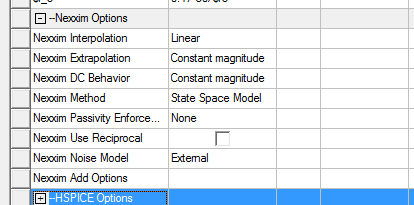
- Nexxim Options allows you to view or
set the following Nexxim simulator options:
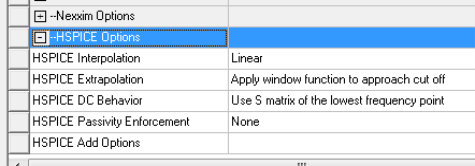
- HSPICE options allows you to view or set the following HSPICE simulator options:
Click OK to close the Link Properties window.
Refresh Dynamic Link
- Refresh Dynamic Link on the HFSS Component menu retrieves ALL data on the linked design, including changes to connectivity, solutions, and properties. Choose this command after making any edits to the linked design.
Recapture HFSS Link Image
- Recapture Link Image on the HFSS Component menu recaptures an image of the design to use in the schematic symbol. See Capturing or Recapturing Bitmap Symbols for Dynamic Link Models.
Convert HFSS Dynamic Link to Parametric Snapshot
- Convert to Parametric Snapshot on the HFSS Component menu changes the dynamic link to a static parametric snapshot. After this option has been selected, the menu item toggles to Convert to Dynamic Link, which allows you to restore the dynamic linkage.
Clear HFSS Solution Cache
- Clear Solution Cache on the HFSS Component menu when clicked immediately clears the solution cache memory.
HFSS Project Link Menu and Setup Menu
When the dynamic link project has been added to the design, click the subcircuit icon in the Project Manager window to display a brief menu. Use the menu items to create a copy of the dynamic link project, edit the link definition, recapture the link image, convert the dynamic link to a static parametric snapshot, clear the solution cache, or to display the simulation results in Network Data Explorer. The Show Network Data Explorer item is activated only when there are simulation results to display.
You can right-click any one of the dynamic link sweep icons to display a menu. Use the menu to select the sweep to be in the co-simulation, select ONLY this sweep, or display simulation results in Network Data Explorer. The Show Network Data Explorer item is activated only when there are simulation results to display.