
Using the Device Characterization Wizard for a Power MOSFET (Average)
Click Save Model at any time during the characterization process to save your progress.
You can load a characterization on the Import Model tab.
- In the Component Information [1/12] dialog box, enter the component name and material. There are two important settings that influence the characterization result:
- Material – Si and SiC MOSFETs are currently supported.
- Thermal Model – Specify whether the model contains one or two thermal networks, which influence the correctness of temperature simulation. It has no impact if thermal simulation is not in concern.
- If the diode in MOSFET is on a separate die, choose Separate Dies and the extracted model contains two internal thermal networks, one for transistor and one for diode.
- If the diode in MOSFET is its own body diode, choose Single Die and the extracted model contains one thermal network.
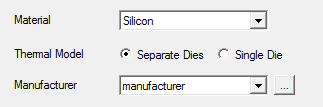
Manufacturers usually specify in the datasheet if there is a body diode. You can also determine the number of dies by whether the datasheet contains joint or separate thermal impedance plots for MOSFET and diode.
- The Nominal Working Point Values [2/12] dialog box sets nominal values at the device's working point. Ideally, these are the operating conditions for the device in the design. Practically, these values should be the test conditions on the manufacturer data sheet specified for the switching energy loss data. Pick the values of VDD and ID mentioned in the table next to the value of the turn-on switching loss, Eon. Select the temperature for which you have the output characteristics in the plots section. VGS_on and VGS_off are gate voltages used in manufacturer’s test circuits in which switching dynamics are measured. In the datasheet, VGS_on and VGS_off are next to the value of Eon. Cin, the input capacitance, found in the datasheet. Click Next to continue.
- On the Breakthrough Values [3/12] dialog box, select Disable Breakthrough Model, as the breakdown characteristics data is rarely available in a datasheet. Click Next to continue.
- The Half-Bridge Test Circuit Condition [4/12] dialog box sets up the test circuit under which the model’s dynamic characterizations are measured. It is important to have the same test condition used by the vendor when the datasheet values are measured.
The required data can generally be found in the datasheet and device application note from the vendor.
- Rg is the internal gate resistance found in the datasheet. This value is an initial value during the dynamic characterization. It will not be the internal gate resistance the characterized device ends up with.
- R_tot is generally omitted in the datasheet; 5% of Rds in [2/12] is a good default for MOSFET. If R_tot is provided in the datasheet and the device is a MOSFET module that contains two MOSFETs in series between two external pins, use half of the R_tot value in the datasheet.
- Rg_on and Rg_off are next to the values of the switching energies Eoff and Eon.
When finished setting values, click Next to continue.
- Use the Transfer Characteristic
Id=f(Vgs) [5/12] dialog box to parameterize the threshold
voltages and transconductance of the MOSFET. Enter the data with SheetScan.
To do so, click Load characteristics from Dataset
Manager (
 ) above the table and click SheetScan.
Load the graphs in graphic files captured from the manufacturer data sheet using Picture > Load
picture.
) above the table and click SheetScan.
Load the graphs in graphic files captured from the manufacturer data sheet using Picture > Load
picture.
- Select a coordinate system (Coordinate System > New) and define it on the plot. To do so, you must select three points. Typically, you should use the bottom-right, bottom-left and top-right points of the plot grid. Click Point1, Point2 and Point3 and select the corresponding points on the graph. Enter the corresponding X-values and Y-values for these points (read from the plot’s X-axis and Y-axis labels) in the table and click OK to finish defining the coordinate system.
- To define the first characteristic, select
Curve > New and give names to
the X-axis and Y-axis in the Curve Settings
dialog box. Click OK when finished.
Note:
You can save your SheetScan work for later adjustment and reuse.
- Make sure to note the temperature given on the plot. Then select several points on the curve starting with the lowest X-value. Pick at least four points. When done, click File > Export and click Dataset in the resulting Save dialog box.
- If a plot at a different temperature is available, repeat steps a, b, and c to record additional data.
- When finished, click File > Exit to exit SheetScan, saving the scan setup information if desired.
- In the Datasets dialog box, select the data you want to use at the nominal temperature and click Done. The data is transferred to the Characteristic Data table in the Transfer Characteristic [5/12] dialog box. Make sure to enter the correct values for temperature and Vce, which you recorded during the SheetScan measurements.
- If you also recorded plot data for a
different temperature, click Add new characteristic (
 ) in the
top right corner, and click Load characteristics
from Dataset Manager (
) in the
top right corner, and click Load characteristics
from Dataset Manager ( ) above the table to load the additional
data. Select the plot in the first tab for the Nominal
Temperature field of the Fitting
Characteristic Order panel. If you added a second set of data
for a different temperature, select this plot for the Different Temperature field, or select
Not Used, if data is available
only for one temperature.
) above the table to load the additional
data. Select the plot in the first tab for the Nominal
Temperature field of the Fitting
Characteristic Order panel. If you added a second set of data
for a different temperature, select this plot for the Different Temperature field, or select
Not Used, if data is available
only for one temperature.
- Click Start Fitting to fit the characteristics and examine the resulting plot to check the match of the fit. Click Next to continue.
- Use the Output Characteristic Id=f(Vds) [6/12] dialog box to parameterize more of the MOSFET's output characteristics. Ideally, enter the output characteristics at Vgs=VGS_on (Full Saturated Branch) and for Vgs at a lower voltage (Semi Saturated Branch), for both the nominal temperature and at a different temperature, using SheetScan as described in step 5. Make sure to note the value of Vgs and the corresponding temperature for each curve.
- Add up to four characteristics, making sure to identify them with the correct values of VGS and temperature.
- Select the plot at the nominal temperature and with Vgs=VGS_on for the Full Saturated Branch (Tnom) field in the Fitting Characteristic Order panel, and one at a lower value of Vgs for the Semi Saturated Branch (Tnom) field, or select Not Used, if the data is not available. Repeat this at a different temperature for Vgs=VGS_on and at a lower Vgs in the corresponding Full Saturated Branch (Tdiff) and Semi Saturated Branch (Tdiff) fields. The fit will be better if the current does not saturate much for the semi-saturated curve, but the fitting algorithm will work with either option.
- Click Start Fitting to start the fit and examine the plot to check the match of the fit. Click Next to continue.
- Use the Drain-Source Diode Characteristic If=f(Vf) [7/12] dialog box to parameterize the DC characteristics of the diode. Ideally, you should enter the diode forward characteristic If(Vf) at both the nominal temperature and at a different temperature using SheetScan as outlined in step 5. Make sure to note the value of the temperature for each curve.
- Generate two characteristic data sets, one at the nominal temperature and one at a different temperature, being sure to identify them with their corresponding temperatures.
- Select the plot at the nominal temperature in the Nominal Temperature field of the Fitting Characteristic Order panel, and the plot at the different temperature in the Different Temperature field, or select Not Used if the data is not available.
- Click Start Fitting to start the fit and examine the plot to check the match of the fit. Click Next to continue.
- Use the MOSFET Thermal Model [8/12] dialog box to parameterize the thermal impedance of the MOSFET. Do one of the following:
- If the data sheet provides extracted values for ri and ti, which is the case for International Rectifier, enter these four value pairs in the Use Fraction Coefficients table, click Start Fitting, check the plot and click Next to continue.
- If the data sheet does not provide extracted values for ri and ti, select Use Transient Thermal Impedance and enter the plot data for the thermal characteristics using SheetScan per the instructions given in step 5. The plot will show the impedance as a function of time. Make sure to adjust the scale of the coordinate system in SheetScan to logarithmic if needed. Select Start Fitting to start the fit and examine the plot to check the match of the fit. Click Next to continue.
Sample the "single pulse" curve when multiple transient thermal impedance curves are presented in the data sheet.
- Use the Drain-Source Diode Thermal Model [9/12] dialog box to parameterize the thermal impedance of the diode. If Single Die is selected in [1/12], this page becomes inactive.
- If the data sheet provides extracted values for ri and ti, which is the case for International Rectifier, enter these four value pairs in the Use Fraction Coefficients table, click Start Fitting, check the plot, and click Next to continue.
- If the data sheet does not provide extracted values for ri and ti, select Use Transient Thermal Impedance and enter the plot data for the thermal characteristics using SheetScan per the instructions given in step 5. The plot shows the impedance as a function of time. Make sure to adjust the scale of the coordinate system in SheetScan to logarithmic if needed. Select Start Fitting to start the fit and examine the plot to check the match of the fit. Click Next to continue.
- Use the Energy Characteristics [10/12] dialog box to parameterize switching loss at nominal working point and energy correction coefficients for estimating switching energy in different working conditions. For the Power MOSFET (Average) model, provide as much data as possible on this page. It would improve energy loss estimation at conditions other than nominal working point.
| Eon | Turn-On Switching Loss |
| Eoff | Turn-Off Switching Loss |
| Err | Reverse Recovery Switching Loss |
The data must be entered following a predefined format:
- The first row is the set of data under the nominal working conditions (required).
- Each subsequent row may have only one change in the working condition; for example, temperature T is different from the value in the nominal values row. The required variation for each row is listed in the Note column and is described here, same as for the IGBT Average model.
If any of these data sets are not available, clear the Enable check box for this row; the corresponding coefficients will remain 0.
Click Extraction to calculate dynamic dependency. Show Log is enabled after extraction is completed so you can view the results after fitting.
When finished, click Next to continue characterizing the device.
- Use the Validation [11/12] dialog box to check the accuracy of the parameterized component through the validation of switching energies. Enable the conditions that need to be checked and click Validate. Click Next to continue.
- Use the Model Parameters [12/12] dialog box to browse the extracted parameters.
- To generate an .sml file of the model, click Create SML.
- To place a characterized device in the Twin Builder project, click Place Component and click Finish.