
Viewing Resonant Modes
To view resonant modes analysis results in SIwave:
- Click Results.
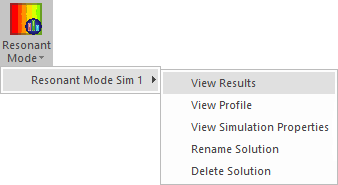
- From the SIwave area, use the Resonant Mode drop-down menu to select [Simulation Name] > View Results.
- Select a mode from the list at the top. For more information on how the free space wave number (k) and quality factor (Q) are calculated, see Resonant Frequencies.
- Use the Plot voltage difference between planes on drop-down menus to select metal layers between which voltage difference is to be viewed.
- Click Compute.
- Click Results.
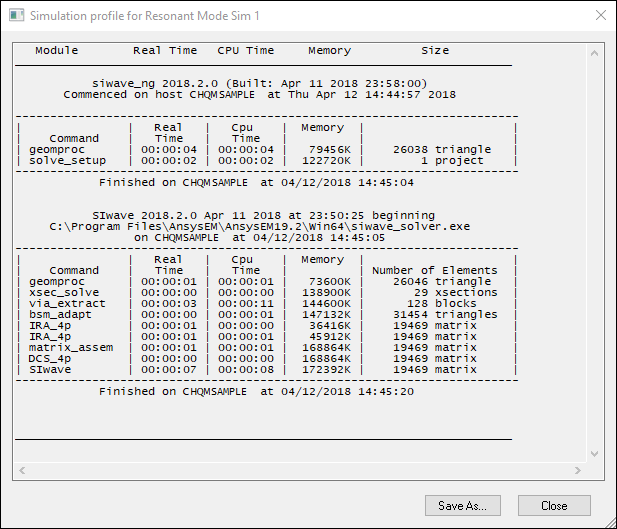
- From the SIwave area, use the Resonant Mode drop-down menu to select [Simulation Name] > View Profile.
- Click Save As to save the profile as a text file (*.txt).
- Click Close to close the profile.
The Resonant Modes window appears.
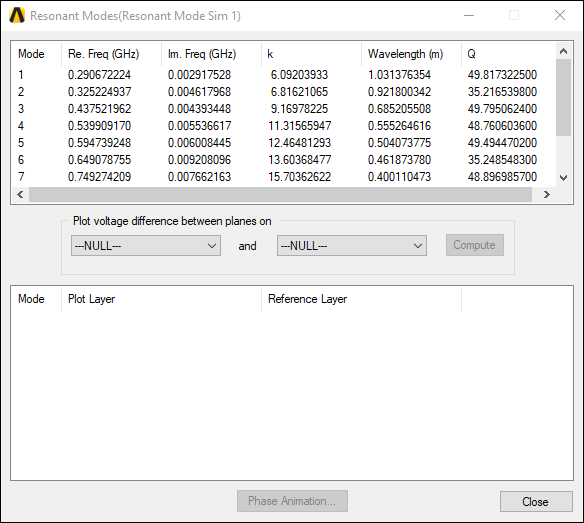
The Messages window displays the progress. When the process finishes, results are displayed in the Modeling Workspace and at the bottom of the Resonant Modes window.
To view the resonant mode simulation profile in SIwave:
The profile appears.
To view the resonant modes simulation properties:
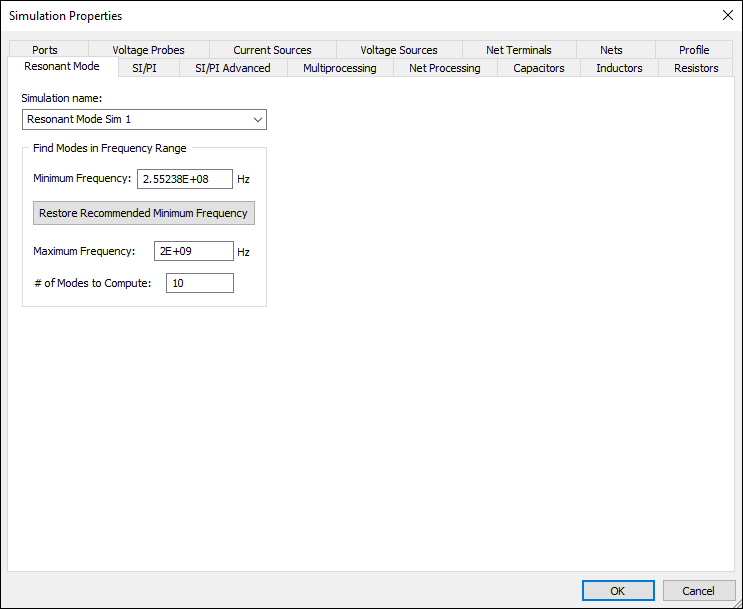
- From the Results window, right-click the simulation name and select View Simulation Properties.
The Simulation Properties window appears, with the Resonant Mode tab selected.
To delete a resonant modes solution:
- From the Results window, right-click the simulation name and select Delete Solution.