Viewing Transient Response Plot
- Open the Signal Net Analyzer.
- Use the Display drop-down menu to select Transient Response Plot.
- Use the Ctrl or Shift keys to click a path in the plot area.
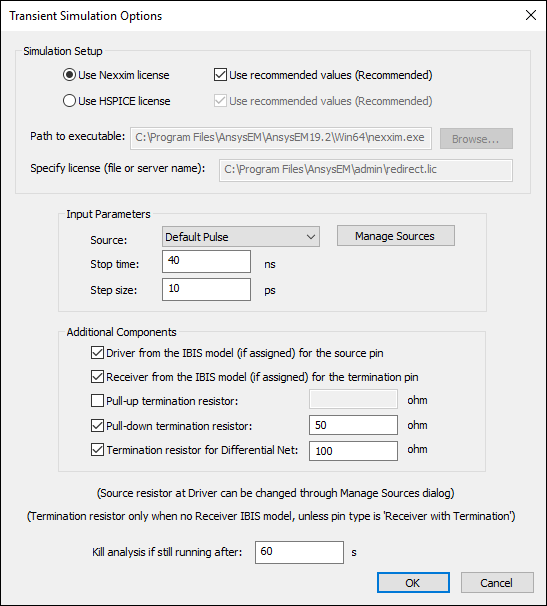
- Click Transient Simulation Options.
- Configure the settings as appropriate.
- Select either Nexxim or HSPICE, and the paths to both the executable file and license.
- From the Input Parameters area, select an input source. Click Manage Sources to add or delete sources.
- Enter a Stop time and Step size.
- From the Additional Components area, check all appropriate options. Specify ohm values if appropriate.
- From the Kill Analysis if still running after field, specify the maximum time you want to try to run the analysis. The analysis will abort after the time specified.
- Click OK.
- Click Compute Plot.
- To perform transient analysis in bulk (superimpose and compare plots), check the Accumulate Selections for Transient Analysis check box.
- To manually reverse a net path, check the Reverse Selected Path for Transient Analysis check box.
- To run the analysis in Ansys Electronics Desktop, check the Run Transient Analysis in Ansys Electronics Desktop check box. SIwave displays the netlist for the W-element, and Ansys Electronics Desktop opens to run the transient analysis and display the resulting time domain plots.
The Transient Simulation Options window appears.