
Nets Workspace
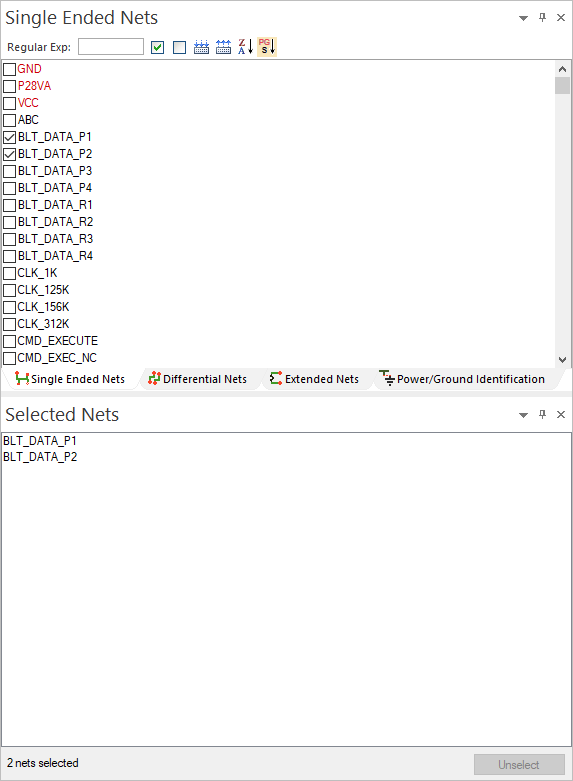
The Nets workspace contains two windows: one for selecting nets, and one for displaying selected nets.
|
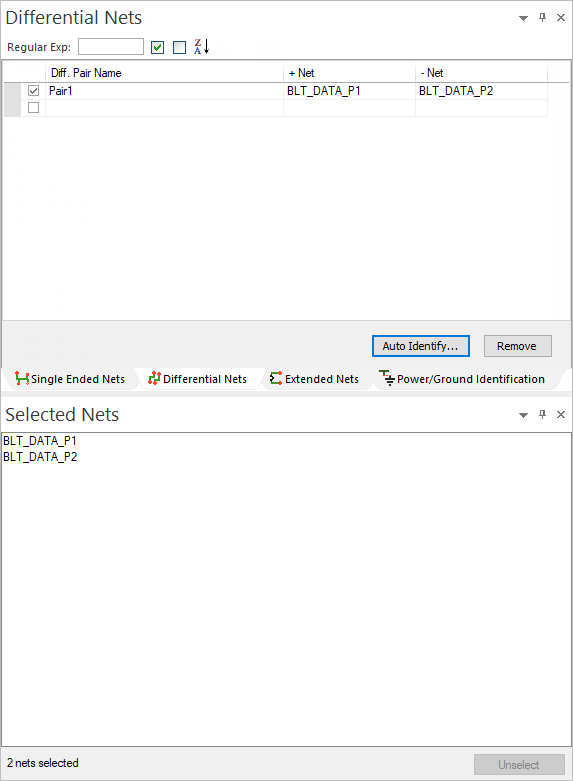
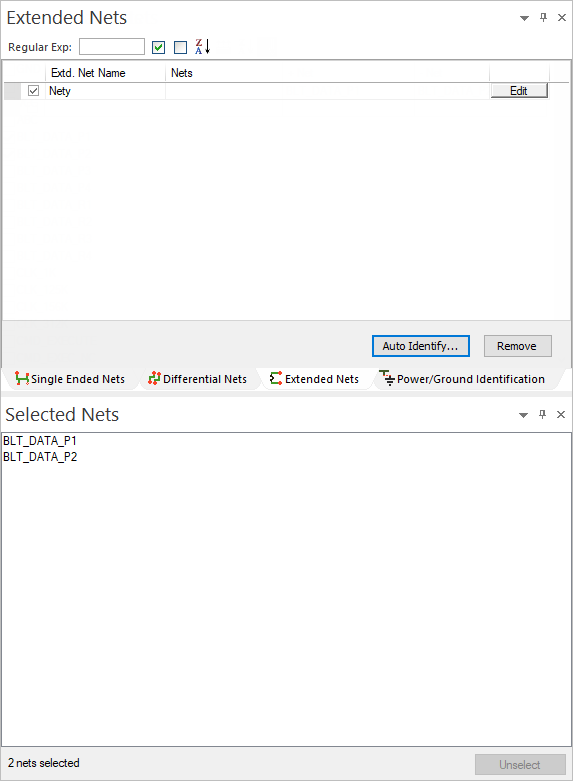
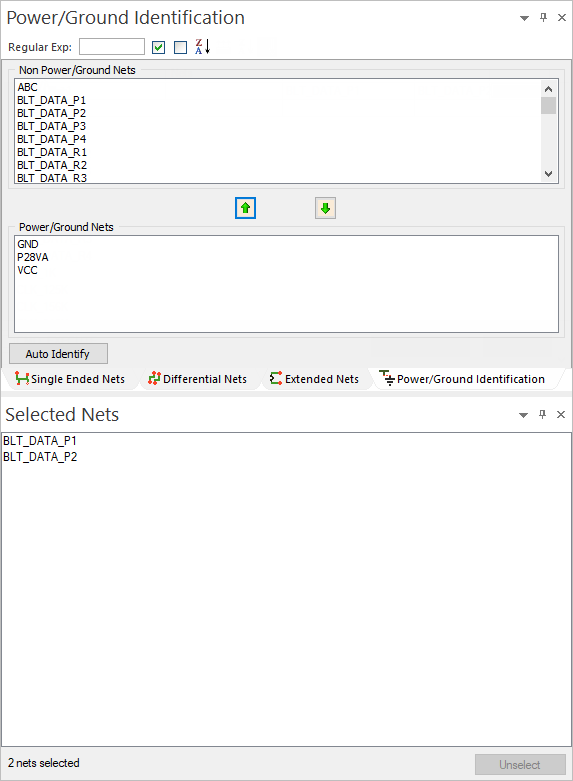
Click through the slides to see how the tabs allow you to make different net selections:
The Selected Nets window shows all currently selected nets. These are also highlighted in yellow in the Modeling workspace.
Single Ended Nets
The Single Ended Nets tab allows you to view the properties of all single-ended nets associated with the project.
Check the box adjacent to a net to select it.
Right-click any net for the following options:
- Edit Net Name – rename the net.
- Change Net Color – choose the color in which the net displays on the map.
- Delete Net Color – return the net to the default color.
- Show – ensures the net is visible.
- Show (Hide All Other Nets) – hides every net except for the selected net.
- Show All Nets – if any nets are hidden, this option makes them visible.
- Hide – hides the selected net.
Differential Nets
The Differential Nets tab allows you to define, search, sort, and remove differential pairs.
To have SIwave automatically identify these pairs:
- Click Auto Identify... to open the Auto Identify Differential Pairs window and automatically identify differential pairs.
Otherwise, to manually create a differential pair:
- Select two nets in the Modeling workspace.
- Right-click and select Create Differential Pair.
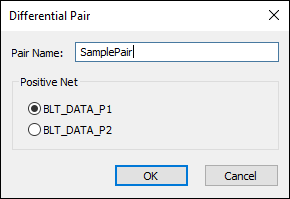
The Differential Pair window appears.
-
Specify the name of the pair, and select which net you want to be the positive one.
-
Click OK to close the Differential Pair window.
Extended Nets
Extended nets represent a group of nets connected by circuit elements. The Extended Nets tab allows you to define, search, sort, and remove extended nets.
To have SIwave automatically identify these nets:
- Click Auto Identify... to open the Auto Identify Extended Nets window.
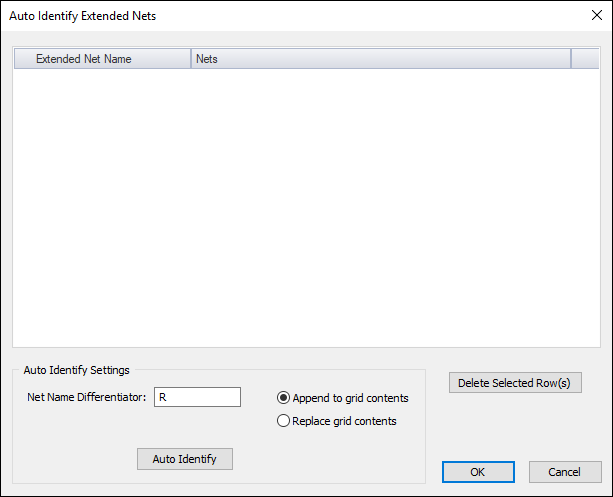
- Enter a Net Name Differentiator. This is the key character or word SIwave will use to automatically identify nets.
Most extended nets in real usage consist of only 2 nets with names like NET1 and NET1R, connected by a resistor. In this case, the net name differentiator would be R.
From the case of extended nets with the names NET1TEST and NET1-RTEST, the auto identify keyword would be -R.
- Click OK.
SIwave also allows manual creation, which can be done two different ways:
- Select one or more nets in the Modeling workspace, right-click, and select Create Extended Net, or
- Type a Net Name in the Extended Nets window and click the Edit button adjacent to it to create an extended net.
Power/Ground Identification
The Power/Ground Identification tab allows you to identify, select, search, sort, and remove power and ground nets.
To automatically identify power and ground nets:
- Click Auto Identify.
To manually identify power and ground nets:
- Move nets from the Non Power/Ground Nets list to the Power/Ground Nets list and vice versa by selecting a net and clicking the arrow buttons.
Searching Nets
From any tab, search the nets using either Perl regular expressions or wildcard search expressions.

Select the type of expression using the Net Options window (Home > Options).
The option you have selected appears as the label to the left of the search field (either Regular Exp or Search Exp).
A Regular Expression uses mnemonics from Perl regular expressions (e.g., D.* selects all nets starting with D).
A Search Expression uses a special construct with the following wild card characters:
|
* |
Matches any sequence of characters. For example, net* selects objects net_1a, net_1b, netLength. |
|
? |
Matches any character. For example, net_? selects objects net_1, net_2, net_a, net_b. |
To search, formulate an expression that will find an appropriate nets and type it into the search field.
Next to the search field are check boxes for Select Nets and Unselect Nets. Enable the Select Nets check box to select nets that match the search. Enable the Unselect Nets check box to deselect any nets that match the search.