
Editing the Component Database
You can edit the manufacturer’s component database in three ways:
- Importing new components
- Removing user-created or unlocked components
- Mapping components to your local part numbers based on part names and/or component values
To edit the database:
- Click Tools > SPICE/S-parameter Model Assignment.
The S-parameter Component Management Dialog window appears. All parts belonging to your project are displayed in the table.
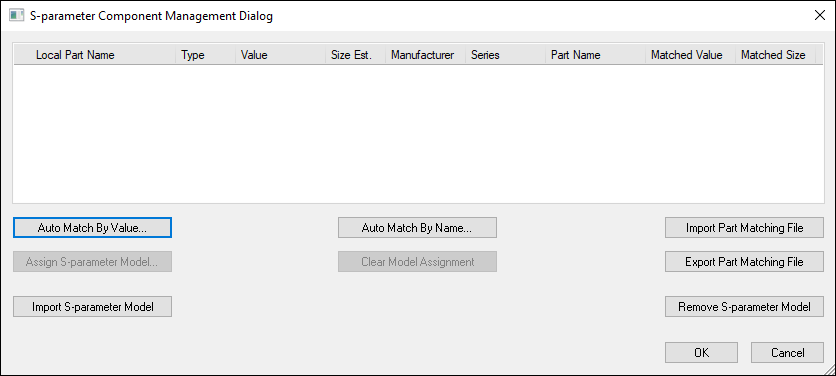
- There are three ways to map components:
- Select one or more local part names. Click Assign S- Parameter Model. The Select S-Parameter Component window appears. Select the filter criteria and click Filter. Select the global part from the list, and click OK.
- Click Part Matching File. Select an SIwave Partname Mapping File (*.pmap). Click OK.
You can associate the internal part name with manufacturer part name using a file. Specific part names can be converted to a certain manufacturer type. The syntax for specifying parts is:
<localpartName> <CompType><ManufName> <seriesName> <ManufPartName>
Note:Any line beginning with # is treated as a comment.
Click Auto Match By Value or Auto Match By Name.
If you click Auto Match By Value, SIwave compares the local and global components based on the part value, and places the local component under the first matching global component (e.g., if the design contains a 1uF capacitor, the Component Management window maps that capacitor to the first 1uF capacitor it finds in the Global Capacitor Database).
Auto Match By Value looks for parts whose capacitance/inductance match. If a part is found whose value and name matches the local parts, that part is chosen for mapping; otherwise, the global part with a matching value and the highest available quality will be selected.
Auto Match By Name tries to match local components with global components based on the part name. For example, if the design contains capacitors whose part name is 08020059A, the Component Management window maps that capacitor to the first capacitor named 08020059A in the Global Capacitor Database.
If the global part name is not found then the part is left unmatched.
- To unmap local part names, select one or more local part names, click Clear Model Assignment.
- To export a file from the specified mappings: Click Export Part Matching File to open the Save As window. Browse to the directory where the project will be saved, and enter the name of the file (.pmap suffix) for the exported project. Click Save.
- To import new components: Click Import S-parameter Model. The Import S-Parameter Component window appears. Select the component details, and click OK.
Note:
If you frequently encounter permissions errors while importing S-parameter models, change the component library directory to a directory to which you have access. Alternately, you can use Windows to change the SIwave program properties to always run in administrator mode. Consult Microsoft documentation for more information about using administrator mode in your version of Windows.
- To delete an unlocked global part: click Remove S-parameter Model. The Select S-Parameter Component window appears. Select the Manufacturer, Series and Part to delete. Click OK.
- Click OK.
The part name is listed under the selected component. You can manually change the position if required.