Editing Surface Roughness
For metal layers, you can choose to specify the surface roughness on the top, bottom, and sides of each layer. For each area, SIwave can use either the Hammerstad-Jensen or the Huray roughness model.
Previous versions of SIwave supported only top and bottom roughness. When opening these legacy projects, side wall roughness is set to 0 by default.
In Layer Stackup Editor
To specify roughness:
- Open the Layer Stackup Editor.
- Click the values in the Roughness button to open the Edit Layer Roughness window.
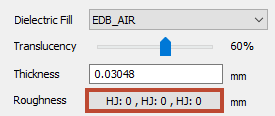
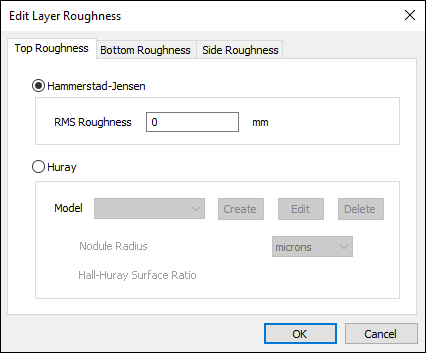
- Use the Top Roughness, Bottom Roughness, and Side Roughness tabs to select the area whose roughness you want to edit.
- You can specify the roughness using either the Hammerstand-Jensen or Huray model. Use the radio buttons to select one or the other.
- For the Hammerstad-Jensen model, you must enter the RMS Roughness value and units. See: Technical Notes.
- For the Huray model, you can either select a system-defined model or create your own.
There are three system-defined Huray models: Low Loss, Medium Loss and High Loss; all three have r = 0.5 um, and sr values of 1, 3 and 6, respectively.
To create a new model, click Create. The Edit Huray Roughness Model window appears. Enter the Model Name. Specify the Nodule Radius value. This describes the radius of copper spheres that model the surface roughness. Specify the Hall-Huray Surface Ratio, a unitless quantity. Click OK to return to the Edit Layer Roughness model.
- To edit an existing model, click Edit. The Edit Huray Roughness Model window appears. Make any changes as needed. Click OK.
- To delete an existing model, click Delete. A confirmation window appears. Select Yes if you want to delete this model.
- Similarly, enter the new roughness for the bottom surface in the Bottom Surface Roughness tab.
- Click OK to exit the Edit Layer Roughness window.
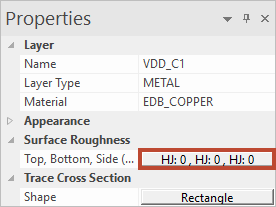
You can also access the Edit Layer Roughness window from the Properties workspace. To do this, select a layer in the Layers workspace and then click the values in the Surface Roughness button: