
Configuring Parallel HFSS Simulations
In order to reduce overall simulation time, you can configure HFSS region simulations to run in parallel.
First, you must specify compute resources (host machines) to use during the solve. Next, classify these resources into groups and specify which compute resource group to use when solving a particular region. You then select the number of regions to solve in parallel. The simulation loop queues up all of the regions in the design and launches HFSS solves in parallel. When one of these region solves completes, simulation of the next region in the queue is initiated. This continues until all HFSS regions in the design have been processed.
To configure parallel simulations:
- Click Simulation > Compute SYZ Parameters.
The Compute SYZ-Parameters window appears.
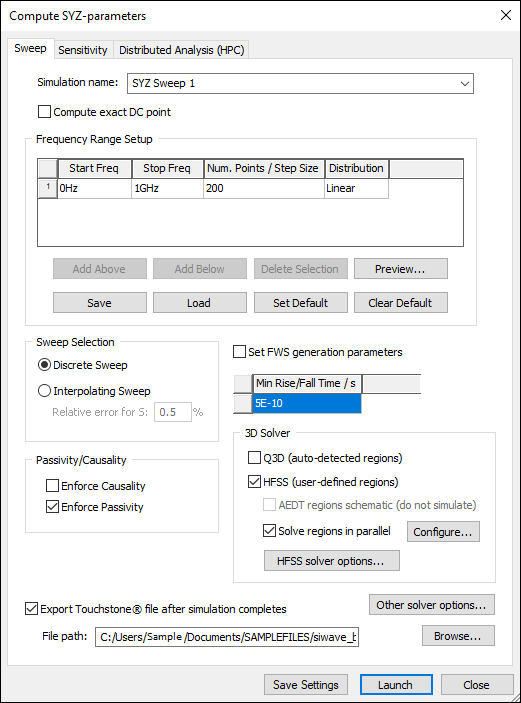
- Configure the SYZ simulation.
- From the 3D Solver area, select HFSS (user-defined regions) and Solve regions in parallel.
Note:
If AEDT regions schematic is selected, Solve regions in parallel will be unavailable. These options are mutually exclusive.
- Click Configure.
The Parallel HFSS Region Simulation Configuration window appears.
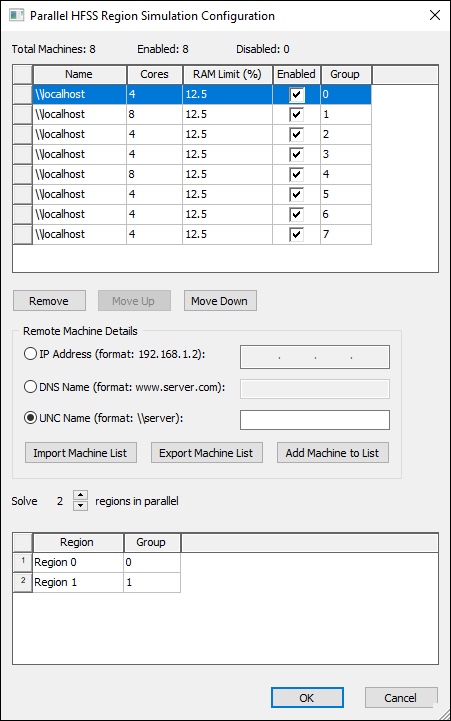
- The top pane lists available machines. Adjust the settings as appropriate:
- Use the Enabled check boxes to enable and disable machines.
- Change the values the Cores and RAM Limit (%) fields.
- Edit the Group values to group the machines as needed. Values can be any non-negative integer.
- Use the Remove, Move Up, and Move Down buttons to remove machines entirely or to adjust the order.
Note:The same machine can be specified multiple times, as part of the same group or differing groups. However, you must ensure that core count and RAM percentage, when aggregated, do not exceed 100%.
- The middle pane allows you to add new machines to the list, by IP Address, DNS Name, or UNC Name.
Alternatively, click Import Machine List to import a list in *.txt format. You can also Export Machine List in *.txt format for later use.
The text format is:
"<Name>" <Enabled?> <Cores> <RAM Limit %> <group>
Example:
"\\localhost" 1 4 12.5 0
"\\localhost" 1 8 12.5 1
"\\localhost" 1 4 12.5 2
"\\localhost" 1 4 12.5 3
"\\localhost" 1 8 12.5 4
"\\localhost" 1 4 12.5 5
"\\localhost" 1 4 12.5 6
"\\localhost" 1 4 12.5 7
- The bottom pane lists available HFSS regions in the design. Use the Group drop-down menus to assign compute resource groups to regions. Available values are limited to groups that were assigned in the top pane.
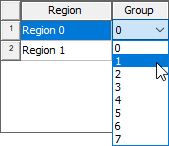
- Use the Solve arrows to increase or decrease the number of regions solved in parallel.
- Click OK to exit the configuration window.
- Click Launch to begin simulation.
- View results from the Results tab, as normal.