Computing Far Fields
To analyze the radiated fields associated with a design, a radiation surface is defined over which the fields are calculated. The values of the fields over this surface are used to compute the fields in the space surrounding the device. This space is typically split into two regions: the near-field region and the far-field region. The near-field region exists at less than a wavelength from an energy source. The far-field region is where radiation occurs. Both near and far fields can play a role in EMI. Near and far field analyses can use sources defined in SIwave or via push excitations from Ansys Electronics Desktop.
To perform a far field simulation:
- Click Simulation.
- From the SIwave area, click Compute Far Field.
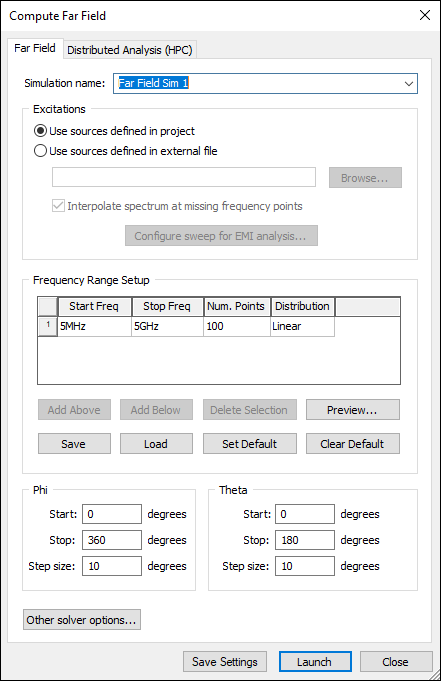
- From the Simulation Name field, enter a name for the simulation.
- From the Excitations area, use the radio buttons to select whether to use sources defined in the project or use sources defined in external file. Click Browse to select an external file.
- If appropriate, click Configure sweep for EMI analysis to set up the EMI sweep. This option is only enabled when using an external file.
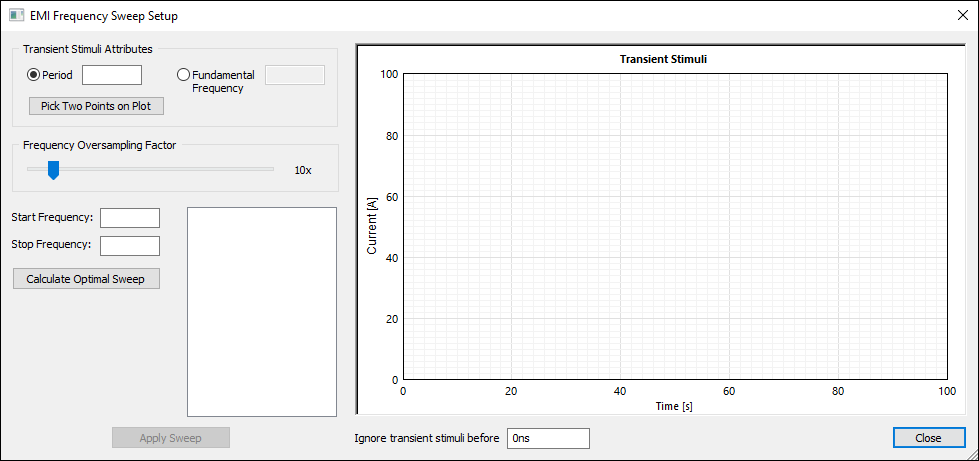
- From the Transient Stimuli Attributes area, use the radio buttons to select either Period or Fundamental Frequency. Period is the measured period information (T). The Fundamental Frequency is defined as f0 = 1/T where T is the period information.
- Use the Frequency Oversampling Factor slider to select the frequency range sampling density. A higher oversampling factor results in more frequency points being introduced between the selected sweep start and stop frequencies, and may result in longer simulation time.
- Enter a value for the minimum frequency to sweep in the Start Frequency box.
- Enter a value for a sweep maximum frequency in the Stop Frequency box.
- Click Calculate Optimal Sweep to generate the sweeps. They appear as a list in the box to the right.
- Click Apply Sweep. A new sweep line is added to the table in the Compute Far Field window.
- If appropriate, enter a value in the Ignore transient stimuli before box. This allows SIwave to filter out any non-periodic start-up transient ripple when computing the Fourier transform during simulation. The ignored time period is represented by a shaded rectangle on the plot.
- Click Close to return to the Compute Far Field window.
- Specify the Frequency Range Setup. SIwave solves the solution beginning with the frequency entered in the Start box and ending with the frequency entered in the Stop box.
- From the Start Freq text boxes, type the starting frequency of the frequency sweep.
- From the Stop Freq text boxes, type the ending frequency of the frequency sweep.
- From the Num Points boxes, type the number of points.
- Use the Distribution drop-down menu to select either Linear or By Decade. Linear distributes the number of points specified over the entire specified range. By Decade distributes the number of points specified logarithmically over each decade.
- If appropriate, click Add Above or Add Below to add a row in an appropriate position. Click Delete Selection to delete the selected rows.
- Click Preview to see the frequency range in the Frequency List Preview window.
- Click Save to save the grid values to SIwave Frequency Sweep Distribution File (*.sfsdf).
- Click Load to load the grid values from a *.sfsdf file.
- Click Set Default to set the current grid settings as a default value for that simulation type.
- Click Clear Default to remove the default setting and return the population of the grid to its normal behavior.
- Specify the range of angles to include
in the sphere. Specify the following for Phi:
- Start – The point where rotation of phi begins.
- Stop – The point where rotation of phi ends.
- Step Size – The number of angular subdivisions between the Start and Stop angles.
- Specify the following for Theta:
- Start – The point where rotation of theta begins.
- Stop – The point where rotation of theta ends.
- Step Size – The number of angular subdivisions between the Start and Stop angles.
- If appropriate, click Save Settings to save the settings.
- Click Launch to begin the Far Field simulation.
The Compute Far Field window appears.
The EMI Frequency Sweep Setup window appears.
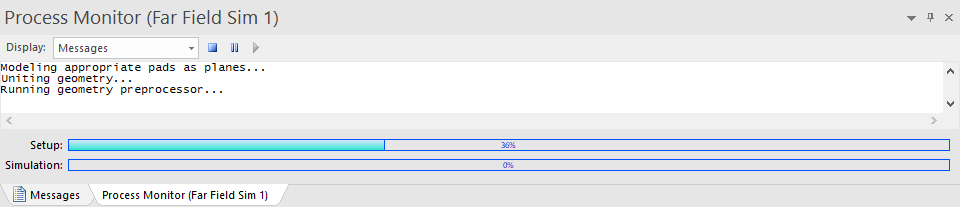
The Messages window opens a Process Monitor tab that displays the progress.