
Assigning SPICE/S-parameter Vendor Models
To assign SPICE/S-parameter models to components in SIwave:
- Click Tools.
- From the Design Tools area, click SPICE/S-param Vendor Model Assignment.
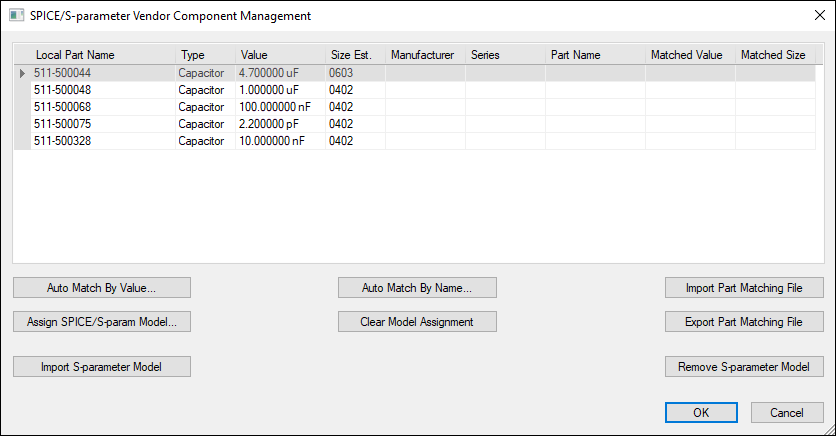
- Select a component from the list.
- If you have an SIwave Partname Mapping File (*.pmap), click Import Part Matching File to load those settings.
- Assign specific models to parts automatically using the Auto Match By Value and Auto Match By Name buttons.
- To assign a model to a part manually, click Assign SPICE/S-param Model.
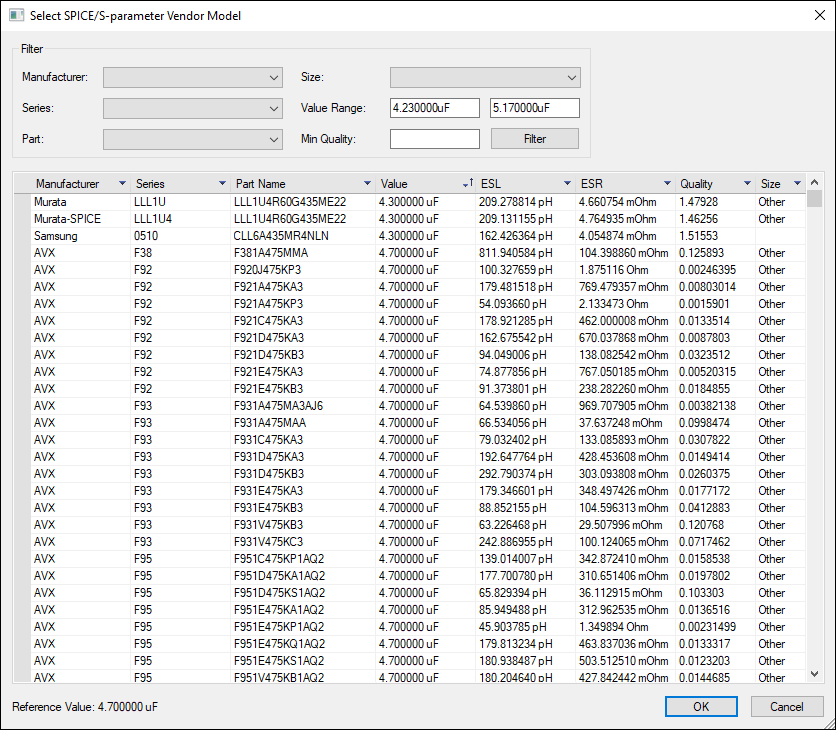
- Use the Filters or scroll through the list to select a model.
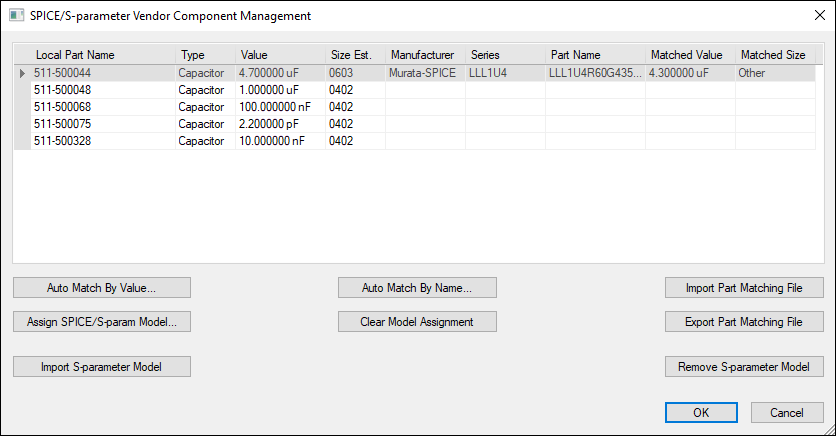
- Click OK to return to the SPICE/S-parameter Vendor Component Management window.
- If appropriate, you can clear a model assignment by selecting the part and clicking Clear Model Assignment.
- If appropriate, click Export Part Matching File to export your settings as an SIwave Partname Mapping File (*.pmap).
- Click OK to save the settings.
The SPICE/S-parameter Vendor Component Management window appears.
The Select SPICE/S-parameter Vendor Model window appears.
The new model assignment displays in the table.
From this window, you can also import or remove an s-parameter model. See Editing the Component Database.