
Adding a Terminal
A terminal is generated for every mouse click in the Modeling workspace. If there is a net on the active layer, the terminal will be attached to that net.
To add a terminal:
- Click Home. From the Circuit Elements box, click the Add Terminal (Source/Sink) icon (
 ).
). - Click the location where you want to place the terminal.
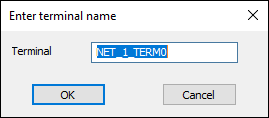
- Enter a name and click OK.
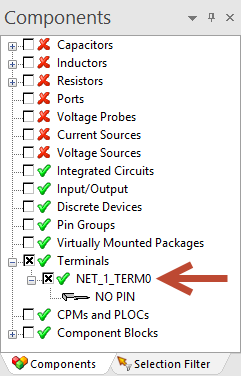
The terminal appears in the Modeling workspace, and is listed in the Components workspace under Terminals.

The Enter Terminal Name window appears.
You can modify the terminal's parameters at any time.
Attaching Terminals to Pins and Pin Groups
DC terminals can also be attached to pin groups or pins. Select a pin group or pin, then click the Terminal icon. A DC terminal is generated on each selected item that does not already have an associated terminal of some kind.