
Adding a Current Source
To add a current source:
- Click Home. From the Circuit Elements box, click the Add Current Source icon (
 ).
). - Click the location where you want to place the source.
- Drag the mouse to an appropriate length and direction.
- Click to finish drawing.
When you finish drawing the voltage source, the Select layers for current source terminals window appears.
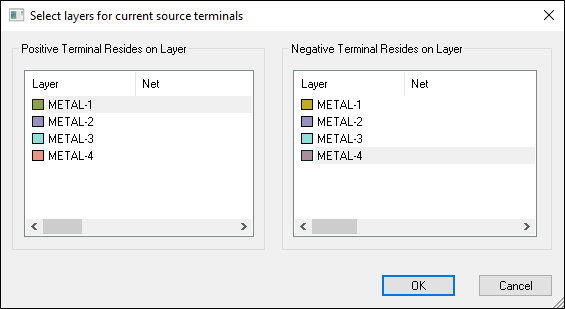
- From the Positive Terminal Resides on Layer list, select the layer for the positive end.
- From the Negative Terminal Resides on Layer list, select the layer for the negative end.
Current flows from the positive to the negative terminal through the source.
- Click OK.
The Set Current Source Properties window appears.
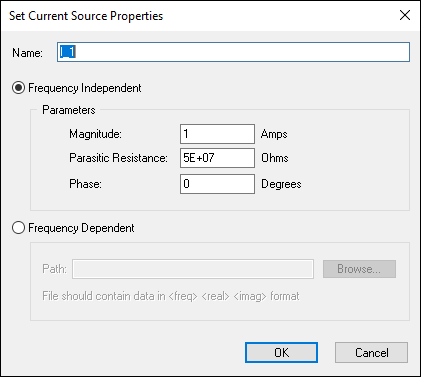
- From the Name field, type a name for the current source.
- Use the radio buttons to specify whether the voltage source is Frequency Independent or Frequency Dependent.
- If the source is Frequency Independent, enter its parameters.
- If the source is Frequency Dependent, select a data file with the format <freq><real><imag>.
- Click OK.
You have now added and assigned values to your current source. You can also edit the parameters.