
Modifying Padstacks
Use the buttons at the bottom of the Padstack Editor to add, edit, remove, or clone padstacks.

Adding Padstacks
To add a padstack:
- Click Add Padstack.
The Definition Name window appears.
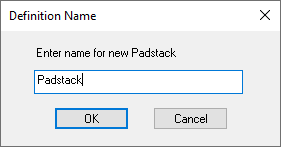
- Enter a name for the padstack.
- Click OK.
The Edit Padstack Definition window appears.
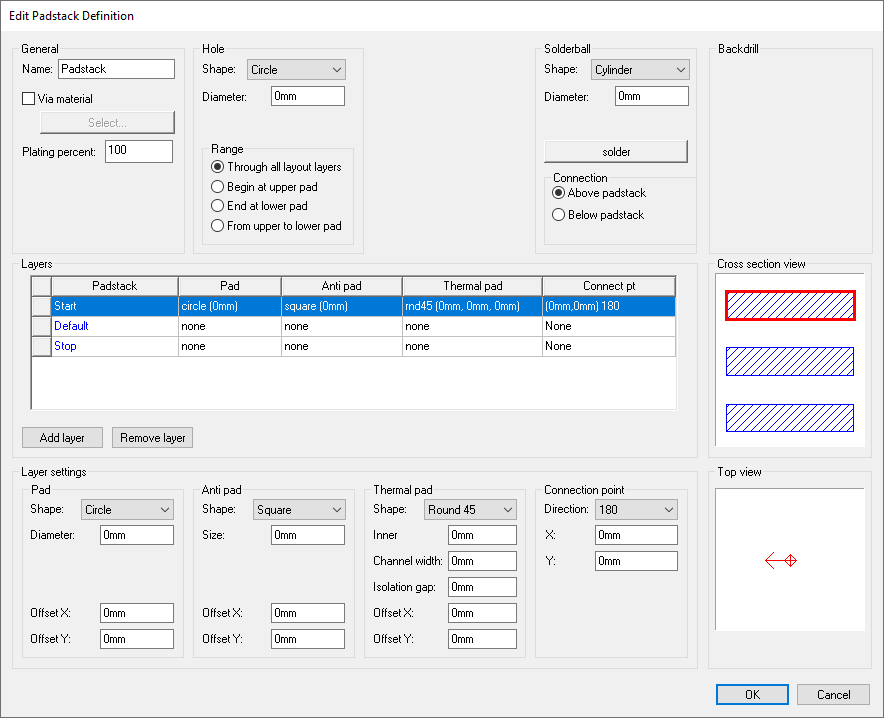
- Enter an appropriate settings for the new padstack and click OK. See: Padstack Settings.
The new padstack appears in the Padstack Editor's list of padstacks.
Editing Padstacks
To edit an existing padstack:
- Select a padstack from the list of padstacks.
- Click Edit Padstack.
The Edit Padstack Definition window appears.
- Enter an appropriate settings and click OK. See: Padstack Settings.
Cloning Padstacks
To clone one or more existing padstacks:
- Select the padstack(s) from the list of padstacks.
To select more than one padstack, use Ctrl+click.
- Click Clone Padstack(s).
For each padstack selected, the Edit Padstack Definition window appears.
- If appropriate, update each padstack's settings.
- For each padstack, click OK to confirm settings.
When you have verified the settings for all cloned padstacks, the list updates to include the cloned padstacks.
Removing Padstacks
This action cannot be undone.
To remove one or more existing padstacks:
- Select the padstack(s) from the list of padstacks.
To select more than one padstack, use Ctrl+click.
- Click Remove Padstack(s).
An alert appears, warning you that there is no way to undo this action.
Note:You cannot remove padstacks from the system library.
- Click Yes to continue.
The padstack(s) are deleted.