
Viewing Optimetrics Analysis Results in 2D Extractor
To view data specific to an Optimetrics solution:
- From the Project Manager, expand Optimetrics.
- Right-click the Optimetrics setup and select View Analysis Result.
The Post Analysis Display dialog box appears, on the Result tab.
Plot View:
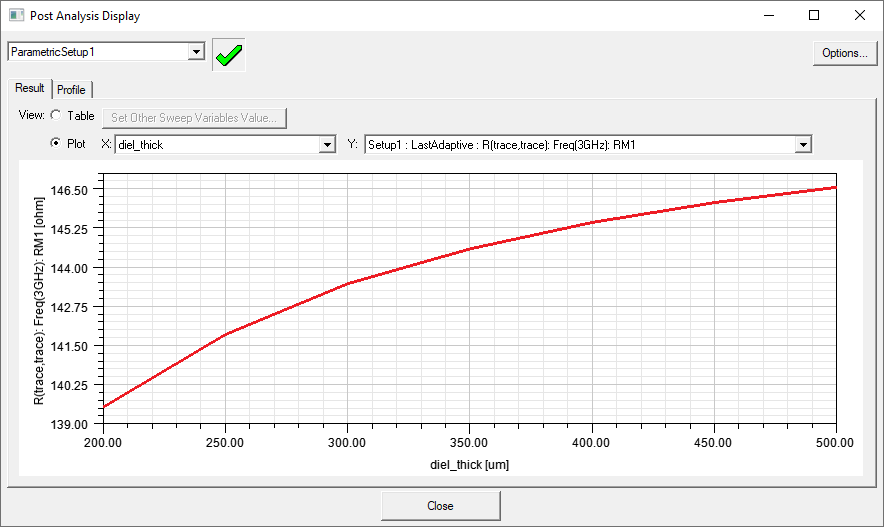
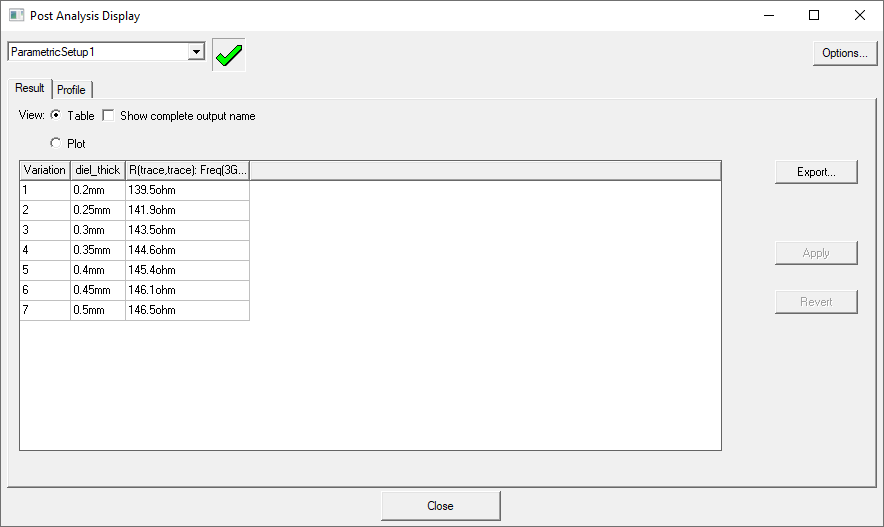
Table View:
- Use the drop-down menu at the top of the window to select the Optimetrics setup for which you want to view results.
- Under View, select either Table or Plot to change how the results are displayed.
- In Table view, select a design variation from the table and click Apply to apply that variation.
- In Table view, select Show Complete Output Name to view full solution names.
- In Plot view, use the X and Y drop-down menus to select which data is plotted.
- Click Options to select the number of significant digits to display.
- Use the Profile tab to view the Optimetrics solution profile.
Some Optimetrics analysis types have additional options in this window:
- Log Scale – for applicable analysis types, select this check box to select logarithmic scaling.
- Num. of Bins on X Axis – for statistical analysis, type the number of bins you want to plot along the X axis.
Note:
For Design Xplorer Analysis:
- Plot view is not available.
For Sensitivity Analysis:
- The plot displays actual output parameter results for each solved design variation. It also displays a parabola that best fits these results. The parabola is a more accurate representation of sensitivity around the design point than any individual solved design variation.
For Parametric Analysis:
- Only one sweep variable at a time can be plotted against solution quantity results. Any other variables that were swept during the parametric analysis remain constant.