
Viewing an Optimetrics Solution Profile in 2D Extractor
At any time during or after the solution process, you can examine the computing resources or profile data used for an optimetrics analysis. The profile data is essentially a log of the tasks performed by during the solution. The log indicates the length of time each task took and how much physical/disk memory was required.
To view profile data:
- From the Project Manager, right-click an Optimetrics solution setup and select View Analysis Result.
The Post Analysis Display dialog box appears.
- Select the Profile tab.
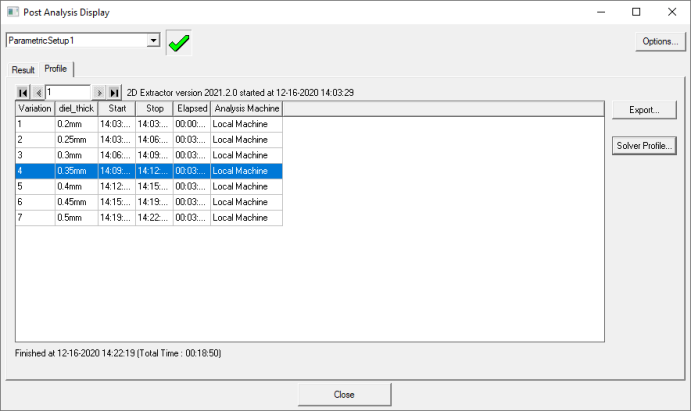
- Use the drop-down menu at the top of the window to select the Optimetrics setup of interest.
- In the table, select a design variation.
- Click Solver Profile.
The Solutions dialog box appears, showing the profile data.