
Viewing Matrix Data in 2D Extractor
You can view matrices computed for resistance, inductance, and capacitance during each adaptive or non-adaptive solution:
- Access the Solutions window one of two ways:
- In the project tree, under Analysis, right-click the solution setup.
- Or, from the ribbon, click Results > Solution Data.
The right-click menu appears.
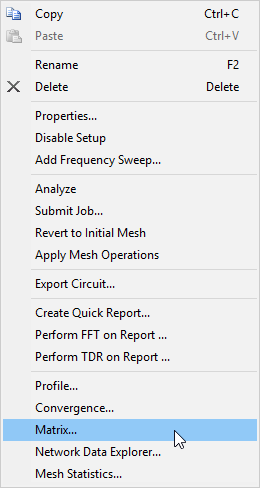
Select Matrix...

The Solutions window appears, with the Matrix tab selected.
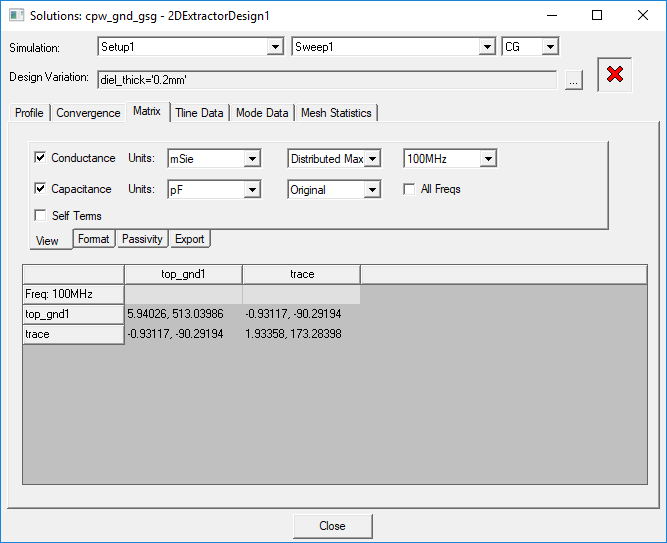
- In the Design Variation text box, set the design variation by clicking the ellipses (...) icon.
- From the Simulation drop-down menus, you can select setups and either adaptive or sweep solutions. Select the solution and type of matrix you want to view (CG, DC RL, or AC RL). Available types differ based on the solution type.
- The Matrix tab contains four sub-tabs: View, Format, Passivity, and Export. The View tab displays by default.
- Select the Units in which to display matrix information. Available units depend on the matrix type.
- Use the drop-down menus to select reduced matrices to display. Choices include Coupling Coefficient, Maxwell Matrix, and Spice Matrix. Maxwell Matrix and Spice Matrix are only available in the Capacitance matrix. By default, the Original solved matrix displays.
- To show matrix entities for reduced operations, click the Original menu and select Reduced matrices.
- Select the solved frequencies to display using the provided options:
- Frequency Drop-Down Menu – allows you to select the frequency for which you want to view matrix entries.
- All Freqs – allows you to display matrix entries for all solved frequencies.
- Pass – for an Adaptive Pass, allows you to select the pass for which you want to view matrix entries.
- Edit Freqs – for an Interpolating Sweep, opens the Edit Sweep window, allowing you to insert or delete displayed frequencies.
- Use the Self Terms check box to display only the diagonal of the selected matrix.
- Click the Format tab.
- Select either the Default or Custom display.
- If you select Custom, specify the matrix field Width and Precision in digits.
- Select the Use Scientific check box to display matrix data using scientific notation.
- Click the Passivity tab.
- Set the Passivity Tolerance.
- Click Check Passivity to check passivity under the specified Passivity Tolerance.
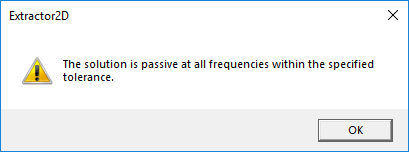
- Click OK to close the alert.
- Click the Export tab.
- To export matrix data, click Export and select either RLGC or S Parameters from the drop-down menu that appears.
- To export the equivalent circuit, click Equivalent Circuit Export.
- Click Close to exit the Solutions window.
The Set Design Variation window appears, listing all solved variations in the design.
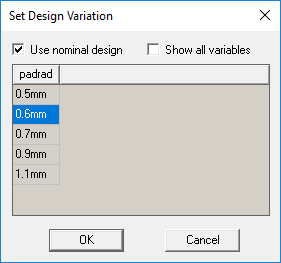
You can also access this window from the project tree by right-clicking Results and selecting Apply Solved Variation.
From the View tab:
The units are saved in the matrix panel. Units are stored only for the current session and current project. Changing the units in a project does not affect the units in another project open at the same time. Closing the project resets the units, and changes are lost.


The Format tab displays, with additional options.
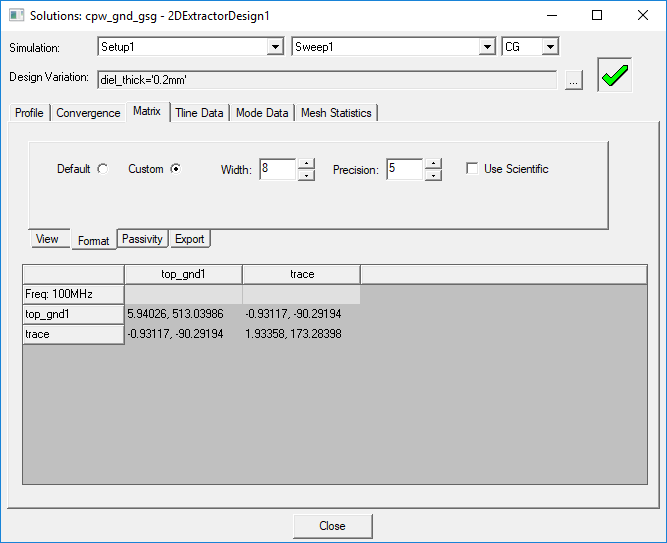
From the Format tab:
The Passivity tab displays.
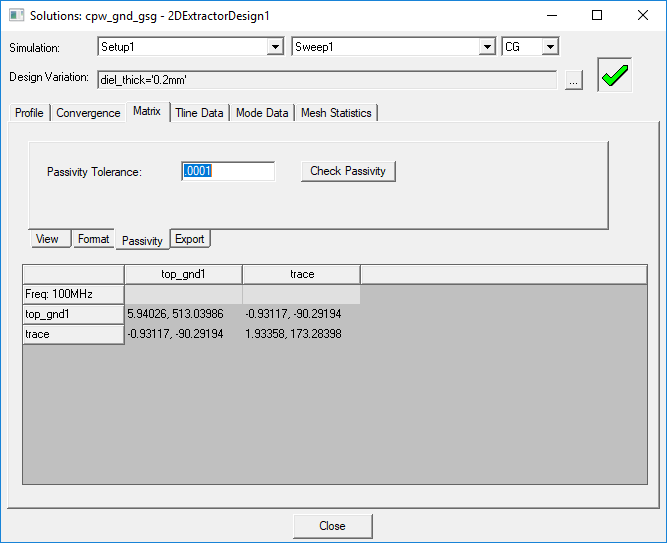
From the Passivity tab:
An alert appears, showing the result.
The Export tab displays.
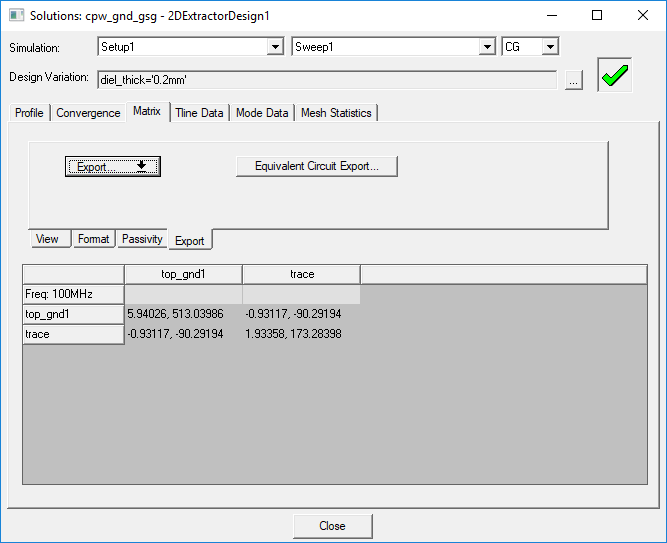
From the Export tab:

The Export Matrix window appears.
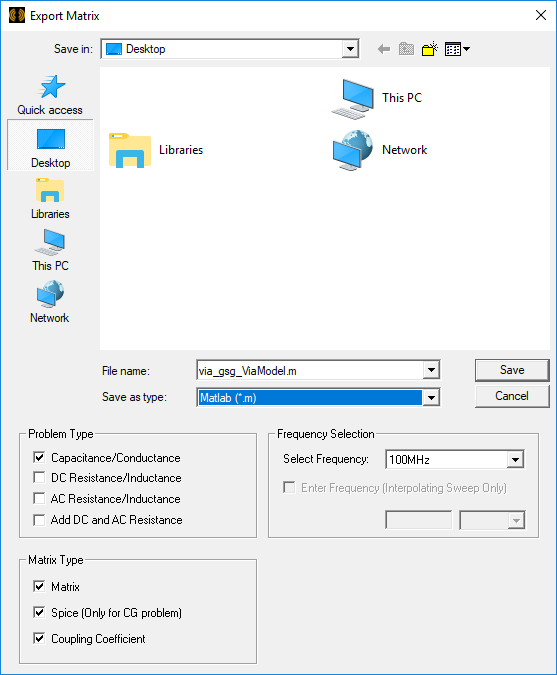
Select your desired options and click Save.
You can only export the current problem type, and will receive an error message if you try to export both CG and RL.
Selections in the Solutions window persist during execution, but are reset to their defaults on exit.