
Solution Setups in Q3D Extractor and 2D Extractor
The Solve Setup window allows you to specify how the solution will be computed.
You can define more than one setup per design, and each solution setup includes:
- General data about the solution's generation.
- Adaptive mesh refinement parameters if you want the mesh to be refined iteratively in areas of highest error.
Adding a Solution Setup
To add a solution setup to a design:
- Select a design from the Project Manager.
- Open the Solve Setup window one of three ways:
- Select 2D Extractor > Analysis Setup > Add Solution Setup.
- Right-click Analysis in the Project Manager and select Add Solution Setup.
- Copy and paste an existing sweep solution setup, then double-click it to change its properties.
Note:
Copying and pasting only works on sweep setups.
- Select the appropriate settings. See: detailed instructions for Q3D Extractor and 2D Extractor.
- Click OK.
Enabling and Disabling a Solution Setup
You can enable or disable a setup two ways:
- In the Solve Setup window, select or deselect the Enabled check box.
- In the Project Manager, right-click a setup and select Enable Setup or Disable Setup.
Disabled setups appear grayed out in the Project Manager:
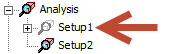
Deleting a Solution Setup
You can delete a setup from the Project Manager two ways:
- Select the setup and press Delete.
- Right-click the setup and select Delete.
Duplicating a Solution Setup
You can duplicate an existing setup by right-clicking it and selecting Copy (or by using Edit > Copy), then selecting Analysis in the Project Manager and pasting the setup. By default, the copy is named Setupn, where n increments with each new setup. You can then edit each copy to make desired changes.