
Exporting Equivalent Circuit Data in Q3D Extractor
You can export lumped RLGC data from a solution to the following circuit data file formats:
- Ansoft Designer Netlist (*.cir)
- Berkeley Spice Circuit (*.bsp)
- Cadence DML (*.dml)
- HSPICE Circuit (*.sp)
- IBIS ICM (*.icm)
- IBIS Package Model (*.pkg)
- Maxwell Spice Circuit (*.spc)
- PSpice Circuit (*.lib)
- Simplorer Netlist Files (*.sml)
- Spectre Circuit (*.ckt)
After importing the new data file to PSpice, HSPICE, or Maxwell Spice, you can include wave effects in circuit simulations.
To export a circuit file:
- Click Q3D Extractor > Analysis Setup > Export Circuit.
The Export Circuit window appears.
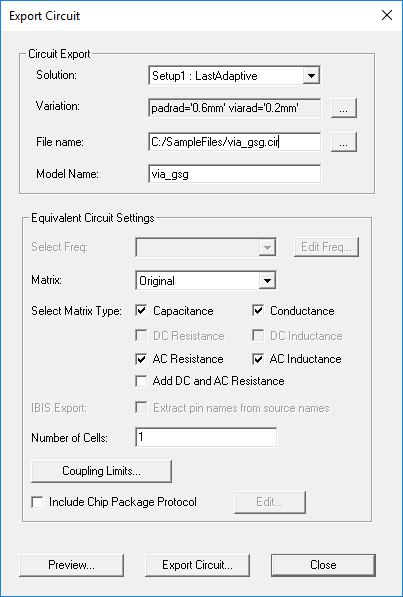
- In the Circuit Export area, set the following:
- Solution – use the drop-down menu to select the solution from which to export data.
- Variation – use the ... button to select a variation from all variations in the design.
- File Name – enter a file path and name for the circuit file to be exported.Important:
To save the circuit as an IBIS package model, use all lowercase names to facilitate portability between operating systems. The length should not be more than 20 characters.
To save the circuit in IBIS ICM format, use all lowercase names to facilitate portability between operating systems. The extension should be no more than three characters in length. There is no length restriction on the base file name; however, only lowercase letters, digits 0 through 9, underscore and hyphen are valid characters.
- Model Name – enter a name for the model within the circuit file. Upper and lowercase letters, digits 0 through 9, and underscore are valid characters. Spaces are not accepted. Any invalid characters will be replaced with underscores.
- In the Equivalent Circuit Settings area, set the following:
- Select Freq – for discrete or interpolating sweep solutions, use the drop-down menu to select a frequency. This option is unavailable for other solution types.
For interpolating sweeps, you can click Edit Freq to open the Edit Sweep dialog box and enter start and end values.
- Matrix – select either the original solved matrix or any reduced matrices.
- Select Matrix Type – select one or more matrix types for export. Note that selecting DC Resistance or DC Inductance disables the option for AC Resistance or AC Inductance, and vice versa. Select Add DC and AC Resistance if you want to create a circuit with a total resistance computed from AC and DC values.
- IBIS Export – by default, names are created in the form _NAME_src. Selecting the Extract pin names from source names check box will change that to just NAME.
- Number of Cells – enter the number of cells (that is, sections) to be used while exporting the circuit. Finer discretization (i.e., a larger number of sections) gives a closer approximation to the underlying Partial Differential Equations. However, this also leads to increased simulation time. See the technical notes for Equivalent Circuits.
- Coupling Limits – click to open the Coupling Limits dialog box.
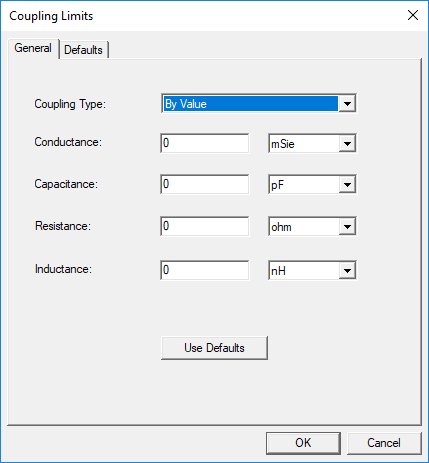
Select a Coupling Type and enter limit values. RLCG values smaller than those specified will be ignored.
- Include Chip Package Protocol – select this option and click Edit to specify Chip Package Protocol header information for SPICE formats.
- Select Freq – for discrete or interpolating sweep solutions, use the drop-down menu to select a frequency. This option is unavailable for other solution types.
- Click Preview to preview the Circuit model.
- Click Export Circuit to complete the export.
- Click Close to exit the window.