
Design Settings for 2D Extractor
To set the design settings for 2D Extractor:
- Click 2D Extractor > Design Settings.
The 2D Extractor Design Settings dialog box appears, on the Length Settings tab.

The Length Settings tab controls the Distributed Units, Lumped Length and Rise time.
- Click through the tabs to set various options.
- The Background tab shows the current background material name:

Clicking the name button opens the Materials window.
- The Validations tab controls the extent of validations performed, and therefore the time involved:

- Select model validation choices: either Ignore unclassified objects or Skip intersection checks.
- Control the Entity Check Level as Strict, Basic, Warning Only, or None.
- Choose Perform full validations to do all design validations, or Perform minimal validations to run all design validation except boundary overlap checks and net validations.
The Lossy Dielectrics tab contains options for causal materials:
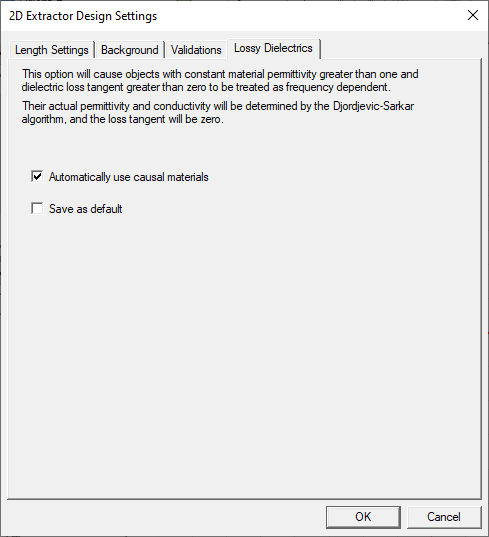
Automatically use causal materials causes objects with constant material permittivity greater than one and dielectric loss tangent greater than zero to be treated as frequency dependent. Their actual permittivity and conductivity will be determined by the Djordjevic-Sarkar algorithm, and the loss tangent will be zero.
Important:Automatic casual material calculations are not performed under the following circumstances:
- If the material permittivity or loss tangent is anisotropic.
- If the material permittivity or loss tangent is frequency dependent.
- If the material itself is not a lossy dielectric.
- The Background tab shows the current background material name:
-
If desired, select Save As Default on either tab. You must be careful since these settings change the modeler's "ground rules" and may produce unexpected results.
- Click OK to accept your selections and close the dialog box.
You can also view and set Design Settings by selecting the current project and then the 2D Extractor tab in the Properties window.
