Magnetostriction Stress Coupling Between Maxwell 2D/3D Transient and Workbench Mechanical
Maxwell supports magnetostriction forces in two-way coupling between Workbench Mechanical and Maxwell 2D/3D Transient designs.
- Maxwell 2D/3D transient provides force density data to the Mechanical system.
- The Workbench Mechanical system solves and sends stress/strain data (plus displacement data) to Maxwell, which will be used in the Maxwell solution for the next iteration.
To analyze the effect of stress due to magnetostriction forces on objects in a design using two-way coupling between a Maxwell 2D/3D transient design and Workbench Mechanical:
-
Set up the Maxwell 3D/2D transient Mechanical structure coupling.
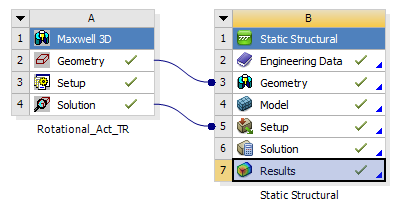 Note: You must manually Enable Stress Feedback and select the desired stress feedback objects in the Maxwell design.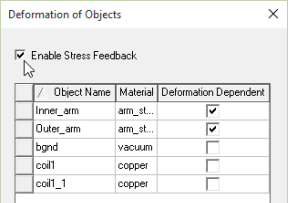
-
Update the Maxwell Solution cell to initiate a Maxwell solve.
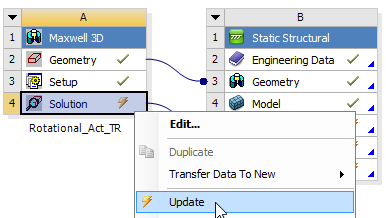
The Maxwell transient solver generates force density data, which can be used by Workbench Mechanical.
-
Update the Workbench Mechanical Setup cell to import the force density data generated by Maxwell.
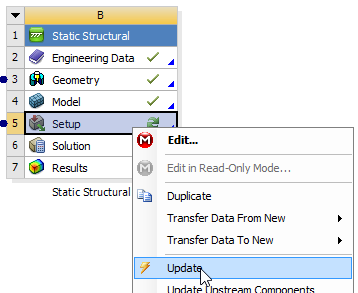
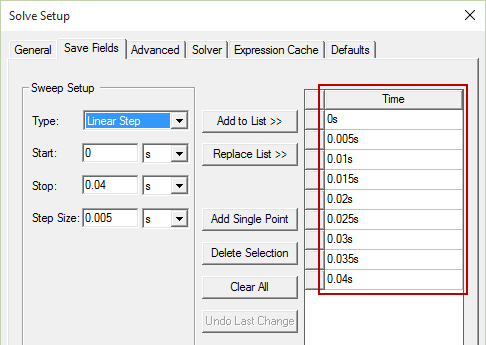
Maxwell maps the Maxwell mesh to the Workbench Mechanical mesh; and the calculated force density values for the time points you set up on the Maxwell transient Solve Setup dialog Save Fields tab are loaded into Workbench Mechanical.
-
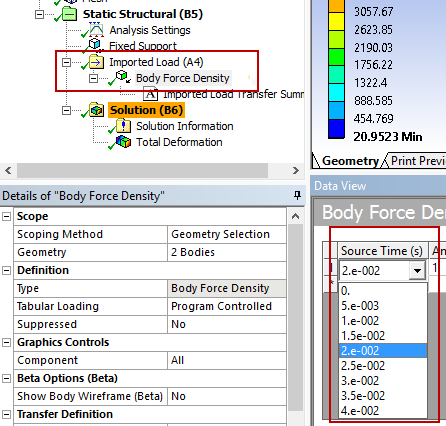
In Workbench Mechanical, select the desired source time point you want to use for the force density calculations.
-
Update the Solution cell of the Mechanical panel.
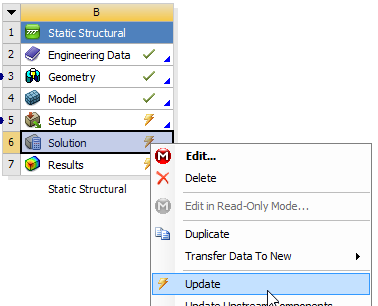
Workbench Mechanical solves the structural project using the force density at the selected source time, then outputs displacement and stress/strain data to be used as feedback by the Maxwell transient solver.
-
To re-solve using the feedback data, set the Solution cell of the Maxwell panel to Enable Update, then perform an Update for the Solution cell. (You can also use the feedback iterator to automatically update the Maxwell Solution cell.)
The Maxwell 3D/2D transient solver uses the feedback displacement and stress/strain data to re-solve from time 0.