
Export Via Current
The Maxwell 3D > Export Layout Field Data > Export Via Current function exports the current on the plane in the middle of two signal layers for all the vias in a layout component. If a via cuts through multiple signal layers, it outputs one value between every two neighboring layers.
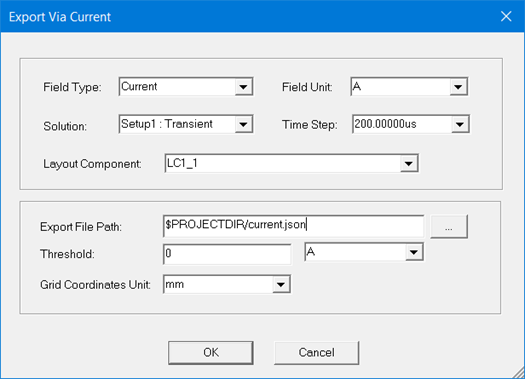
After the window is set up and the user clicks OK, Maxwell exports the data to the specified file. The output data for each via includes the following:
- Start and end layer of the current is flowing from and to.
- X and Y coordinate for the center of the via.
- Pad stack name.
- Average current on the plane in the middle of two signal layers.
To set up the Export Via Current window, configure the following settings:
- For this window, the Field Type has only the Current option.
- Click the drop-down arrow beside Field Unit, and select the unit for exporting data. The base unit is A, but the user can select different metric units.
- If there are multiple analysis setups in your design, you must select which setup solution you would like to use for the export. Click the drop-down arrow beside the Solution field, and select the desired solution results. If there is only one solution in the design, it will automatically display in the Solution field.
- Select the Time Step value you would like to use for the extraction. The available values are determined by transient setup in the Solve Setup window.
- From the Layout Component drop-down menu, select the layout component instance to export data from. If there is only on layout component in your design, it will be selected by default.
- Specify the Export File Path and name of the exported file with the .json extension. Note that this field support macros like $PROJECTDIR; for example, $ProjectDir/current.json.
- Specify the Threshold of the field value, which is the minimum field value for the data to be exported. In the adjacent field, specify the units for the Threshold.
- Specify the Grid Coordinate Unit, which determines how the coordinate values are listed in the data report.
- Click OK to generate the report.
The figure that follows shows partial current results for the LC1_1 component:
