
Defining the Rotor Windings and Conductors for a Universal Motor
To define the rotor windings, wires, and conductors:
- To open the Rotor Slot Winding Properties window, double-click the Machine > Rotor > Winding entry in the Project Manager tree. (You can also enter values in the Properties section of the desktop without opening a separate window.)
- Click the Winding tab.
- Select a Winding Type:
- Click the button for Winding Type.
The Winding Type window appears. - Select from one of the following three types of winding:
- Lap
- Wave
- Frog Leg
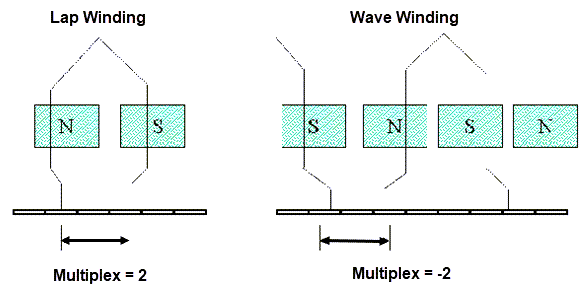
- Enter the number of windings in the Multiplex Number field (1 for a single
winding, 2 for double windings, 3 for triple windings). For a lap winding,
the multiplex number is the number of commutators between the start and
end of one winding, and the number of parallel branches is equal to the
number of poles multiplied by the multiplex number. For a wave winding,
the number of parallel branches equals the multiplex number multiplied
by two.
- Enter the number of virtual slots per each real slot in the Virtual Slots field. The rotor is assumed to have two layers of conductors, an upper and a lower layer. Each layer of conductors can have a number of windings, which are referred to as virtual slots.
- Enter the total number of conductors in each rotor slot in the Conductors per Slot field. This value is the number of turns per coil multiplied by the number of layers. This value is the total number of conductors in one real full rotor slot.
- Enter the coil pitch, measured in number of slots, in the Coil Pitch field. The coil pitch is the number of slots separating one winding. For example, if a coil starts in slot 1 and ends in slot 6, it has a coil pitch of 5.
- Enter the number of wires per conductor in the Number of Strands field. Enter 0 to have RMxprt auto-design this value.
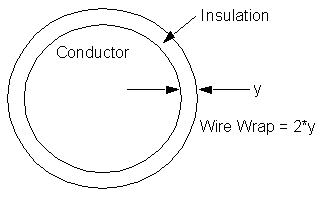
- Enter the thickness of the double-sided
wire wrap in the Wire Wrap field.
Enter 0 to automatically obtain this value from the wire library.
- Select the Wire Size:
- Click the button for Wire Size.
The Wire Size window appears. - Select a value from the Wire Diameter drop-down menu.
- Select a wire gauge from the Gauge
drop-down menu. You can select from the following options:
<number>
You can select a specific gauge number. When you select a gauge number, the Wire Diameter field is automatically updated.
USER
This option allows you to manually enter the Wire Diameter. This is useful when you want to enter a diameter that does not correspond to a particular wire gauge.
AUTO
This option sets the Wire Diameter to zero, and RMxprt automatically calculates the optimal value. The diameter information is then written to the output file when you analyze the design.
MIXED
This option allows you to define a conductor that is made of different size wires. For example, a single conductor may consist of five wires: three wires with a diameter of 0.21 mm and two wires with a diameter of 0.13 mm.
- If you selected Input Half-turn Length, then enter the half-turn length of the armature winding in the Half Turn Length field.
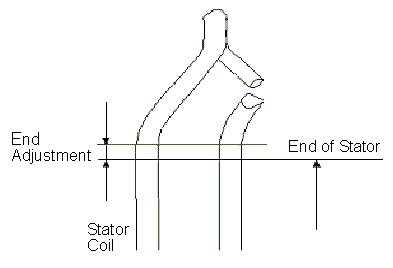
- If you cleared Input
Half-turn Length, then enter the end length adjustment of the
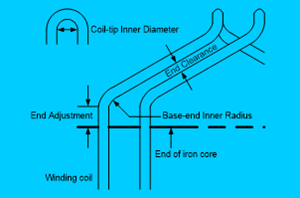
stator coils in the End Adjustment
field. The end adjustment is the distance one end of the conductor extends
vertically beyond the end of the stator.
- Enter the inner radius of the base corner in the Base Inner Radius field.
- Enter the inner diameter of the coil tip in the Tip Inner Diameter field.
- Enter the distance between two rotor coils in the End Clearance field.
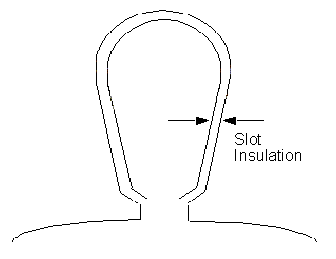
- Enter the thickness of the slot liner
insulation in the Slot Liner field.
- Enter the thickness of the wedge insulation in the Wedge Thickness field.
- Enter the thickness of the insulation layer in the Layer Insulation field.
- Enter the limited slot fill factor for the wire design in the Limited Fill Factor field. The slot fill factor is the ratio between the cross-sectional area of all conductors in one slot and the entire slot area.
- Select the type of equalizer connection from the Equalizer Connection drop-down menu. Select from None, Half, or Full.
- Click OK to close the Properties window.
The gauge number is based on AWG settings. You can create your own wire table using Machine > Wire, and then you can select this wire table using the Tools > Options > General Options > Machines option. When you are done setting the wire size, click OK to close the Wire Size window and return to the Properties window. Click the End/Insulation tab. Select or clear the Input Half-turn Length check box. Do one of the following: