
Creating a Fields Summary
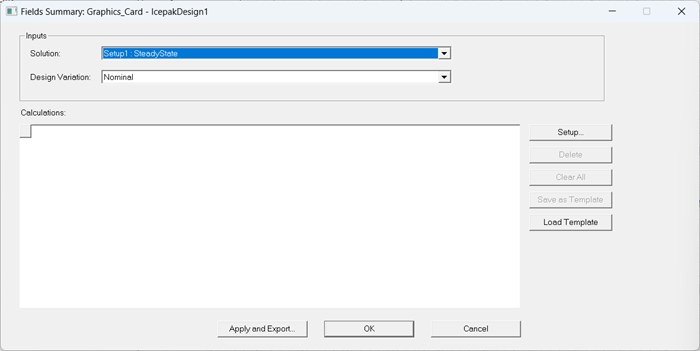
A fields summary computes basic field quantities and displays the data in a table in the Fields Summary dialog.
The contents of this topic are specific to Icepak designs. For Fields Summary information specific to Mechanical designs, choose one of the following two links:
- Mechanical – Thermal Solutions: Creating a Fields Summary
- Mechanical – Structural Solutions: Creating a Fields Summary

|
Click here for scripting information related to this feature. |
- From the Icepak menu, select Fields>Create Fields Summary.
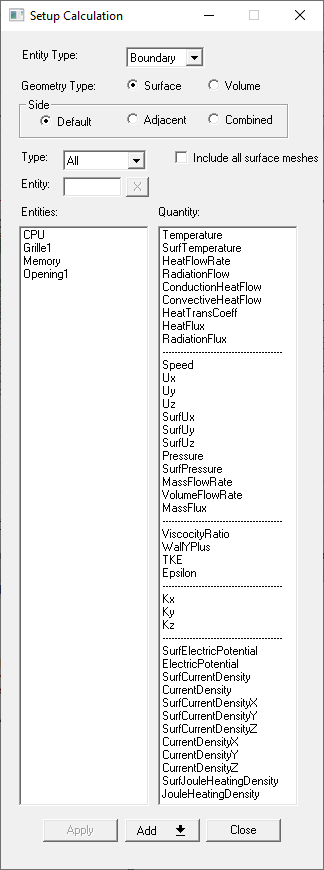
The Fields Summary and Setup Calculation dialog boxes are displayed. Note:
Alternatively, right-click Field Overlays in the Project Manager and select Create Fields Summary.
Note:If you've previously created a fields summary template, you can click Load Template to select and load the template file.
- In the Fields Summary dialog under Inputs, select the Solution and Design Variation for which you want to create a fields summary. For Design Variation, you can select a single variation or All.
- In the Setup Calculation dialog box, select the Entity Type and Geometry Type.
- Entity Type: select Boundary (thermal boundary condition), Object (geometry), or Monitor (face or point monitor).
Note:
When Monitor is selected, the entities displayed depends on the selected Geometry Type. When Surface is selected, face monitors are displayed. When Volume is selected, point monitors are displayed.
- Geometry Type: select Volume or Surface.Note:
When Volume is selected:
- Only thermal boundary conditions that can be assigned to a solid object are available (e.g., Block, Resistance, EM Loss).
- If needed, for 2D geometry or boundary conditions or the faces of 3D geometry or boundary conditions, select the Adjacent side check box. See Reporting Sides for information on the data displayed.
- Select the Entities and Quantity you want to display in the fields summary. To filter the entities displayed, use the filtering options. For more information, see Filtering the Entities List.
- Entities: select one or more entity from the list. Press and hold Shift or Ctrl to select multiple entities and quantities.
- Only quantities reported at nodes are available (e.g., Pressure, Temperature, RadTemperature, Ux, Uy, Uz).
Note:When Volume is selected:
- From the Add drop-down menu, select Add As Single Calculation or Add As Multiple Calculationsto add rows for data.
- Add As Single Calculation adds one row displaying the quantity for all selected entities collectively.
- Add As Multiple Calculations adds a row of the selected quantity for each selected entity.
Note:When adding an entity list to a fields summary report as a single calculation, one line item is added. When adding one as multiple calculations, line items for each object or face in the entity list are added.
- If needed, click Export to open the Save As dialog and save a comma separated (.csv) file of the fields summary data in the desired directory.
-
Do one of the following:
Note: You can click Save as Template to save the current fields summary calculations as a template file.- Click OK to save the settings and close the Fields Summary dialog box. When you open the Fields Summary dialog again, the data for the saved settings is displayed.
- Click Cancel to close the Fields Summary dialog without saving.
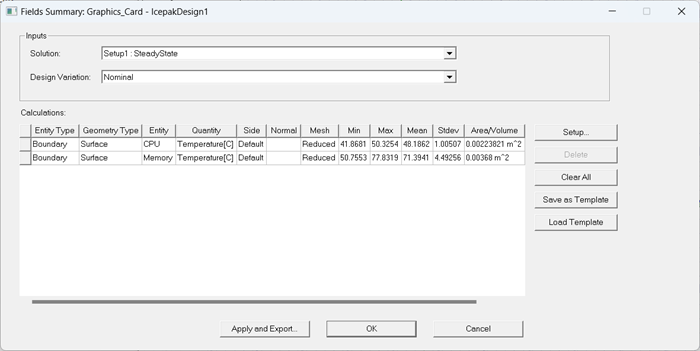
You can double-click a row in the fields report to open the Setup Calculation dialog box. You can then edit the row's definition and click Apply to change it.
