
Geometry Command
The Fields Calculator Geometry command opens a dialog box. From the dialog box, select a geometry to load into the top register of the calculator.
Do this to
- find the value of derived field quantities on any point, line, surface, or volume.
- plot quantities directly from the calculator.
- display a previously defined isosurface, maximum or minimum field point using the Draw command.
The following types of geometries are available:
|
Point |
See Drawing a Point Object. Drawn points are listed in the calculator's Geometry dialog box when Point is selected. |
|
Line |
See Drawing a Line Segment or Drawing a 3D Line Segment. Drawn lines are listed in the calculator's Geometry dialog box when Line is selected. To set the number of points on a line, see Geom Settings.
|
|
Surface |
|
|
Volume |
3D objects, Regions, and Object Lists (of 3D objects including AllObjects) are available in the calculator's Geometry dialog box when Volume is selected. |
|
Coord |
Coordinate systems are available in the calculator's Geometry dialog box when Coord is selected. |
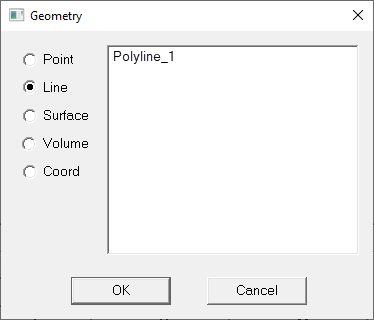
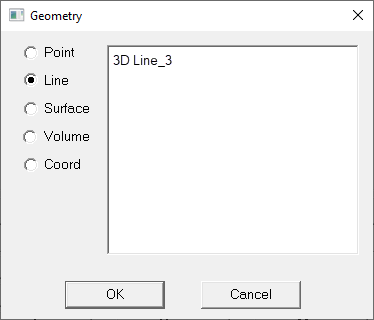
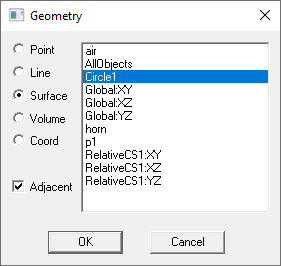

To load a geometry into the calculator:
- In the Fields Calculator, click Geometry.
The Geometry dialog box appears.
- Select a geometry type.
A list of all applicable geometries appears. If a design includes Layout Components, the Geometry list shows the available component geometries as well.
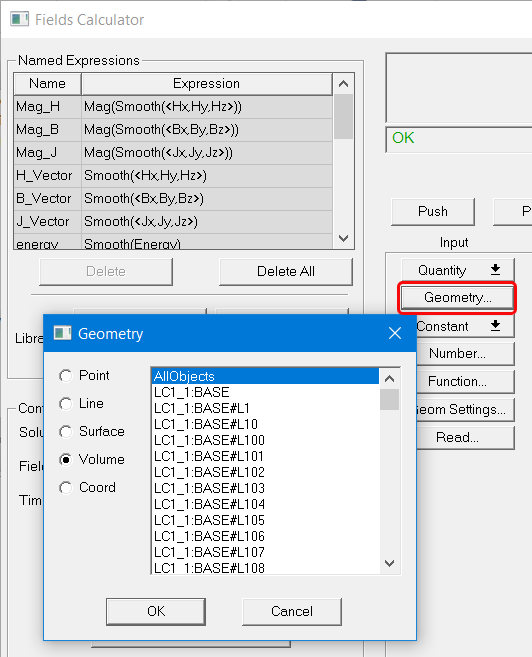
In the modeler window, these Layout Component objects are drawn as visualizations without actual geometry. However, they can be used to calculate field quantities as shown below.
These geometry operators can be used to perform computations just like one constructed from regular 3D geometry. These additional objects are generated only after reading a mesh, so they won’t show up if there is no solution.
- Click the geometry.
- Click OK to load the geometry.