
Specifying a Linear Count of Frequency Points
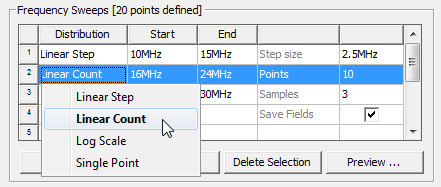
- In the Edit
Sweep dialog box, click Linear
Count in the Type pull-down
list.
- In the Start text box, type the starting frequency of the frequency sweep.
For Fast and Interpolating sweeps, setting the initial value to 0 enables the DC Extrapolation option.
- In the Endtext box, type the ending frequency of the frequency sweep.
- In the Points text box, type the number
of points in the sweep. The count value includes the Start and End values.
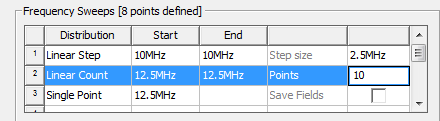
HFSS will divide the frequency range into the count you specify and solve each frequency point in the count.
To view a table of the frequencies and count, click the Display button. If the list of frequencies is longer than the visible display, you can use a scroll bar to view the list to the end of the count.
- For Fast sweeps, select Save Fields if you want to save the calculated 3D field solutions associated with all port modes at the chosen frequencies.
For Discrete sweeps, select Save Fields (All Frequencies) if you want to save the calculated 3D field solutions associated with all port modes at the chosen frequencies.
If want to save the fields for just one or a few Discrete sweep frequencies, define a Single Point sweep for those frequencies and check the Save Fields box for that point.
For Discrete sweeps, HFSS always solves the frequencies from highest to lowest.