
An Eye Probe is required when the QuickEye, VerifEye, or Transient analysis uses an Eye Source as the transmit device. All QuickEye and some Transient analyses use one or more Eye Sources and Eye Probes. Each Eye Probe receives data from a specific Eye Source, allows for Decision-feedback and Continuous-time equalization at the receiver end, and preserves all the transient analysis data generated during the analysis.
The Eye Probe may be selected on the Probes list on the Components tab:
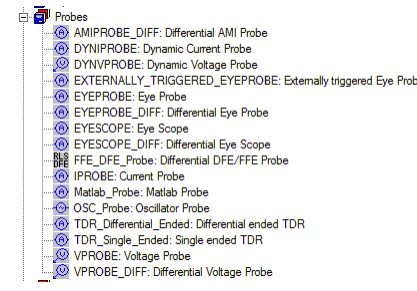
Both single-ended and differential versions are available.
Click the Eye Probe to open its parameter list:
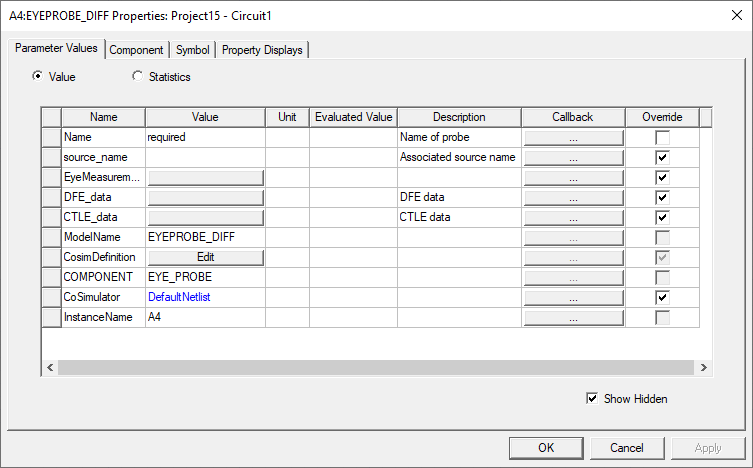
The Parameter Values tab is the default.
- Specify a name for the Eye Probe.
- Select the Eye Source for this probe on the source_name drop-down menu. A channel can have multiple sources, but only the source actually at the transmitter should be the reference source.
The source_name field is automatically filled in with the name of the Eye Source when the Source and Probe are paired on the GUI. See Pairing an Eye Source and an Eye Probe in the Schematic.
- To apply decision-feedback equalization to the
received bits, click DFE_data to open the window:
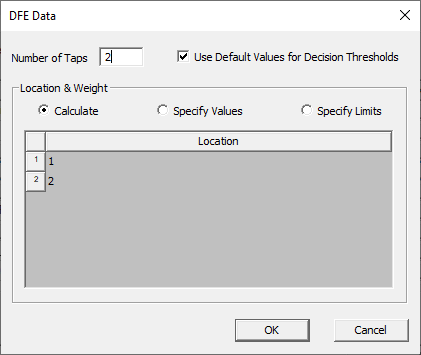
- To enable Decision-Feedback Equalization at the probe, set the Number of taps in the DFE field to a positive, non-zero value. The default is zero taps (no DFE). When one or more taps have been specified, a list of tap numbers and locations appears.
- DFE applies its tap weights to the decision threshold for each bit to correct for inter-symbol interference (ISI) in the transition from previous bits to the current bit. A DFE with M taps is like a buffer of M bits. Tap 1 is applied to the earliest bit to arrive in the DFE buffer. Tap 2 is applied to the next later bit, et cetera.
- The value of each bit is decoded, and the difference between the actual voltage and the ideal voltage is calculated. Tap weights compensate for the difference. In QuickEye, the weights are applied to the step response.
- By default, the Circuit solver calculates the
weights to apply to the DFE taps. The tap weights calculated by QuickEye
are displayed in the Message Manager window after the Quick Eye analysis has completed.

- To automatically calculate the tap weights, choose Specify Limits and set the limits. The tap weights are calculated in the bounds you specify. The default value for bounds are +/- 1e5 for taps. There are no requirements on the limits.
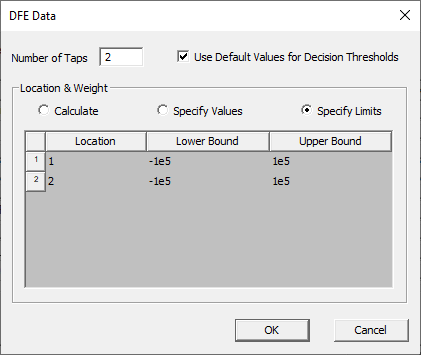
- To specify your own set of tap weights,
select Specify Values and click the weights to specify them.
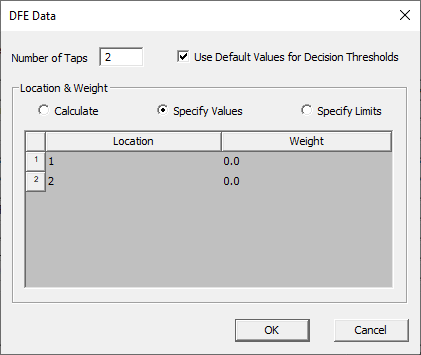
- To decode the received bits, mark Use Default Values for Decision Thresholds. For NRZ transmissions, you enter a single voltage threshold. For PAM4, you enter three voltage thresholds, one for each eye. The default is to have Nexxim calculate the thresholds.
- For more information on DFE, see Decision-Feedback Equalization.
- Click OK to close the DFE_data window and return to the Properties window.
Click CTLE_data to open the CTLE Data window. (See Continuous Time Linear Equalization in the QE/VE Technical Notes for details).
- Select Enter CTLE Data (legacy), Choose CTLE data file, or Enter generic rational function for CTLE.
If you select Enter CTLE Data, only the CTLE data group box is activated:
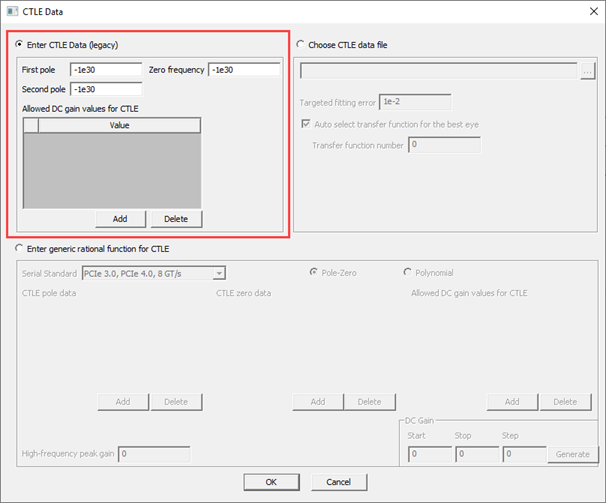
- Specify the first pole frequency in Hz (positive). The first pole frequency typically is the lower bound of the high passband.
- Optionally, specify a second pole frequency. The second pole frequency typically is the higher bound of the passband.
- Optionally, specify a zero frequency, typically where the response curve begins to rise.
Note:
- The default pole and zero frequency values of -1e30 are equivalent to “None.”
- If the zero frequency is specified, it must be greater than 0.0.
- See Continuous Time Linear Equalization in the QE/VE Technical Notes for an illustration of the two-pole, one zero filter.
- Optionally, click Add Row and Delete Row to specify one or more allowable values for the DC gain factor in dB for the CTLE calculation. Nexxim varies the gain to find the optimum equalization (maximum eye height). If no values are provided, the Circuit solver calculates the optimum CTLE gain (between -infinity dB to 0 dB).
If you select Choose CTLE Data File, only the CTLE data file group box is activated. Here is that portion of the window:
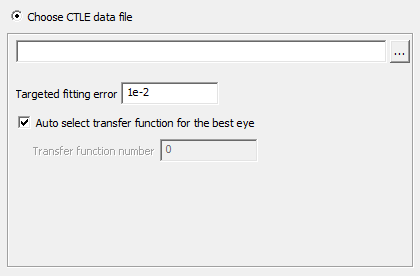
- Use Browse to access the File Open window. Browse to the target directory and select the file with the CTLE transfer function data (.ctle extension). Nexxim fits a rational function to the data.
- Optionally, Click the Targeted fitting error field to specify a tolerance to apply to the CTLE rational function calculation using the transfer function data.
- By default, Auto select transfer function for the best eye is enabled. Nexxim tries all the transfer functions on the file, and uses the one that yields the maximum eye height. Optionally, uncheck the Auto select group box, then enter the number of a transfer function among the multiple transfer functions in the data file.
In the following figure, transfer function 1 is specified.
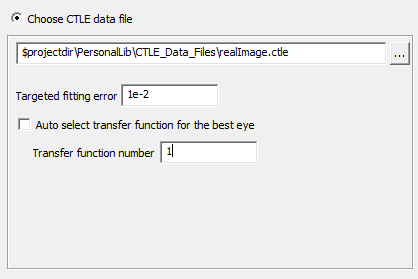
- Values for the transfer function number run from 0 (the Auto select default) to the number of transfer functions in the file. The first transfer function is number 1, the second is number 2, et cetera. If the number given for this parameter is less than 0 or greater than the number of transfer functions in the file, an error occurs.
When you select Enter generic rational function for CTLE, only that group box is activated.
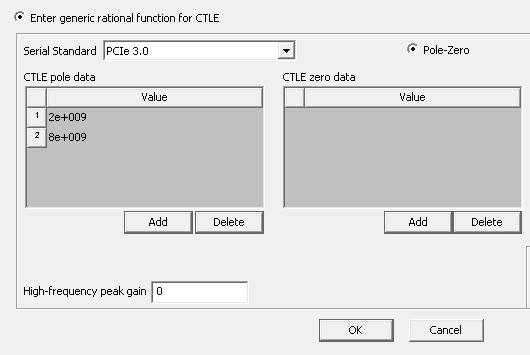
There are two formats for specifying a generic rational function, chosen by selecting Pole-Zero or Polynomial. By default, the Pole-Zero format is selected. With this format, the rational function is specified by a set of pole frequencies, a set of zero frequencies, the high-frequency peak gain, and a list of allowable DC gain values.
Here are the entry fields for the pole and zero frequencies and the High frequency peak gain:
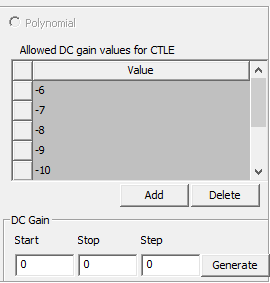
Here is the entry field for the DC gain values:
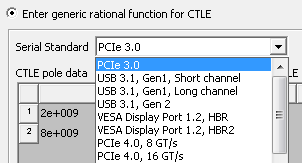
The Serial Standard field has a drop-down menu with a selection of preset standard CTLEs. The PCIe, USB, and VESA preset CTLEs use only the Pole-Zero format.
Alternatively, select Polynomial format. In this format, the rational function is specified by giving the coefficients for the terms in the numerator and denominator of the polynomial fraction. The High-frequency peak gain and Allowed DC gain fields are inactivated in the Polynomial format.
Here are the entry fields for the Polynomial format coefficients:
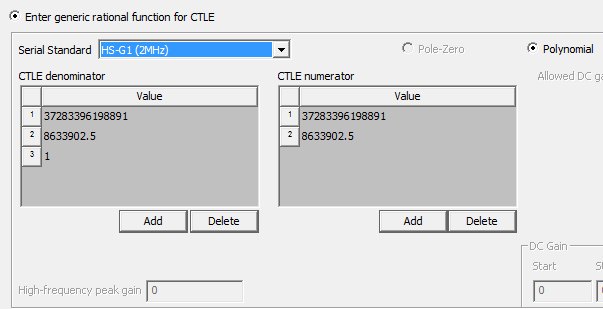
The MIPI-HS-G1, MIPI-HS-G2, and MIPI-HS-G3 CTLE presets use only the Polynomial format.

To create your own rational function, select Custom on the menu. The Custom entry allows you to specify a generic rational transfer function in either Pole-Zero format or Polynomial format.
Here are the CTLE pole data, CTLE zero data, and High-frequency gain entry fields for the Custom entry in Pole-Zero format:
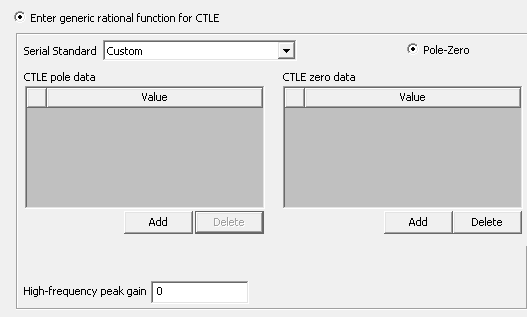
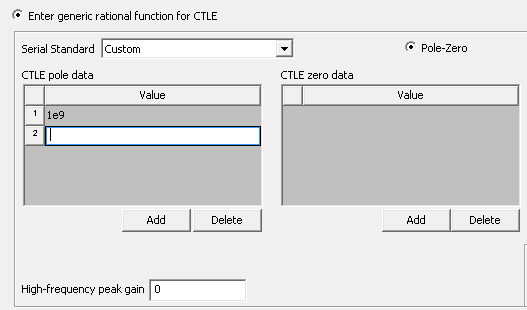
Click Add to add a row in the pole or zero data list. Click in the Value field to enter the pole or zero frequency in Hz. Click Return to generate a new row. Click Delete in either field to delete unwanted rows. Set the High-frequency peak gain to a appropriate value in dB.
Use the Allowed DC gain group box to specify a range of DC gain values in dB.
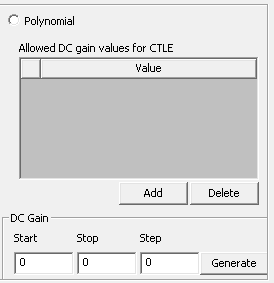
Click Add and Delete to specify one or more allowable values for the DC gain factor in dB for the CTLE calculation. Nexxim varies the gain to find the optimum equalization (maximum eye height). If no values are provided, the Circuit solver calculates the optimum CTLE gain (between -infinity dB to 0 dB).
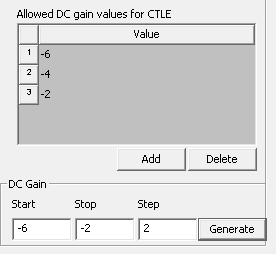
To have Nexxim generate a sequence of DC values, enter the Start, Stop, and Step values in the DC Gain fields and click Generate. In this window, Start=-6, Stop=-2. and Step=2:
Alternatively, a Custom rational function CTLE can Click the Polynomial format.
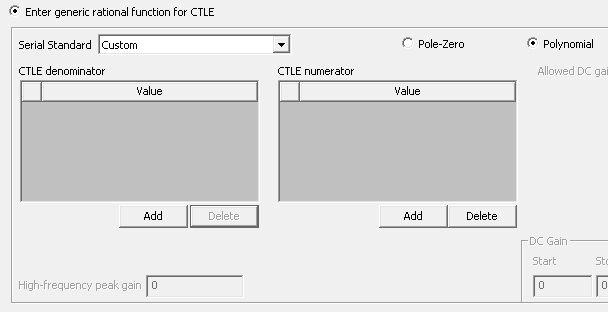
Click Add to add a row in the CTLE denominator or CTLE numerator list. Click in the Value field to enter the (unitless) coefficient. Click Return to generate a new row. Click Delete in either field to delete unwanted rows. Click OK to close the CTLE Data window.
For more information see Continuous Time Linear Equalization.
Click EyeMeasurementFunctions to open the Set Eye Measurement Functions window.
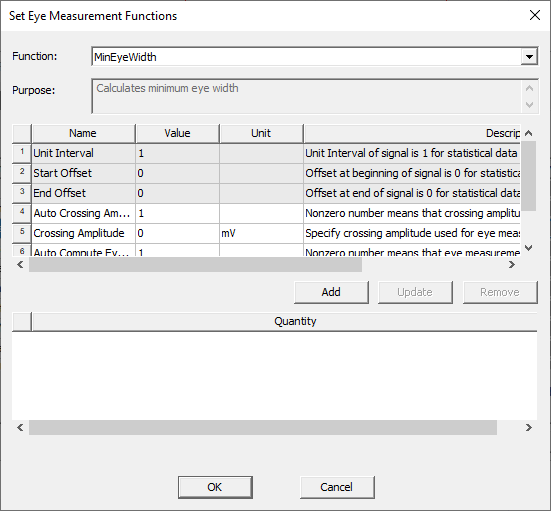
- In the Function field, select MinEyeWidth or MinEyeHeight.
- Set the Unit Interval parameter to the Unit Interval (UI) of the Eye diagram.
- Set the Start Offset parameter if an initial time offset is appropriate.
- Set the End Offset parameter if trailing time offset is appropriate.
- Leave Auto Crossing Amplitude set to 1 (or any non-zero number) to have the solver compute the crossing amplitude by averaging the histograms for the high and low voltages. The crossing amplitude sets the voltage at which the minimum eye width is calculated.
- When Auto Crossing Amplitude is 0, the solver uses the voltage set in the Crossing Amplitude parameter as the crossing voltage amplitude for the minimum eye width calculation.
- Leave Auto Compute Eye Measurement Point set to 1 (or any non-zero number) to have the solver compute the eye measurement point by averaging the times of the crossing points. The eye measurement point sets the time at which the minimum eye height is calculated.
- When Auto Compute Eye Measurement Point is 0, the solver uses the voltage set in the Eye Measurement Point parameter as the time for the minimum eye height calculation.
- Click Add to add the measurement to the analysis. Add any number of measurements. The window above has added a MinEyeWidth measurement using the default settings.
- Click OK to close the Set Eye Measurement Functions window.
- For more information, see Eye Measurements in the Reports topic.
Click OK to close the Properties window of the probe.