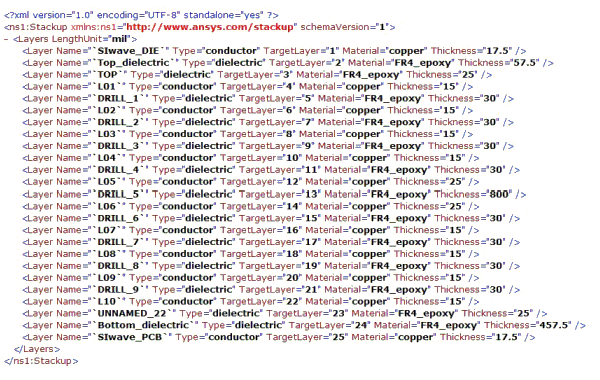
It is possible to use XML schema functionality in Microsoft Excel to create stackup-layer information that can then be exported to an ODB++ control file.
An XML schema is basically a set of rules (constraints) that define the structure and content (elements) of an XML file. Both XML and XML Schema documents (*.xml, *.xsd) are straightforward user-friendly text files, and Microsoft Excel offers an intuitive interface that “maps” elements in an XML schema to data cells in an ordinary worksheet. As such, and because the XML schema is quite simple, it is possible to use a plain-text XML editor in Microsoft Excel to create stackup-layer controls that are suitable for Ansys tools. These controls can then be exported to an ODB++ Control File.
The schema used in the following example is shipped with Electronics Desktop v6.0 (or higher) and can be found at <desktop_inst_dir>\Stackup.xsd, where <desktop_inst_dir> is the Ansys Electronics Desktop installation directory. In this example, Microsoft Excel 2007 is used, but Excel 2003 should also be compatible.
- Access XML Functionality in Excel:
To access the XML import/export functionality in Excel, you must
first activate the Developer Tab. If the Developer Tab is not already
visible, click the Office Button
 , then select Excel Options.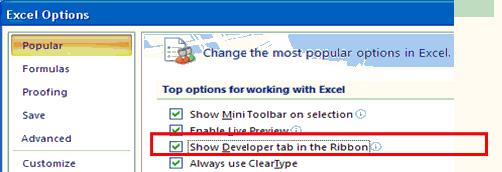
- If appropriate, select the Popular category, then click
Show Developer tab in the Ribbon. Then, on the Developer tab in
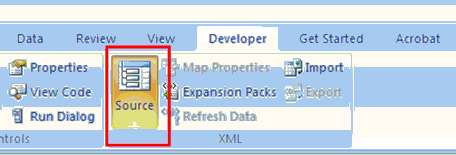
the XML group, click Source to display the XML Source task-pane.
- Open the Excel Spreadsheet: Open
the spread sheet file (*.xls or *.xlsx) that you wish to export to the
control file.
- Load the Ansys XML Schema: In
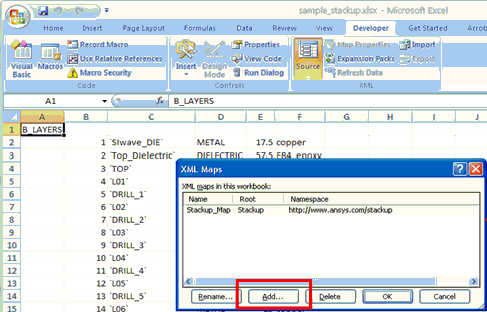
the XML Source task pane, click XML Maps to open the XML Maps window
box.
- Load the Ansys XML Schema (contd):
Click Add to open the Select XML Source window, then
browse to the .xsd file in Electronics Desktop installation directory
and click Open. Next, click OK to close the Source window.
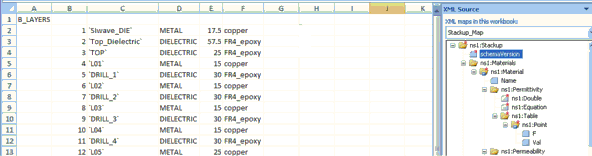
The XML schema are loaded into the XML Source Pane.
- Prepare the Excel Spreadsheet:
From the schema element list that appears in the task pane, those elements
with a red star are mandatory fields that you must map to cells in the
worksheet. But, you do not need to map a starred element if its parent
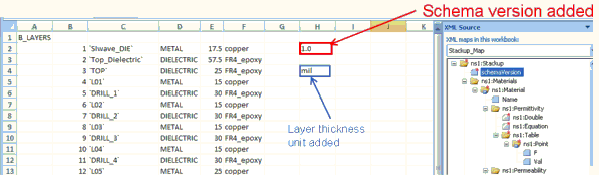
is not also starred. For most Excel files, you need to add at least
one cell in the worksheet that contains the schema version number — which
is currently fixed at “1.0” — you can add it anywhere, but it must be
formatted as “text”, instead of the default format “number”, so that
the literal string are exported. You may add additional fields to
the worksheet, such as a layer-thickness unit, but this is not required.
- Prepare the Excel Spreadsheet (contd):
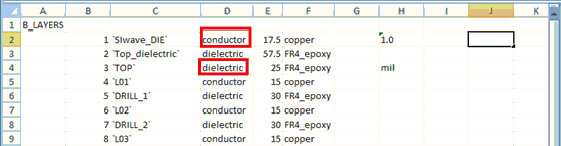
Many pre-existing layer-stackup files may contain names/symbols that
are different from those used by the XML Schema. These names are
flagged as errors, even if they represent the same entity. Because of
this, these names must be replaced with valid entries before being exported
to XML (e.g., “METAL” is not a valid
layer type and is replaced with “conductor”, and since XML is case-sensitive,
“DIELECTRIC” is replaced with “dielectric”).
 For a complete list of valid entries for each element,
open the XML Schema document (*.xsd) in a text editor and search for
the element name.
For a complete list of valid entries for each element,
open the XML Schema document (*.xsd) in a text editor and search for
the element name.
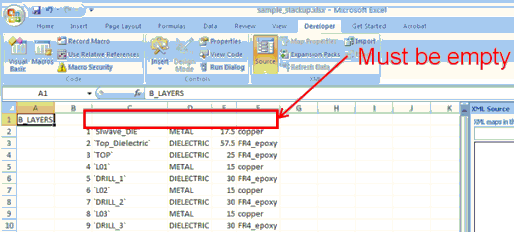
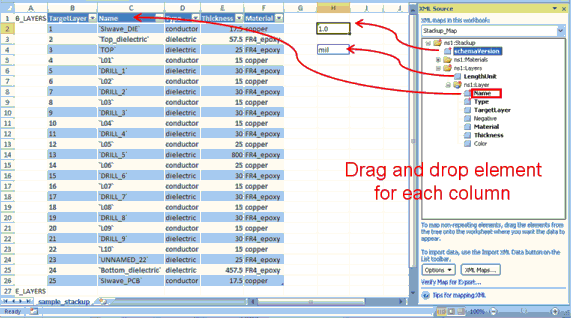
- Map the XML schema to the workbook: Drag each element on the task pane to the corresponding cell in the workbook. The mapped areas appear in the blue nonprintable borders. Repeat this mapping operation for each element by dragging it into the workbook.
-
For columns of data, drop the element on the cell directly above the top row in order to make it the header.
-
For a single cell, drop the element on the cell itself.
-
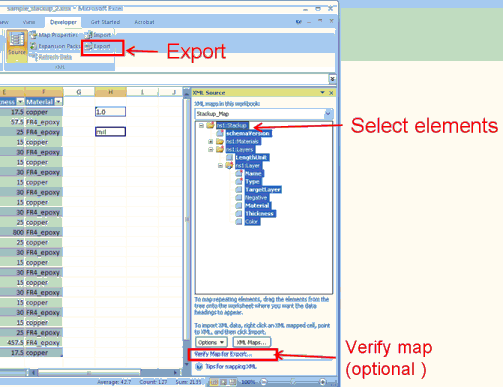
Export to XML File: Select the elements in the task pane that you wish to export. All corresponding mapped cells are highlighted in the worksheet (Hint: To select all, click on ns1::Stackup). From the Developer tab, click Export. From the Export XML window that opens, specify a name for the file. Next, click Save and the file is exported to XML.
- Review the XML File: You can
open the exported XML file in a text editor or Internet Explorer for
review.