
Click the Pin Import tab to specify one or more buffer pins to be imported from a specified IBIS component. Each pin imported with Pin Import has a buffer model (or model selector). Each pin gets its power as specified in its power parameter, and uses the package model selected by a Package Model import or by the pin's individual pkg_selector parameter (which is not displayed when a Package Model was imported).
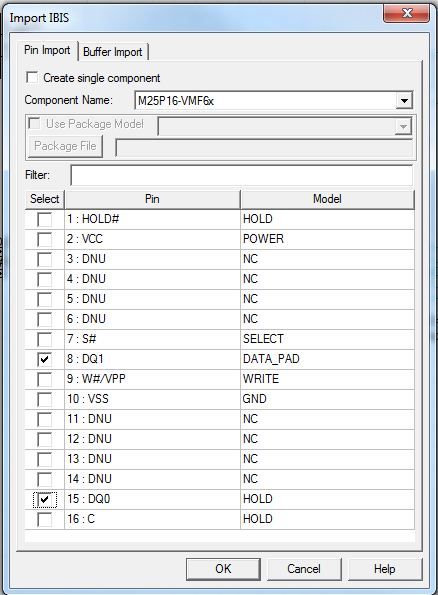
- The Component Name field lists all the IBIS components contained in the selected IBIS library. Scroll the list and select the name of the component to be imported.
- To import the pins as a single component where each pin retains its own model and buffer type, check Create single component. See Import IBIS Single Component or Pin or Buffer Element for details.
- The Pin Import tab displays the pins defined for the component in the IBIS file, and the model or model selector associated with each pin. Single pins are listed first, then differential pin pairs if any are defined in the IBIS file.
- To create a muiti-pin component:
- Use the check boxes to select one or more pins to import.
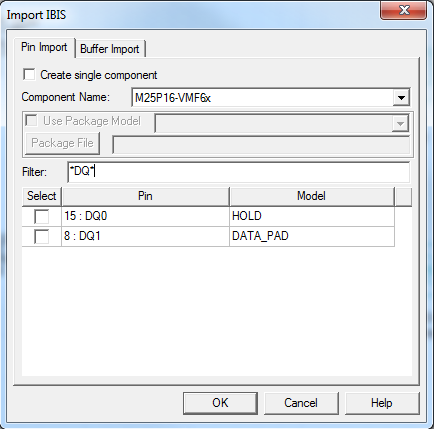
- Alternatively, click the Filter: field to enter a pin name, which can use asterisks as wild-card characters. Click Select at the top of the column to automatically select any pin names that match the Filter:
If the IBIS file contains differential pins, they appear in the pin list:
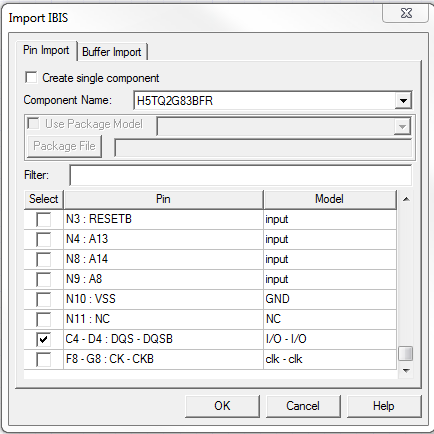
Here the two differential pins (C4-D4: DQS - DQSB) have been selected.
- Click OK to generate the components on the IBIS Pin Import.
(See Power Nodes in the IBIS File Import Technical Notes for details on the methods for supplying power to imported IBIS components. See Package RLC Parasitics in the technical notes for details on support for RLC parasitics in IBIS components. The next step is to place the IBIS components in the schematic.