
In most cases, after clicking OK on the IBIS Import window, a copy of the symbol for the component are attached to the cursor so you can place it in the schematic. Also generate an instance of an IBIS buffer component from the Definitions folder:
- Expand the Definitions folder in the
Project window, then expand the Components folder.
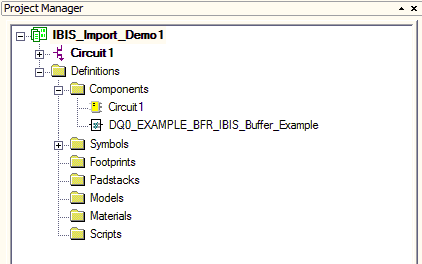
- Click chosen component and drag the symbol into the schematic.
Component Import, Package Model, All Pins Imported
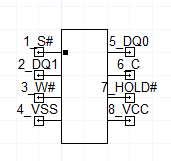
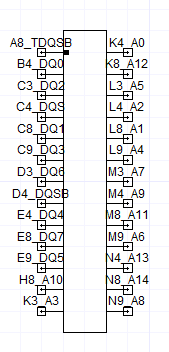
IBIS single components are named for the IBIS library file and the [Component] entry. The symbol shows all the pins with pin names and signal_names read on the file. This is the symbol for component with a [Package Model] and all pins imported. The symbol includes all signal, POWER, and GND pins for connection in the schematic.
Component Import, Package Model, Selected Pins Imported
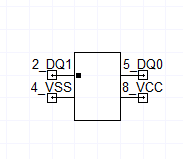
IBIS single components are named for the IBIS library file and the [Component] entry. The symbol shows all the pins with pin names and signal_names read on the file. This is the symbol for component with a [Package Model] with some selected pins imported. The symbol includes only the selected signal, POWER, and GND pins for connection in the schematic.
Component Import, No Package Model, All Pins Imported
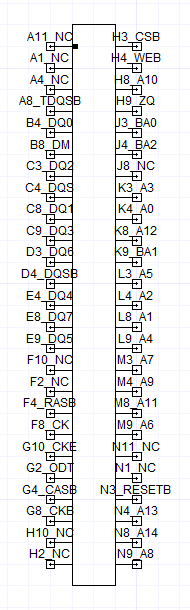
IBIS single components are named for the IBIS library file and the [Component] entry. The symbol shows all the pins with pin names and signal_names read on the file. This is the symbol for a component with no [Package Model] and all signal pins imported (no individual pins selected). The symbol includes all signal pins for connection in the schematic.
Component Import, No Package Model, Selected Pins Imported
IBIS single components are named for the IBIS library file and the [Component] entry. The symbol shows all the pins with pin names and signal_names read on the file. This is the symbol for the component in the preceding screenshot with no [Package Model] and selected signal pins imported. The symbol includes just the selected signal pins for connection in the schematic.
Pin Import or Buffer Model Import
IBIS Pin Import components typically have names that begin with the pin name. IBIS Buffer Model Import component names begin with the model name or model selector name.
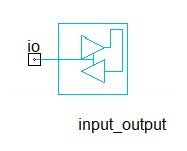
Single-pin IBIS components all use the following default schematic symbol. The text changes to show the buffer type selected for each component instance. The example shows the input_output buffer type.
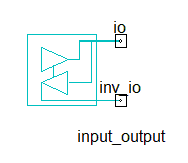
Differential IBIS components all use the following default schematic symbol.
When you are finished placing instances of the component, right-click and select Finish or press Esc on the keyboard to stop placing instances.
The last step in the import process is to verify the settings of the component properties.