
The N-Port Data Source tab is displayed when the N-port data window opens.
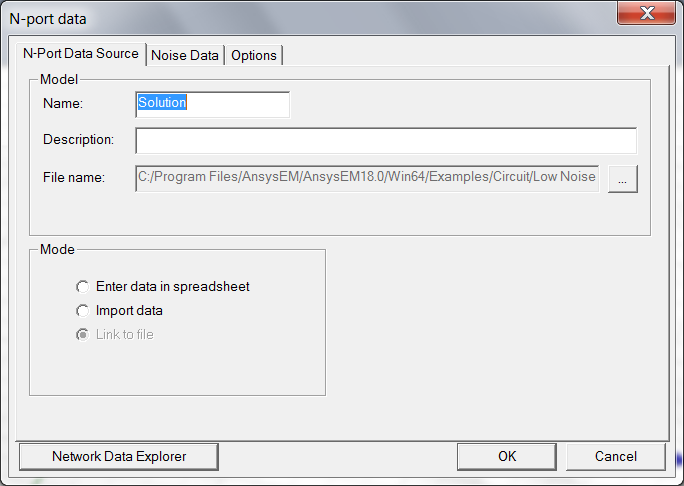
Name – Used to set or change the name of the imported solution as it appears in the Project Tree. To change the name, click in the box , then type the name you want.
Description — Used to set or change the description of the imported solution. To change the description, click in the box , then type the description you want.
File Name – Used to set or change the file name of the imported solution. To set the file name, click in the box and then type the file name you want, or click the [...] button to search for a file.
Multi-file selection — Used to import an S-element file.
Mode — The network solution data can be entered manually, copied into the project from an external file as Import data, or read from an external Link to file at analysis time. To manually enter solution data, click Enter data in spreadsheet, and enter the network data as described in the Noise Data Tab section.
To import an S-element file and copy it into the project from an external file:
- Click Import Data in the N-port data window.
- Specify the File name in one of the following ways:
- From the file name box, type the file name, including the full path, of the file that contains the network parameters you want to use.
- Click the [...] button to open the explorer window.
- Select the chosen file type from the Files of type area:
- click the Look in field to browse to the directory containing the chosen file.
- Select the file in one of the following ways:
- Click the file’s entry in the list.
- Type the file’s name in the File Name box.
- Click Open.
Once you have finished, the N-port data is copied into the project from an external file.
If you select multiple files using the Multi-file selection… and create a Text Array variable, the S-parameter data is NOT imported. It are the same as if you had chosen the Link to file option.
To import solution data and copy it into the project from an external file:
- Click Import Data.
- Specify the file name in one of the following ways:
- From the file name box, type the file name, including the full path, of the file that contains the network solution.
- From the File group, select a file location option (Use Path, In PersonalLib folder, In userlib folder, or In syslib folder).
- Click the [...] button to open the explorer window.
- From the explorer window, click the chosen file type on the Files of type area.
— Touchstone (.sNp)
— Planar EM/HFSS v6.0 and higher (.szg)
— Touchstone (.yNp)
— Touchstone (.zNp)
— Touchstone (.tou)
— CITIfile (.cit)
— SSS file (.sss)
- click the Look in field to browse to the directory containing the chosen file.
- Select the file in one of the following ways:
- Click the file’s entry in the list.
- Type the file’s name in the File Name box.
- Click Open.
Once you have specified a file, view its contents in the Noise Data Tab.
S-parameter SSS datafile names must be of the format
“<file name>_ <ports> .sss”
where:
<file name> is an alphanumeric string
<ports> is an integer that specifies the number of ports
such as:
SparamFile_4.sss
To specify an external file from which network parameter data are read at analysis time:
- Click Link to file.
- From the File group, select a file location option (Use Path, In PersonalLib folder, In userlib folder, or In syslib folder).
- Specify a file name in either of the following ways:
- From the file name box, type the file name , including the full path, of the file that contains the network parameters you want to use.
- Click Browse to open the Open window.
- Select the chosen file type in the Files of type area.
- click the Look in field to browse to the directory containing the chosen file.
- Select the file in one of the following ways:
- Click the file’s entry in the list.
- Type the file’s name in the File Name box.
- Click Open.
Once you have specified a file, view its contents in the Noise Data Tab.