
Design Verification uses rule sets and runs to define a particular check of the layout. A layout may have multiple rule sets defined and a rule set may have multiple runs defined. Results are stored for each run and may be viewed or exported graphically. A text summary of the results of the run is available to be viewed or exported to a text file. Items related to design verification are stored in the Project Tree under Design Verification.
To define a rule set, right-click Design Verification in the Project Tree and select Add Rule Set. This opens the Design Verification Rule Set Dialog window.
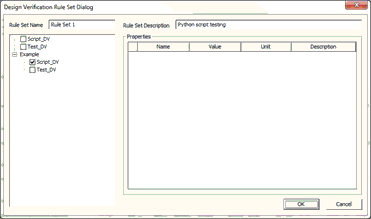
The Design Verification Rule Set Dialog window is used to access pre-existing legacy scripts and define new rule sets. Rule sets contain the scripts that specify DV checks. Scripts may be Java Script, VB Script or Python Script. The Tree View on the left of the window shows the names of available scripts. The names of pre-existing Java and VB Scripts already supported are listed at the top of the Tree View.
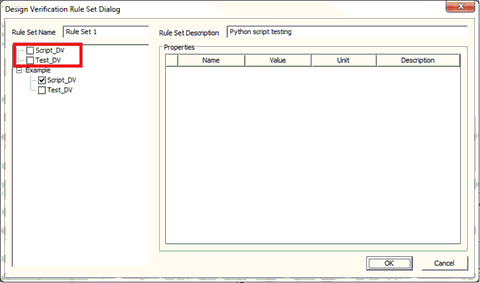
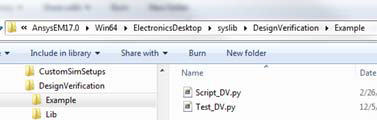
Python Scripts are also supported and are listed in the Tree View beneath Java and VB Scripts in non-leaf nodes. Python Scripts are stored in sub-folders in \syslib\DesignVerification. To edit a Python Script, you must open the script file and edit it manually in the DesignVerification folder.
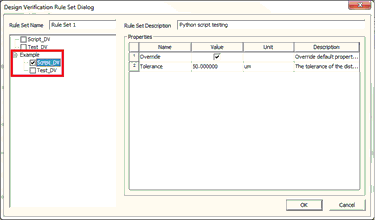
- To access a pre-existing Java or VB script in the Design Verification Rule Set window, right-click the script name and select Add, Remove, or Edit.
- To add a new rule script, change the Rule
Set Name as chosen and click Add Rule Script to open the Select Definition window.
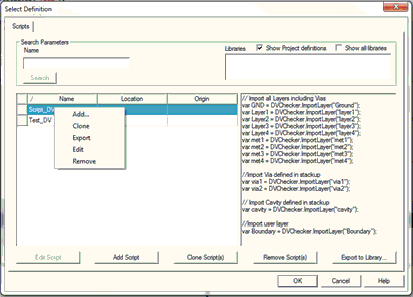
From the Select Definition window, right-click to Add, Clone, Export, Edit, and Remove a script.
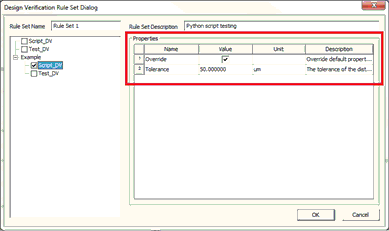
Script properties listed in the Grid Control to the right of the window are defined in the Python Scripts, and their values can be changed for the current project.
Any number of additional scripts may be added to the rule set. When you have finished making additions and selections in the Design Verification Rule Set window, click OK to add the new rule set. The Verification item in the Project Tree now contains the new rule set item.
To select a script to be part of a design verification run, select the check box of its node in the Tree View. All selected scripts are run for the current Rule Set. For more information, see Design Verification Runs.