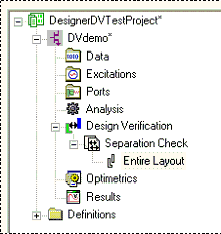
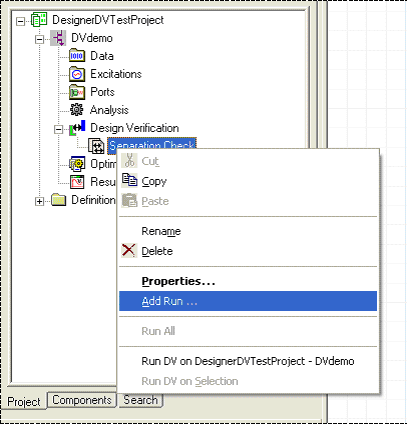
To define and execute a Design Verification run, on the Project Manager window, expand the Project Tree. Then right-click the Rule Set you wish to define and select Add Run to open the Design Verification Run window.
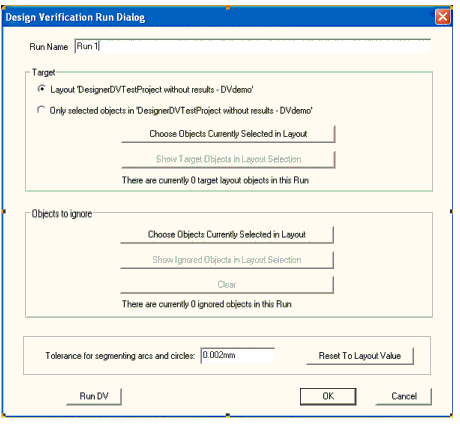
This window is not modal.
Design Verification allows selected target objects to be at or below the active level of the hierarchy.
Change the Run Name as chosen and select from the following options:
Target
- Select the first Target button to specify the entire layout is to be checked.
- Select the second Target button to specify that only selected objects can be checked.
- Click Choose Objects Currently Selected in Layout to select objects for this run; the run message updates to show the number of objects in this run.
Objects to ignore
- Click Choose Objects Currently Selected in Layout to select objects to ignore for this run; the run message updates to show the number of ignored objects in this run.
Tolerance
- Set the tolerance value for segmenting arcs and circles, or set the tolerance to the value used by Layout.
Click OK to save your changes and close the window. Click Run DV to run the design verification. Alternately, you can run the design verification by opening the Project Tree and clicking the Run Name that resides beneath the corresponding Rule Set.
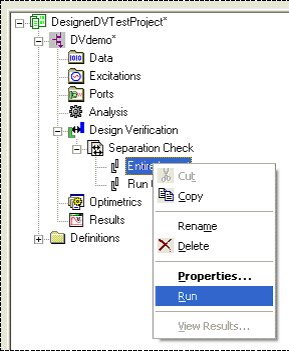
From the Project Tree, the rule set item now contains a run item. The current icon for the run has no color, which indicates the run has not been executed. Once executed the icon has color.