
Pin groups can be created from pins that are both in components and assigned to a net. If a pin is not assigned to a net or a member of a component, it cannot join a group.
- Create any appropriate components or nets.
- Click Draw > Create/Manage Pin Groups to open the Create/Manage Pin Groups window.
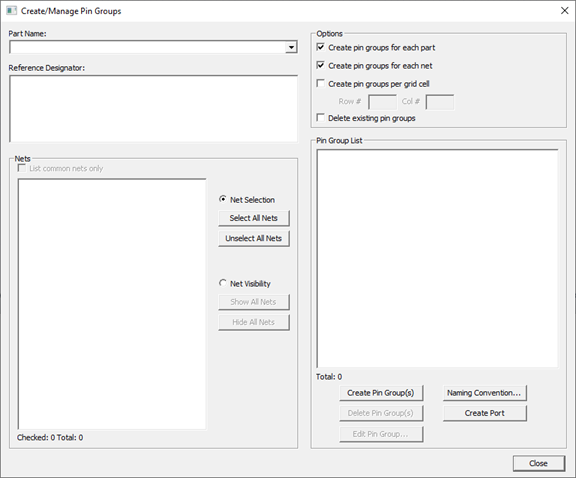
- Make a selection on the Part Name drop-down menu. This is the component name. Select Don’t know to display existing pin groups in the design.
Nets that do not “overlap” with a component do not appear in this window.
- Select the Reference Designator (s).
- Select the Net Selection or Net Visibility options:
- To select all nets that overlap with the component, click Net Selection, then click Select All Nets. The pins associated with the selected nets are shaded.
- To show all the nets in the drawing area, click Net Visibility, then click Show All Nets.
- To show only the common pins when multiple reference designators are selected, click List common nets only.
- If a selected Part Name contains multiple Reference Designators, select any or all them and click Create pin groups for each part to have identical pin groups created on each Reference Designator.
- If multiple nets are selected, click Create pin groups for each net to generate multiple pin groups; one for each of the nets that are selected.
- To specify the grid locations to create pin groups, select Create pin groups per grid cell and enter the Row # and Col #. The Drawing Area is updated.
- To create pin groups from a reference designator:
- Select the nets you want to include in the pin group on the Nets List. All pins associated with the net(s) are included. When nets are selected on the net list box, the associated pins are marked with black mesh boxes.
- Specify if you want to use the naming conventions. Click Naming Convention to open the Naming Convention window. Select if you want to Use the Naming Convention for the particular circuit element. Click OK to close this window.
- Click Create Pin Group.
- To create a pin groups of pins from multiple reference designators:
- Select the pins you want to include in the pin group on the Drawing Area.
- Clear the Create pins groups for each part and Create pins groups for each net to create a pin group.
- Click Create Pin Group.
- To create ports, click Create Port to open the Port Generation Options window.
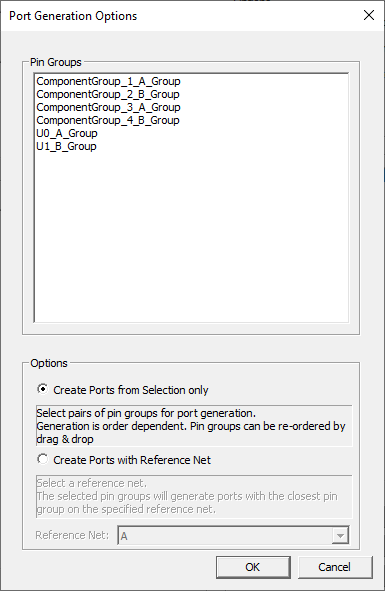
- Drag the pin groups in the Pin Group list into the order that you want them to pair up. The first group pairs with the second, the third with the fourth, etc.
- To create ports between selected pin groups, select an even number of groups in the list and click Create Ports from Selection only.
- To create a port from a net, select one or more pin groups, click Create Ports with Reference Net, and select a net to reference. If you select multiple pin groups, each selection creates a port with that pin group and the closest pin group on the selected net.
- Click OK.
- Click Close.