
Activating Layers
To draw on a layer, it must first be activated. This can be done on the Layers workspace, the Edit Layers window, or the Layout tab. Follow the steps below to activate a layer from each location.
Layers Workspace
To open the Layers workspace, navigate to View > Layers, or click the Layers tab on the right-hand side of the Layout Editor.
From the Layers Workspace, select a layer to activate it.
Edit Layers Window
From the Layout Editor, perform one of these steps to open the Edit Layers window.
From the Layout tab, select the
 Layers dialog icon.
Navigate to the Layout > Layers .
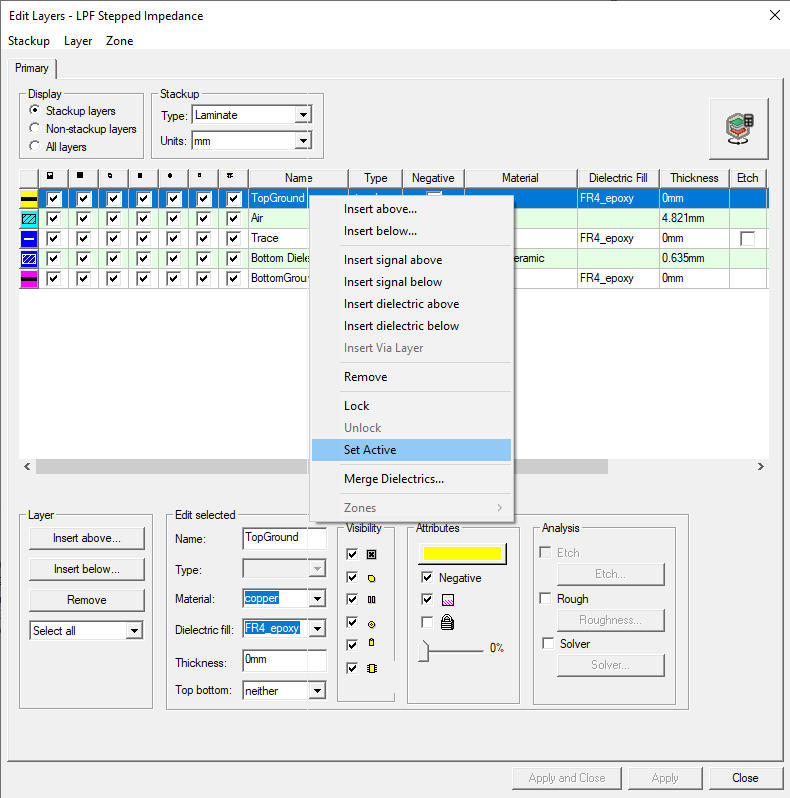
From the Edit Layers window, right-click an inactive layer and select Set Active.
Click Apply and Close to close the Edit Layers window.
Layout Editor Ribbon
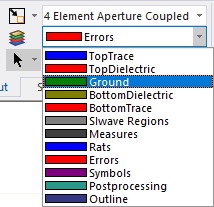
From the Layout Editor, select an inactive layer on the Layers dialog drop-down menu to activate the inactive layer.
The procedure is complete.