
3D Modeler Options: Snap Options
Under 3D Modeler options, Snap options allow you to decide how Electronics Desktop snaps objects. By default, most objects are set to snap (adhere) to the nearest point on the grid. The coordinates of this point are used, rather than the exact location of the mouse.
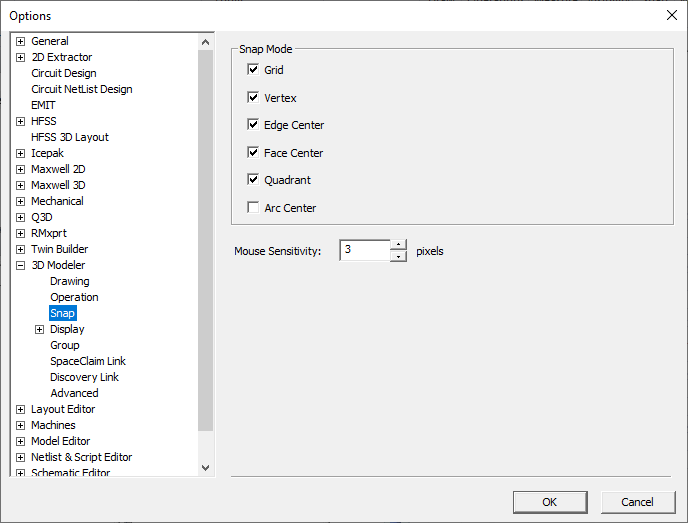
In the Snap Mode area, select the points you would like the cursor to snap to:
- Grid
- Vertex
- Edge Center
- Face Center
- Quadrant
- Arc Center
Use the Mouse Sensitivity option to select how many pixels you must move the mouse before a different snap point is selected. Values between 1 and 20 are accepted, with 1 being the most sensitive and 20 being the least sensitive. The default is 3.
You can also access snap settings:
- From the Modeling Workspace – While in draw mode, right-click and select Snap Mode.
- From the Toolbar – Select Modeler > Snap Mode.
- From the Draw Ribbon – Select and deselect the snap icons.

Hover over each icon for a tooltip indicating its equivalent menu option.
In general, you should select at least one of the snap options . If none is selected, the software is in "free mode" and selects whatever point you click, regardless of its coordinates. This can cause problems creating closed objects because the point you select may appear to be the vertex point of an open object, but may not be the exact coordinates.