
Registers
Calculator registers hold field quantities, numbers, vectors, and geometries. No registers are created until you load something into the calculator; therefore, this part of the window is initially blank. As items are loaded into the calculator, it creates new registers to hold them.
The calculator is capable of performing operations on a number of different data types. In many instances, a calculation requires certain type(s) of data to be present in the correct order in the stack register. Many operations result in a different data type than the inputs. In order to show you the type of data contained in each stack entry, calculator denotes its data type by a prefix indicator as shown in Stack Contents showing Data Type Indicators (at left), below.
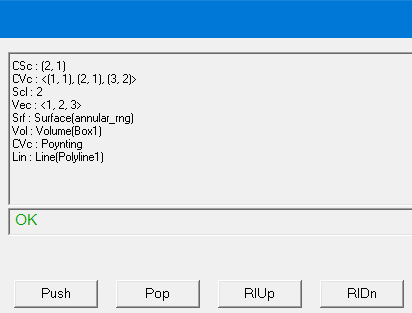
The following table describes and defines each indicator, and provides guidance regarding operations which can convert data from one type to another.
|
Vec |
Vector (non-complex) quantities, which have both direction and magnitude at each point in space. The x-, y-, and z-components of these quantities are stored in the register. Vectors are always evaluated in the coordinate system of the model. To convert a vector quantity to a scalar, use the Scal? drop-down menu from the Vector column. Suboptions ScalarX, ScalarY, and ScalarZ will take the appropriate scalar component of the vector data. Optionally, you can also Dot the vector with another vector to obtain the appropriate scalar result, or use the Tangent (return the tangential scalar component of) or Normal (return the normal scalar component of) operations to relate the vector quantity to a geometric data (Lin, Srf) stack entry. Convert to a Complex quantity using the CmplxR and CmplxI operations described in Scl, above. |
|
Scl |
Scalar quantities, which have a magnitude only. This is a simple numerical value. To convert a scalar to a vector quantity, use the Vec? drop-down menu in the Scalar column. The choices VecX, VecY, and VecZ convert the scalar data to vector data aligned with the X, Y, or Z unit vectors, respectively. You can also multiply the scalar quantity by a desired vector direction entered manually (Num dropdown in the Input column) or obtained using the Unit Vec button from the Vector column. To convert a scalar to a complex quantity, use either CmplxR (assign the scalar value as the real component of a complex quantity) or CmplxI (assign the scalar value as the imaginary component of a complex quantity), both found under the Cmplx dropdown in the General Column. |
|
Cvc |
Complex vector quantities. This is a numerical value with real and imaginary components. Convert to a vector quantity using the same techniques described for Scl, above. Convert to a scalar using Real (take the real component), Imag (take the imaginary component), CmplxMag, (take the magnitude of the complex number) or CmplxPhase (take the phase of the complex number), all within the Cmplx dropdown in the General column. |
|
Csc |
Complex scalar quantities. This is a numerical value with real and imaginary components. Convert to a vector quantity using the same techniques described for Scl, above. Convert to a scalar using Real (take the real component), Imag (take the imaginary component), CmplxMag, (take the magnitude of the complex number) or CmplxPhase (take the phase of the complex number), all within the Cmplx dropdown in the General column. |
|
Pnt |
Points. |
|
Lin |
Lines. Lines may be straight, curved, or “polylines” in three dimensional space. Lines may also be open (have two endpoints) or closed (ending vertex same as starting vertex). |
|
Srf |
Surfaces. Surfaces need not be planar, and may actually comprise a list of object faces (faces list) as well as planar slices through the entire model space (cutplanes). |
|
Vol |
Volumes. Volumes may include sets of discontinuous object volumes created as an Object. |
|
SclLin |
Scalar value on a line. |
|
VecLine |
Vector value on a line. |
|
SclSrf |
Scalar value on a surface. |
|
VecSrf |
Vector value on a surface. |
| List | These indicators may exist alone, representing geometric data only, or in combination with one of the categories above, indicating a type of data applied to the geometric entity in question. For example, the notation SclSrf identifies a stack entry containing Scalar data on a Surface geometry set. To select only the portion of a given data entry which exists along, on, or within a given geometry quantity, use the Value button in the Output column of the calculator. Other operations (e.g., integration, the Normal button) operate when a data quantity is in the second stack register and a geometric quantity is in the top stack register. Full descriptions of the register requirements for each individual command is available in the online help. |
When examining calculator registers, keep the following in mind:
- To move or delete calculator registers, use the stack commands.
- To save a register to a disk file, use the Write command.
Users must be cautious concerning what type of data the Fields Calculator is manipulating and whether or not it is compatible with the desired operation. For example, the integral operation is often misused. Note that the integral sign is in the Scalar column, implying that, to integrate complex number/quantities, the user will have to integrate the real and imaginary components separately. In other words, performing integration on complex number/quantities must be achieved by parts.