
Exporting Reports as Graphics
You can export reports as figures in several formats. You must have an existing plot open to see the Report2D or Report 3D menu.
- With a report open, click Report2D> Export... or Report3D> Export...
The Export Report dialog box appears:
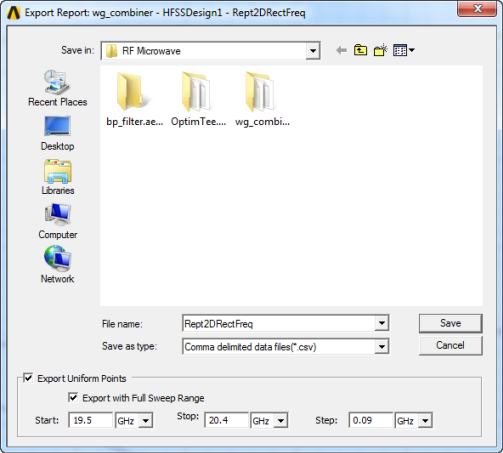
- Click Browse... to open the Export Report browser window.
- Specify the file location and name, and select a graphics format from the drop-down menu:
- .bmp
- .gif
- .jpeg
- .png
- .tiff
- .wrl
- When you select a graphics format, the Image Export Options appear at the bottom of the dialog box:
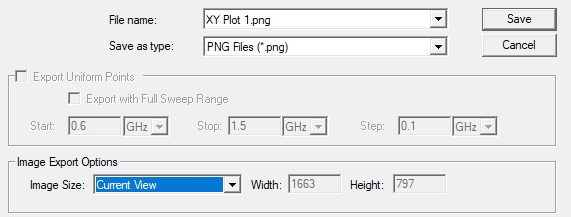
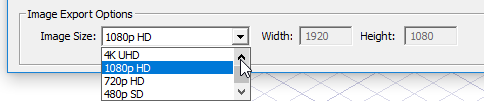
- Specify the Image Export Options by selecting from the drop-down menu. You may need to scroll or click the up or down arrows to see all selections. These include: Current View, User Defined (which enables the Width and Height fields), Full Screen, 8K UHD, 4K UHD, 1080p HD, 720p HD, and 480p SD. The resolution for the current selection is displayed in the Width and Height fields.
- Click Save to close the browser window, and then OK to close the Export window.
To export an image file of a report to specified high resolution, use the scripting commands. The image can be created at a specified resolution. Fonts and line thickness is not scaled. Only the image. You will have to iteratively increase font sizes until you find a suitable output.