
Selecting Objects and Surfaces That Lie Inside Other Objects
To select objects and faces that lie inside other objects (such as an object that lies within an air box, a conductive shield, or the background object), do one of the following:
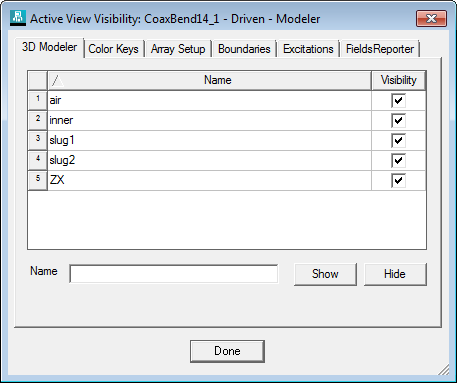
- From the menu bar, View> Visiblity> Active View Visibility... to access the Active View Visibility dialog box. Then, under the 3D Modeler tab, use the check boxes in the Visibility column to control which objects are visible and which are hidden.
This method, and the method that follows, is useful when you want to select objects using the mouse, since the mouse cannot select invisible objects.
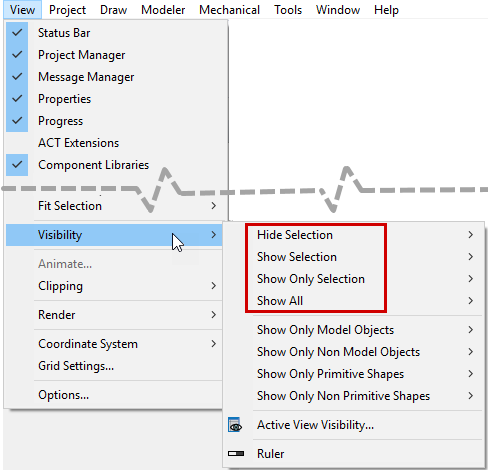
- Make the objects on the outside of the model invisible using the menu bar's other View> Visibility> commands:
or the same commands on the View, Draw, or Model ribbon tabs:
.png)
- Use the Select by Name command to select Objects or Faces inside the model.
- Use the Next Behind command in the Edit menu or Modeler shortcut menu, or use the B shortcut key. This command selects the object that lies behind the one you initially selected. This command does nothing if no objects have previously been selected or if no object is behind the one you initially selected at the location you clicked.