
Distributed Analysis Configuration
After you have selected the active distributed machine configuration, you can edit its configuration in the Analysis Configuration window.
To edit the configuration:
- Access the Analysis Configuration window one of three ways:
- From the Simulation tab, click Analysis Config.
- Click Tools > Edit Active Analysis Configuration.
- From the HPC and Analysis Options window, select the configuration and click Edit.
Note:You can also access the Analysis Configuration window from the HPC and Analysis Options window by clicking Add or Copy. When using Add or Copy, the steps are the same as below, but you will need to specify a Configuration Name. The name cannot be empty and it cannot be a reserved name.
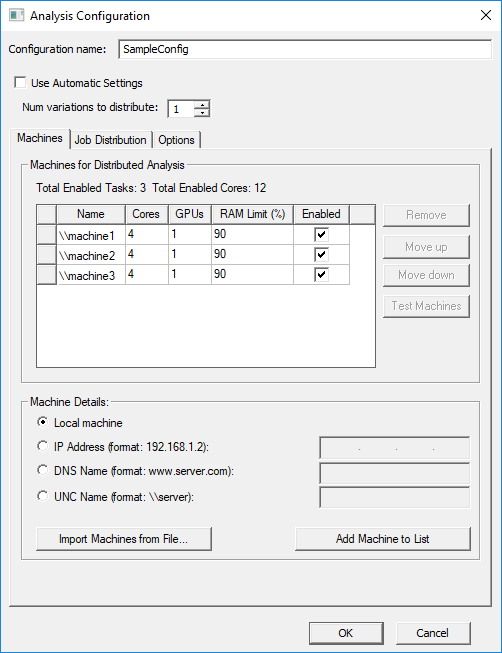
The Analysis Configuration window appears.
 Note:
Note:Available options may vary slightly depending on the solver and design.
- If automatic settings are supported, the Use Automatic Settings check box allows you to select this option and set parameters based on the best use of available resources for the current analysis. Deselecting it enables the Job Distribution tab, where you can assign resources manually.
HFSS and HFSS 3D Layout use Automatic Settings by default. For HFSS Auto Solutions, you must select Use Automatic Settings.
Selecting Use Automatic Settings enables the Num Variations to Distribute option. If you specify more than 1, the distribution of variations is in proportion to RAM availability on the machines listed. Depending on the resources available and whether the simulation defines optimetrics variations and other distributed types, the simulation can include up to three levels of distribution. Variations will not be distributed when the number of variations to distribute is set to 1.
The GPUs column applies only to SBR+ solutions.
- Use the tabs to navigate through the rest of the settings:
- Machines – contains the machine list. You can add, enable, remove, test, and reorder machines from the list.
- Job Distribution – when Use Automatic Settings is deselected, this tab appears and allows you to select job distribution settings manually.
- Options – allows you to specify additional options, depending on the design type.
- Click OK to save the configuration settings.