
Setting the Solution Frequency
For Driven solution types.
For every Driven solution setup, specify whether to solve a Single Frequency, Multi-Frequency, or Broadband, and provide the frequency information and units at which to generate the solution. Each method changes the fields shown in the dialog to those needed for the selection. If you enable HPC, multiple frequencies will be distributed.
If a single frequency sweep is solved, an adaptive analysis is performed only at the solution frequency. If you want to solve over a range of frequencies, define a frequency sweep or a Mult-Frequency or Broadband solve. You must first assign an excitation for the Mult-Frequencies and Broadband options to appear on the setup.
In multiple frequencies solve, port adapt is at the highest frequency and lambda refine is based on an algorithm that uses the highest and lowest user frequencies to allow maximum reuse of solved data. The lambda refinement frequency is the "nominal frequency". The mesh at each pass is solved at multiple frequencies and energy error from all frequencies points are used to drive the mesh refinement for the next pass. The adaptive solution is converged when the simulation reaches the maximum number of passes or when all frequency points reach the targeted maximum delta S. The minimum converged passes and minimum number of passed parameters apply as the total requested passes.
Single Frequency
If you select Single for solution frequency, you specify a value and units with a maximum delta S (or Matrix Convergence), plus the maximum number of passes.
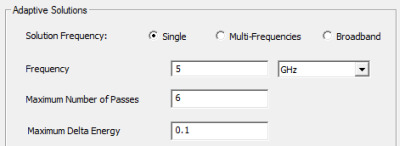
- Enter a value for Solution Frequency and select the frequency units from the pull down list.
- Specify the Maximum Number of Passes Note:
For Fast sweeps, HFSS uses the solution frequency as the center frequency if it is within the frequency range (greater than the start frequency and less than the stop frequency.) Otherwise the middle of the frequency range is used as the center frequency.
Multi-Frequency
If you select Multi-Frequencies, you can click Add to add additional frequencies, and edit the value, units, and Max. Delta for each frequency.
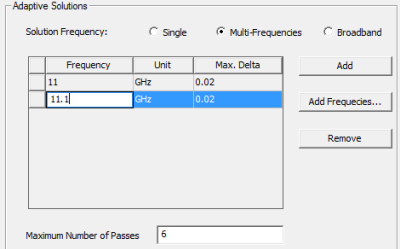
You can use the Add button to specify one frequency at a time
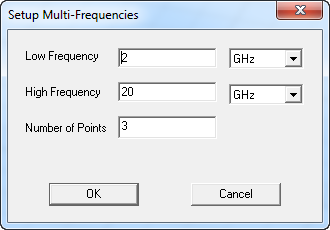
When you OK the dialog box, rows for the frequencies across the number of points appear in the Solution Setup dialog.
You can use Remove to remove any selected items in the Frequency Sweeps table.
If you want to create a Frequency animation of field results, you must specify the frequencies here in the Multi-Frequency Solution setup.
Broadband
If you select Broadband, you define the frequency band by providing the low and high frequency, with a maximum delta S (that is applied to all solved frequencies), plus the maximum number of passes. The meshing frequencies include the Low and High with the remaining points determined automatically by HFSS. When the user requests DC as the low frequency, the lowest frequency solved by the adaptive meshing process is determined by an algorithm that looks at the range of frequencies you entered.
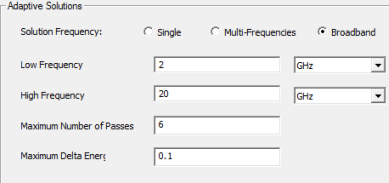
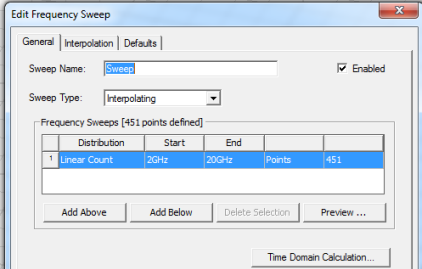
When you OK the Solution Setup for Broadband, you are automatically presented with a dialog for specifying an Interpolating sweep.
Simulation and Convergence
In multiple frequencies modes, when frequency point p convergences prior to frequency point q, keep adapting at p until q and all other points achieve convergence.
The convergence data in the solution data dialog for single frequency mode is calculated in the same way as before. In multiple frequencies mode, the convergence plotted on the convergence display item corresponds to the global maximum delta S. Convergence data such as “Max. Delta S” appear in the reporter as standard solution quantity so that you can easily plot the maximum delta S for each frequency point vs. pass.
Solution Reporting
For multiple frequencies adapted solutions, the S-Matrix solution display let you to view matrix data across different frequencies of its AdaptivePass and LastAdaptive solutions.
In “Broadband” mode, the nominal frequency is solved and its results are available for all post processing, Optimetrics and expression cache setup. In this mode, results of other solved frequencies will be shown in the S-Matrix solution display but will not be available in reporter, Optimetrics and expression cache setup. In “Muti-Frequencies” mode, all post postings of the AdaptivePass and LastAdaptive will be extended to support results at all user-specified frequencies. Creating a report with solution across multiple frequencies will be the same as creating such report with a sweep solution.